Automation Actions
Every action an Avox automation can take - messages, media, buttons, links, templates, tags and categories, contact fields, notes, delays, team alerts and webhooks - with fields, limits and credit costs.
Actions are what an automation does once its trigger fires. You add them from the Actions panel in the builder and fill them in right on the canvas. They run in order, left to right.
At a glance#
The Actions panel groups them the same way. Every message an automation sends costs 1 credit, except quick reply buttons and lists (2) and Flows (3). Everything that doesn't send a WhatsApp message is free.
Credits are spent only when a message is actually sent. If Meta refuses a send, no credit is spent. See Credits.
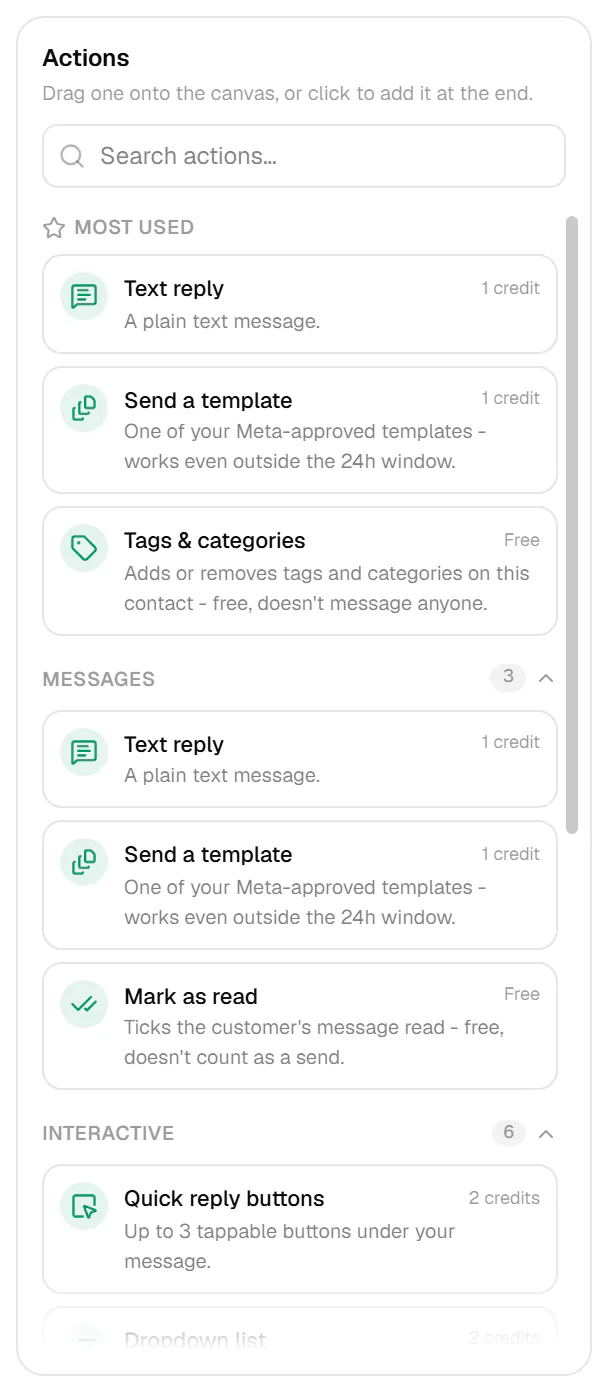
To add one, click it in the panel to put it at the end of the chain, or drag it onto the canvas. Search actions… also finds actions by related words, for example "pdf", "crm" or "menu". Each box on the canvas has Duplicate action and Remove action in its corner when you hover it. See Builder.
Most actions have a Wait field: "Wait 0 seconds before this". Set 1 - 30 seconds to pause briefly before the action runs. For longer pauses use Delay; to wait for the customer, use Wait for reply or Ask a question.
You can write {{reply}} in a note or a team notification: it's replaced by the customer's latest
message (the one that started the automation, or the reply a waiting step received).
WhatsApp gives interactive messages - quick reply buttons, lists, link buttons, Flows and a question with answer buttons - up to 1024 characters of message text. A plain text reply can be up to 4096.
Text reply#
"A plain text message."
- The reply - click the box ("Click to write the reply…") and type it. Required, up to 4096 characters ("Write the reply text").
Send a template#
"One of your Meta-approved templates - works even outside the 24h window."
- The template ("Pick a template…") - one of your approved templates, listed by name and language. With none approved yet, the box reads "No approved templates yet - get one approved on the Templates page first."
The template is sent exactly as approved: "Sends the template exactly as approved - no variables filled in automatically." Choose a template without variables for this action. An automation can only be switched on while every template it sends is still approved; if one leaves Approved later, that action is skipped. See Approval.
Mark as read#
"Ticks the customer's message read - free, doesn't count as a send." Nothing to configure. It marks the message that started the automation as read. A Tag added automation starts from a tag rather than a message, so this action has nothing to mark there.
Quick reply buttons#
"Up to 3 tappable buttons under your message."
- The message ("Message text above the buttons/list…") - required, up to 1024 characters ("Keep the message text to 1024 characters or fewer").
- The buttons - click + Add button to add up to 3 ("Button 1", "Button 2", ...). Each needs a title of up to 20 characters, and every title must be different ("Button titles must be unique").
When a customer taps a button, its title arrives as their next message, so it can start another automation - for example a Keyword match on that title.
Dropdown list#
"A tappable list of options, WhatsApp's native list message."
- The message ("Message text above the buttons/list…") - required, up to 1024 characters.
- List button label - required, up to 20 characters, "Options" to start with. The customer taps it to open the list.
- The options - click + Add option to add 1 - 10 options ("Option 1", "Option 2", ...), each with a title of up to 24 characters.
As with buttons, the option a customer picks arrives as their next message.
Send a link button#
"A message with one button that opens a website."
- The message ("Message text above the link button…") - required, up to 1024 characters.
- Button label ("Button label, e.g. Track order") - required, up to 20 characters.
- The link - required, a full
https://address, for example your order tracking or booking page.
The customer sees your message with a single button; tapping it opens the link in their browser. Good for order status, booking pages, payment links and menus.
Use Flows#
"Opens one of your existing published Flows."
- The intro ("Intro text shown above the Flow button…") - up to 1024 characters. Left empty, it reads "Tap below to get started."
- The Flow ("Pick a Flow…") - one of your published Flows. With none published yet, the box reads "No published Flows yet - publish one from the Flows page first."
- The button label ("Button label, e.g. Book now") - required, up to 20 characters, "Get started" to start with. The customer taps it to open the Flow.
An automation can only be switched on while every Flow it sends is still published (AVX-3078). If a Flow is deprecated later, that action is skipped when the automation runs. See Flows.
Ask a question#
"Sends a question, waits for the answer and saves it to a tag or contact field."
- The question ("The question, e.g. What's your budget?") - required, up to 1024 characters.
- Answer buttons (optional) - up to 3, each up to 20 characters. With buttons, the question is sent as a quick reply message (2 credits); without, as plain text (1 credit).
- Save the answer to:
- A contact field - a field name of lowercase letters, numbers and underscores, starting
with a letter (for example
budget). The answer is stored on the contact under that name. - A tag - the answer becomes a tag on the contact, with an optional prefix (for example
size:givessize:Large). A new tag can start a Tag added automation. - Don't save it - useful when a condition after it decides what to do.
- A contact field - a field name of lowercase letters, numbers and underscores, starting
with a letter (for example
- Wait up to - as for Wait for reply.
When the customer taps an answer button, the button's title is saved. A media message (a photo, for example) isn't saved as an answer. If Meta refuses to send the question, the automation stops there rather than waiting for an answer to a question that never arrived. Problems with this step show AVX-3171.
Request a call#
"Asks the customer for permission to call them (needs calling turned on)."
- The message ("Optional message, e.g. Can we call you about your order?") - optional, up to 1024 characters. Left empty, it reads "We'd like to call you about your recent conversation - is that okay?"
This sends WhatsApp's call permission request. Once the customer allows it, your team can call them from Calls. It only goes out when calling is turned on for the number the customer wrote to; otherwise the step is skipped (the builder shows a warning when none of your numbers has calling on). It costs 1 credit and, like other messages, needs the 24-hour window to be open.
Send an image#
"A photo from a URL, with an optional caption."
- The image link - required. A public
https://link to the image, for examplehttps://example.com/photo.jpg. "A public image URL - Meta fetches it directly, nothing is uploaded here." Make sure the link opens without a login. - The caption ("Optional caption shown under the image…") - optional, up to 1024 characters.
Send a video, document or audio#
"An MP4 video from a URL", "A PDF or other file from a URL", "A voice note or audio clip from a URL".
- The link - required, a public
https://link to the file. Meta downloads it when the step runs; nothing is uploaded to Avox. When the link ends in a file extension, it must be one WhatsApp accepts (AVX-3291):
- The caption - optional for a video or document, up to 1024 characters. Audio has no caption.
- File name (document only) - optional, the name the customer sees, for example
Price list.pdf.
A file larger than WhatsApp allows, or a link that needs a login, is refused by Meta when the step runs: that send is skipped and costs nothing.
Send a location#
"A map pin with a name and address."
- Latitude and Longitude - required, -90 to 90 and -180 to 180. Tip: in Google Maps, right-click a place to copy its coordinates.
- Place name - optional, up to 100 characters, for example "Our store".
- Address - optional, up to 300 characters.
Send a contact card#
"A contact the customer can save, with name and phone numbers."
- Name - required, up to 100 characters, for example "Support team".
- Phone numbers - 1 to 3, digits with an optional leading
+(spaces, dashes and brackets are fine). Click Add number for another.
The customer can tap the card to save it, call it or message it on WhatsApp.
Tags & categories#
"Adds or removes tags and categories on this contact - free, doesn't message anyone." This was called Tag contact before; existing Tag contact steps keep working as "add these tags".
- Add tags, Remove tags, Add categories, Remove categories - pick from your Switchboard's existing tags and categories, or type a new name and choose Create tag / Create category to create it right there. Up to 10 names in each list, each up to 40 characters, and at least one name in total. A name can't be both added and removed in the same step (AVX-3292).
- Create a missing tag or category when this runs - on by default. If a name in the step doesn't exist when the automation runs (for example it was deleted), it's created then. Turn it off to only use tags and categories that already exist; missing ones are skipped.
Tags and categories are saved on the contact in Avox and never sent to the customer. A tag the contact didn't already have can start a Tag added automation - see Triggers.
Set contact field#
"Saves a value (or their reply) to a contact field - free."
- The field - A custom field (name it with lowercase letters, numbers and underscores,
starting with a letter, for example
order_number) or one of the profile fields: Gender, Birthday, Age range, City, Country. - The value - Set it to a value (a fixed value you type or pick), or Use the customer's latest reply (the message that started the automation, or the reply a waiting step received).
Profile fields only take the values the contact profile allows: gender and age range from their
lists, a birthday as a date, a country as a 2-letter code like IN, a city up to 80 characters.
Setting a birthday clears the age range, and the other way round. When the value comes from a
reply that doesn't fit (for example "maybe" for gender), nothing is saved and the automation
carries on.
Add a note#
"Adds a private team note to the contact - free."
- The note - required, up to 2000 characters. Use
{{reply}}for the customer's message, for exampleAsked about bulk pricing: {{reply}}.
The note appears in the contact's notes on their profile, with Automation as the author. Notes are never sent to the customer.
Condition#
"Branches - continue one way if it matches, another way if not."
- What it checks - pick one:
- Values - for the first four options, at least one keyword, value or button.
- else and backup branches - optional paths for when the check doesn't match.
A condition checks the customer's latest message: the one that started the automation, or the reply a Wait for reply or Ask a question step received. On a match, the chain continues; on a miss it follows the else branch, or stops if there isn't one. A Tag added automation has no incoming message to check until it waits for a reply. The full guide is on Builder.
Wait for reply#
"Pauses until the customer replies (or the wait runs out, up to 23 hours)."
- Wait up to - 1 to 1380 minutes (23 hours), 60 to start with. Required (AVX-3170).
The automation stops at this step until the customer sends their next message. That message becomes the reply the next condition checks, and it doesn't start any other automation. If the wait runs out first, the automation carries on without a reply - put a condition set to No reply before the wait ended after it to handle that. A wait also ends early, about 10 minutes before WhatsApp's 24-hour window from the customer's last message closes, so a follow-up can still be sent.
Delay#
"Pauses for a set time (1 minute to 23 hours) without waiting for a reply."
- Pause for - 1 to 1380 minutes (23 hours), 30 to start with (AVX-3290).
The automation pauses, then carries on with the next step. Unlike Wait for reply, a message from the customer during the delay doesn't end it early, and isn't treated as an answer - it can start other automations as usual. The next condition still checks the message that started the automation. Like a wait, a delay ends a little early if WhatsApp's 24-hour window would otherwise close first, so the next message can still be sent. A delay counts toward the 10 pausing steps an automation can have.
Stop#
"Ends the automation here." Nothing to configure. Nothing after a Stop step runs on that path, and the canvas draws no connection out of it. Useful at the end of a branch, so it can't run on into the next step.
Notify the team#
"A bell notification for your team, with an optional email to Admins - free."
- Title ("Title, e.g. VIP customer waiting") - required, up to 80 characters.
- The message - required, up to 500 characters. Use
{{reply}}for the customer's message. - Also email the Admins - off by default. When on, every Admin of the Switchboard also gets an email with the message and a link to the contact.
The notification appears in the bell for everyone in the Switchboard, starts with the contact's name, and opens their profile. To avoid spam, one automation sends at most 20 notifications an hour, and at most one email per Admin every 15 minutes; past that, the step is skipped quietly.
Send to webhook#
"Posts the contact and their message to your own URL, like a CRM - free."
- The URL - required, a public
https://address (AVX-3293).
When the step runs, Avox sends a POST with a JSON body:
{
  "id": "evt_8f2c...",
  "type": "automation.webhook",
  "created_at": "2026-10-11T10:00:00.000Z",
  "data": {
    "automation": { "id": "…", "name": "Lead to CRM" },
    "connection_id": "…",
    "contact": { "id": "…", "name": "Rahul Mehta", "phone": "919820012345", "tags": ["vip"], "fields": { "email": "rahul@example.com" } },
    "message": { "id": "wamid.…", "text": "I'd like a demo", "button_id": null }
  }
}
message is null after a wait that ended without a reply. The headers are Avox-Event-Id,
Avox-Event-Type: automation.webhook and, when the number the customer wrote to has
message forwarding set up, Avox-Signature - signed with that
number's forwarding secret, exactly like forwarded messages, so you can check it the same way.
Without forwarding set up, the request is sent unsigned and the builder shows a warning.
- Only public addresses are called: local, private and cloud-internal addresses are refused, and redirects aren't followed.
- Your endpoint has 5 seconds to answer with a
2xxstatus. A timeout, a network error, a5xxor a429is retried once; anything else isn't. - Your endpoint's response body is ignored.
- One automation sends at most 30 webhook requests a minute.
- A failed request appears on the Logs page, and the automation carries on.
Conversations that wait#
An automation with a Wait for reply, Ask a question or Delay step can hold a real back-and-forth:
- One at a time - while an automation is waiting for (or delaying with) a contact, the same automation can't start again for that contact. If a contact has several automations waiting for a reply, their next message answers the one that asked most recently.
- Editing ends waiting conversations - turning the automation off or changing its steps ends any conversation it was waiting on, so nobody gets a reply to a question you've since changed.
- Limits - at most 10 pausing steps per automation (AVX-3172), and a conversation that loops back to an earlier question stops after 12 waits or 60 steps.
- Credits - waiting is free; every message sent after a reply costs its normal credits, and the conversation stops if credits run out.
- Paths end where the canvas ends them - a path that runs into a step that's only reached through a branch ends there, exactly as the canvas draws it.
The premade Lead qualifier, Appointment confirm or reschedule, Feedback with follow-up, Re-engagement with a template, Out of hours away message and Lead to CRM via webhook automations are ready-made examples - see Builder.
When a send is skipped#
- Out of credits - when the next send would cost more credits than remain, the chain stops at that point. Actions before it have already run. See Credits.
- Flow or template no longer available - the action is skipped and the chain continues.
- Meta refuses the message - for example a media file that's too large or can't be downloaded. The action is skipped, no credit is spent, and the chain continues.
- The 24-hour window has closed - only a Send a template action can still send; any other message (including media, locations, contact cards, link buttons and call requests) is skipped and the chain continues.
- Calling is off - a Request a call step is skipped when the number doesn't have calling turned on.
Every send an automation makes appears in the contact's conversation in the Inbox, next to your team's own replies.
Last updated