WhatsApp Shared Inbox
Read and reply to every WhatsApp conversation as a team - the conversation list, threads, the reply box, and the 24-hour window.
The Inbox is where your whole team reads and answers WhatsApp conversations. Every conversation on your connected number lands here, visible to everyone in the Switchboard - not just whoever's phone it reached.
Who can use the Inbox#
The Inbox needs a WhatsApp connection. Until your Switchboard has one, the Inbox item in the sidebar (under Messaging) shows a lock, and hovering it shows "Inbox is locked" with "This feature needs a WhatsApp connection first." (AVX-3001). Opening the Inbox address takes you to Connections. See Members and roles for what each role can do across the dashboard.
What shows up in the Inbox#
Because Avox connects with Coexistence, one conversation holds everything that happened with that customer, wherever it happened:
- Messages your customers send to your number.
- Replies your team sends from this Inbox.
- Replies your automations send.
- Messages your team sends from the WhatsApp Business app on their phone (see Coexistence sync).
- Chat history imported when you connected, if you chose to share it. Imported messages keep the time they were really sent, so they sit in the right place in each chat.
Text messages show their full text. A button or list reply shows the option the customer picked. Other
message types (photos, voice notes, documents, locations and so on) show as a short label such as
[image] or [audio], so you can see that something arrived and when. Completed WhatsApp Flow forms
are saved as Flow responses rather than chat bubbles - see Flows.
The page layout#
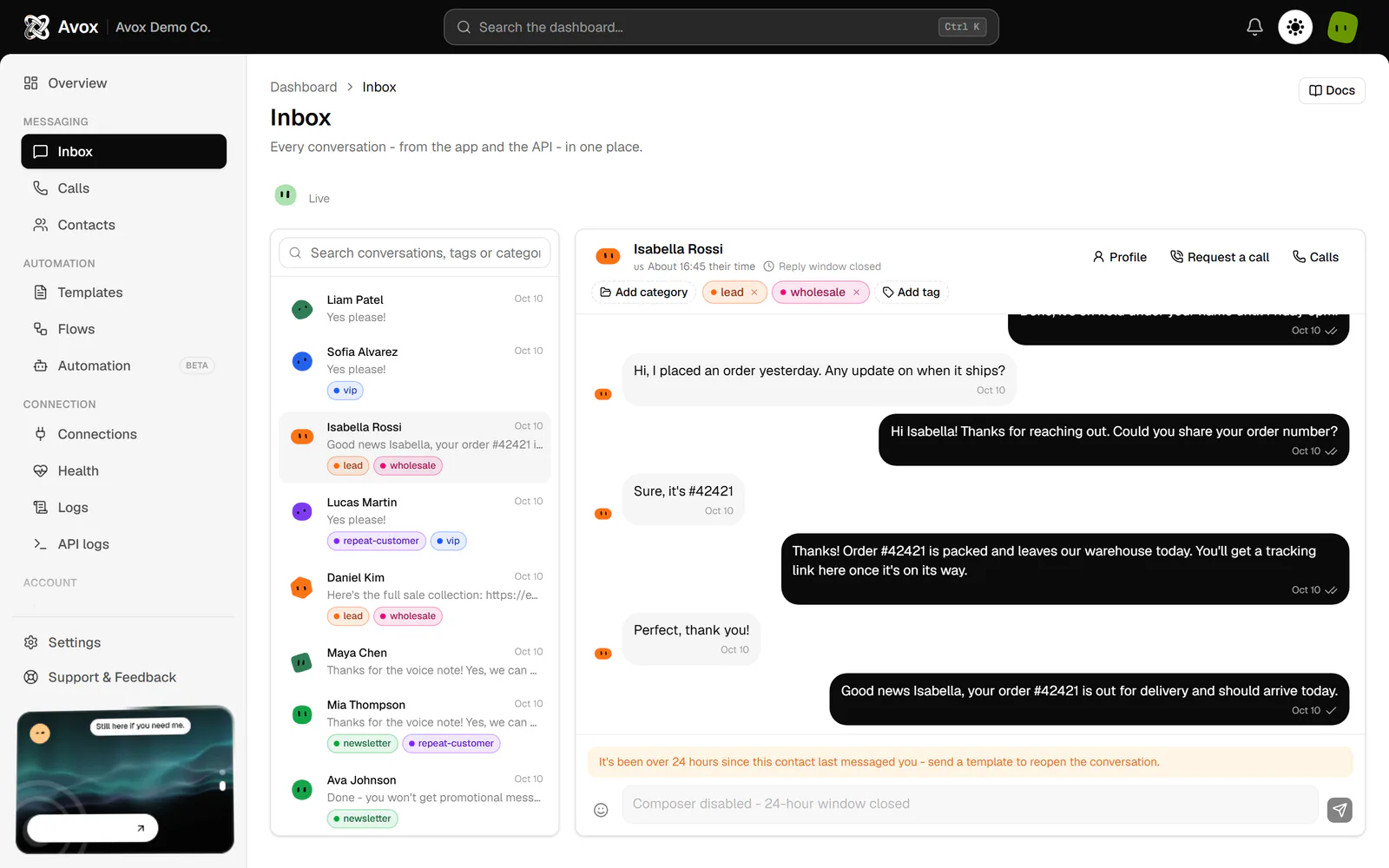
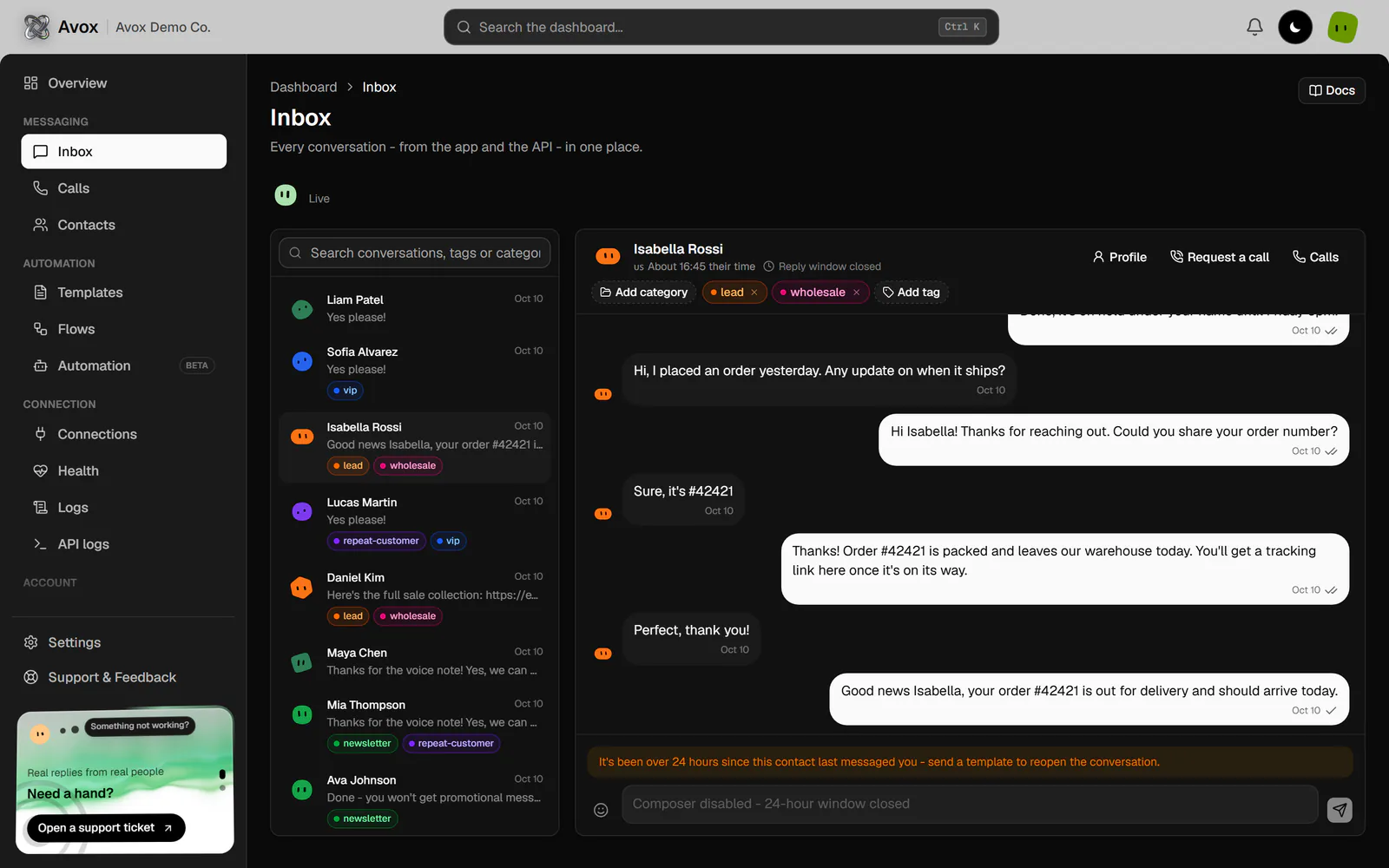
The header reads "Every conversation - from the app and the API - in one place." and has a Docs button that opens this page. Under it, a small status line next to the Avox Avatar reads Live while your number is connected, or "Connect a WhatsApp number to send and receive messages." when it isn't.
The rest of the page has two parts: the conversation list on the left and the open conversation on the right. On a phone they stack.
The conversation list#
One row per contact, most recently active first. The list shows your 30 most recently active conversations. Each row shows:
- The contact's avatar - the same generated avatar they have everywhere in Avox.
- The contact's name - the name saved in Contacts, or "Unknown contact".
- Their categories and tags (up to 2, then "+3") - see Tags and categories.
- A green dot when the customer's latest message hasn't been read yet. Once you reply, or open the conversation, the dot goes away at the next refresh.
- A preview of the latest message.
- How long ago that message arrived ("just now", "5m ago", "3h ago", or a date).
The list refreshes on its own every 15 seconds, so new conversations appear without reloading the page.
Search conversations#
Type in Search conversations, tags or categories at the top of the list. The list narrows to conversations whose contact name, latest-message preview, or one of their tags or categories contains what you typed. Clear the box to see every conversation again. If nothing matches, the list reads "No conversations match that search."
Looking for a customer you haven't talked to in a while? Find them on Contacts and click Message - their conversation opens here straight away.
Before your first message, the list reads "No conversations yet. Once your number is connected, incoming chats will list here."
Reading a conversation#
Click a conversation to open it. Until you pick one, the right side reads "Select a conversation to view it." You can also open a conversation directly: the Message button on Contacts and Open in Inbox on a contact's profile bring you here with that conversation already open.
The open conversation shows:
- The chat header: the contact's avatar and name, then a line with their flag and their local
time ("3:42 PM their time", worked out from the number's country; "About" when the country has
several time zones) and the reply window ("Reply window: 5h 12m left", amber in the last 2 hours,
or "Reply window closed"). Buttons on the right:
- Profile - slides open a side panel with the contact's key details: number, country, location, gender and age, categories and tags, message and call counts, and when they first appeared. Open full profile goes to their profile. On a phone the panel covers the chat; close it with the x.
- Request a call - asks the customer for permission to call them on WhatsApp (see Request a call).
- Calls - opens Calls filtered to this contact.
- Categories and tags under the name. With the Edit contacts permission, click Add category (folder icon) or Add tag (tag icon) to add one (type a new name to create it, and pick a colour), or the small x on a tag or category to remove it. The change shows in the conversation list straight away.
- Message bubbles for the 50 most recent messages, oldest at the top. Each bubble shows how long ago it was sent. Scroll up for older messages: they load on their own when you reach the top (or click Load older messages), and the conversation stays where you were reading.
A conversation with nothing in it yet reads "No messages yet."
Delivery ticks#
Replies sent from this Inbox and by your automations sit on the right with WhatsApp-style ticks. Hover or focus a tick to see what it means:
Ticks update on their own every few seconds while the conversation is open and the tab is visible, without reloading.
Request a call#
Request a call shows when Calling is turned on for your connection and you can reply in the Inbox and see Calls. It sends the customer WhatsApp's "may we call you?" prompt. While it sends, the button shows a small loader; then it reads Request sent. Like a normal reply, it only works inside the 24-hour reply window. If it can't be sent, a message says why.
Opening a conversation marks the customer's unread messages as read on WhatsApp, so the customer sees the blue ticks - the same as opening the chat on your phone. Avox does this for up to the 20 most recent unread messages in that conversation.
Replying#
- 1
Open the conversation
Click the customer in the conversation list.
- 2
Type your reply
Write in the box at the bottom ("Write a message…"). A reply can be up to 4,096 characters. Press Shift + Enter for a new line.
- 3
Send it
Press Enter or click the send button. The reply appears in the conversation straight away with the status
sent, and the Avox Avatar says "Sent."
After you send, WhatsApp reports the delivery and read status back to Avox, and the bubble's ticks update on their own. Replies count toward your stats on Overview and Analytics.
The 24-hour reply window#
WhatsApp lets you send a free-form reply only within 24 hours of the customer's last message to you. Avox checks this when you open a conversation, and again on the server before every send. The chat header counts down the time left, and the reply box turns off when it reaches zero:
- Inside the window - the customer's latest message to you arrived less than 24 hours ago. The reply box is open.
- Outside the window - the customer hasn't messaged you in the last 24 hours, or has never messaged you. The reply box is turned off, its placeholder reads "Composer disabled - 24-hour window closed", and an amber note above it reads "It's been over 24 hours since this contact last messaged you - send a template to reopen the conversation."
Only the customer's own messages open the window. Your replies, automation replies, and messages your team sends from the phone app don't extend it.
To restart a conversation outside the window, send an approved template. When the customer replies, the window opens again. See Messaging window for how WhatsApp defines it.
Errors in the Inbox#
If a reply can't be sent, the Avox Avatar next to the Inbox status line shows the reason in its speech bubble, and your text stays in the reply box so you can try again.
Last updated