Dashboard Overview
Your dashboard's home page - stat cards, the bento grid, charts, the Automation card, and account alerts, explained card by card.
Overview is the first page you see when you sign in to your dashboard. It answers "how are things going?" for the whole Switchboard at once: message activity, your Flows and templates, your connected number, and anything that needs your attention right now.
Everyone in the Switchboard can open Overview - Admins and Managers see the same page. It opens even before you connect a WhatsApp number, so it's also where you land straight after sign-up. Nothing on it changes your account; it is a read-only summary with links to the pages where you make changes.
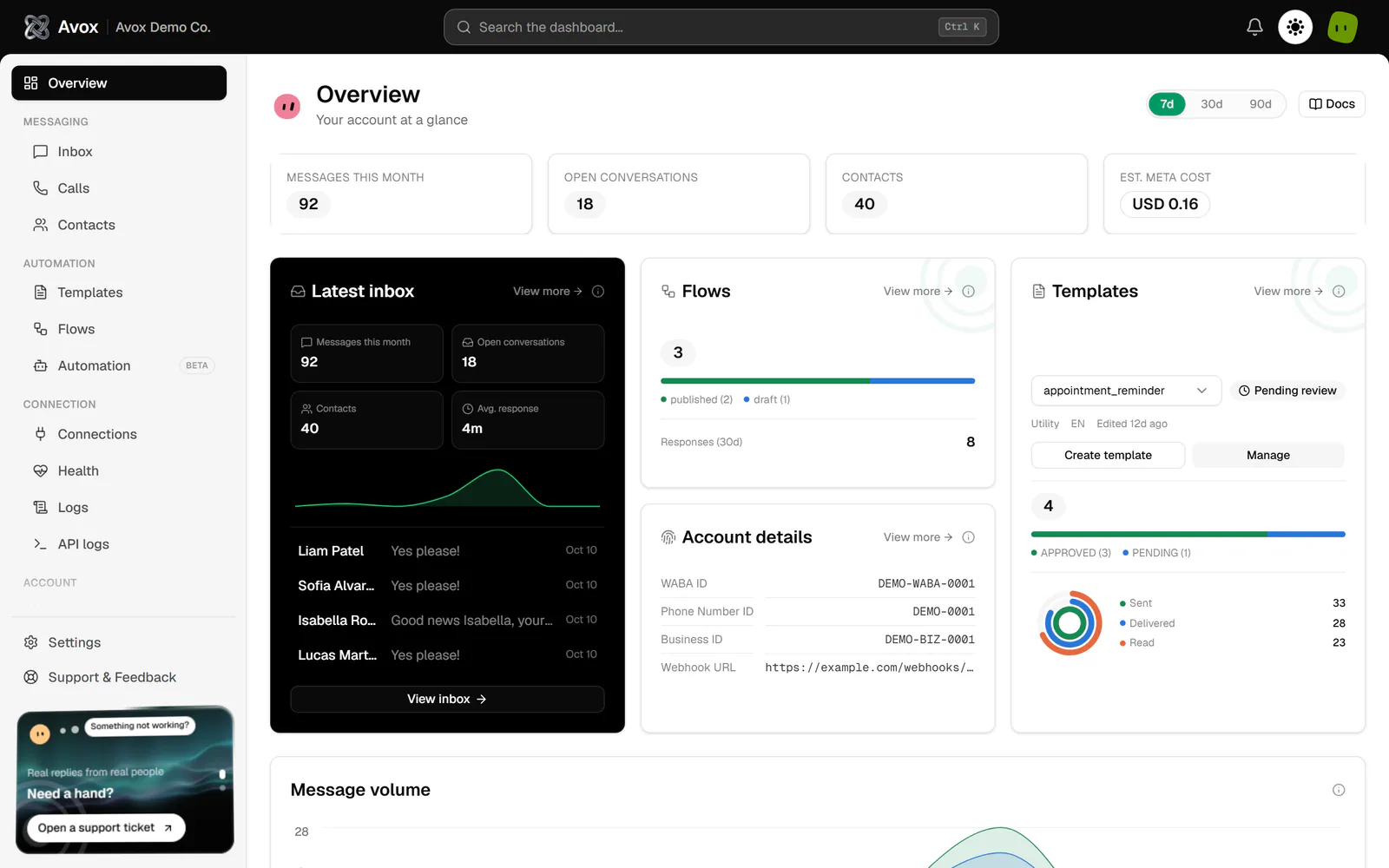
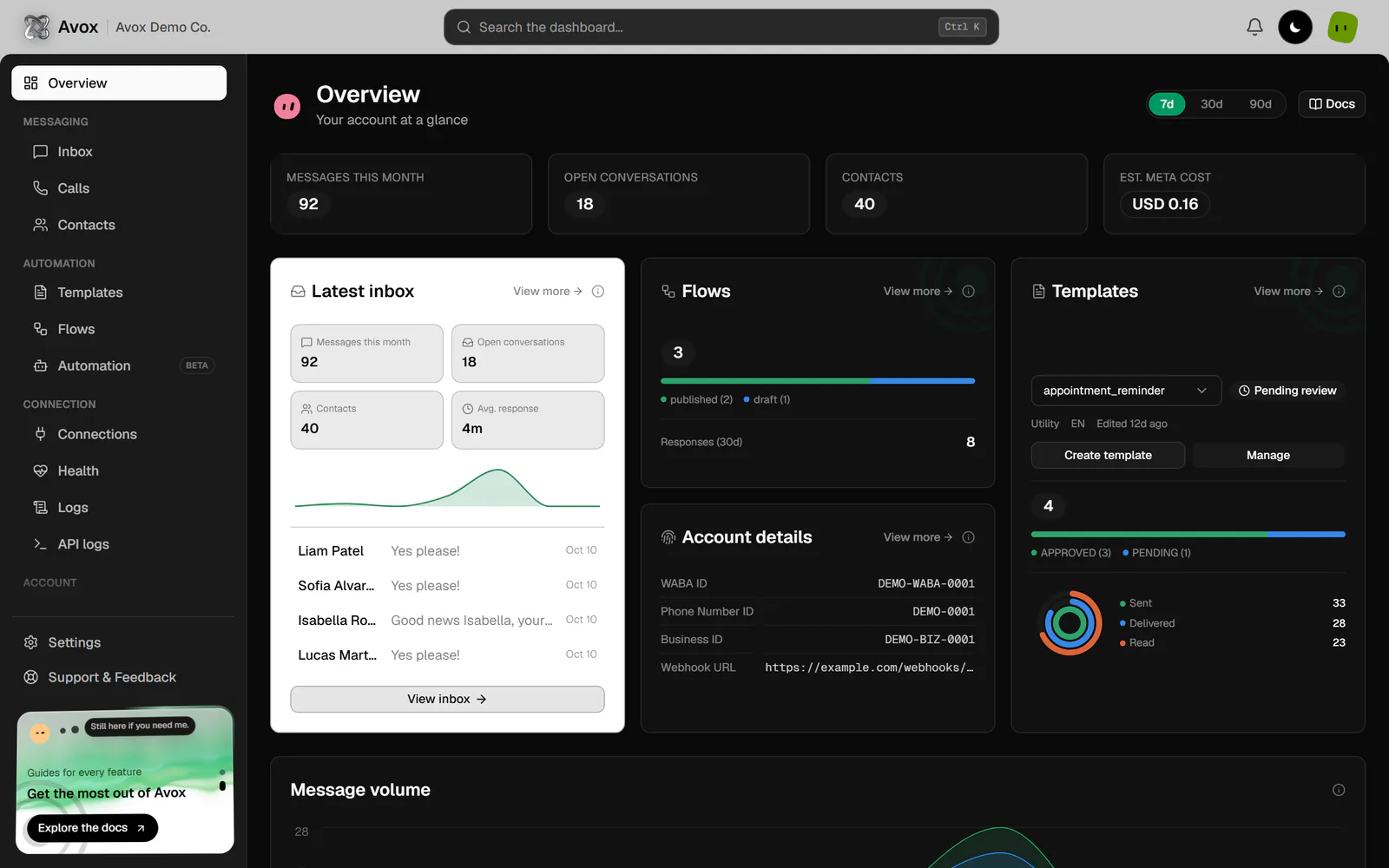
The page header#
The header shows the page title, Overview, and the line "Your account at a glance". Next to the title sits the Avox Avatar. Hover the header, a stat card, a range button, or a View more link and the avatar changes mood and shows a short speech bubble about what you are pointing at.
On the right of the header you'll find:
- The range selector -
7d,30d, and90d. See Date range. - Docs - opens this page in a new tab.
Account alerts#
When something account-wide needs attention, a banner appears above everything else on the page. Every alert has its own action link on the right. Red banners are critical; amber banners are warnings. All alerts that apply show at once: billing first, then your WhatsApp number.
When a connection has a name, the banner includes it in quotes, for example: Your WhatsApp number "Support EU" is disconnected. Review billing opens your subscription in Billing; See plans opens Billing so you can pick a plan; Review connection opens that connection's own page in Connections.
The same alerts also show in the notification bell at the top of every dashboard page, and the same banner appears on Health. Alerts are only for account-wide problems. A single rejected template or a blocked Flow shows on its own page (Templates, Flows) instead.
Turned-off pages#
If Avox has turned a page off for your account and you open it, you land on Overview with an amber note above the page, for example "The Calls page has been turned off for your account. Contact support if you need it." Contact support opens Support. Click the X to dismiss the note.
Stat cards#
Four cards sit at the top of the page:
The stat cards always use their own fixed windows (this month, and the last 7 days). They do not change when you pick a different date range.
Date range#
The 7d, 30d, and 90d buttons choose the window for the charts lower on the page, the sparkline
inside Latest inbox, the Avg. response tile, and the Automation card. Overview opens on 7d.
Your choice is part of the page address (?days=30), so you can bookmark or share a specific range.
These parts keep their own fixed windows and ignore the selector:
- The four stat cards (this month, and the last 7 days).
- Responses (30d) on the Flows card and the Sent / Delivered / Read figures on the Templates card (always the last 30 days).
The bento grid#
Below the stat cards, three tall cards share a grid: Latest inbox on the left, Flows and Account details stacked in the middle, and Templates on the right. On a phone they stack in a single column. Each card has a View more link and an info icon you can hover for a one-line explanation.
Latest inbox#
A live snapshot of your shared inbox:
- Four quick tiles - Messages this month, Open conversations, Contacts, and Avg. response (in minutes, averaged over the selected range).
- A small sparkline of messages sent per day across the selected range.
- Your 5 most recently active conversations - contact name (or "Unknown contact"), a preview of the latest message, and its date. Clicking one opens the Inbox.
With no messages yet, the list reads "No conversations yet." View more opens the Inbox.
Flows#
The total number of Flows in this Switchboard, with a coloured bar and legend that break the total down by status (for example published and draft). A failure status such as blocked shows in red. Below that, Responses (30d) counts the Flow responses customers submitted in the last 30 days. With no Flows yet, the card reads "None yet."; with no responses, "No responses yet." View more opens Flows.
Account details#
A read-only summary of your connected WhatsApp number:
- WABA ID - your WhatsApp Business Account ID.
- Phone Number ID - Meta's ID for the connected number.
- Business ID - the Meta business portfolio that owns the account.
- Webhook URL - the webhook address saved for the connection, or "Not configured".
If no number is connected yet, the card reads "No WhatsApp number connected yet." View more opens the connection's own page (or Connections when there's no connection), where you change these settings.
Templates#
The top of the card names one template at a time. When you have more than one, a picker lets you choose which one to look at; it starts on the template you edited most recently. For that template you see:
- Its status badge (the same badge as on Templates), such as Approved or Pending review.
- Its category, language code, and when it was last edited (for example "Edited 3d ago").
- Create template - opens the template wizard. See Create a template.
- Manage - opens that template's own page.
Below the picker, the card shows your total number of templates with a status breakdown bar (approved, pending, rejected, and so on), then three rings for Sent, Delivered, and Read. The rings count every template message your Switchboard sent in the last 30 days, across all templates - picking a different template in the picker changes the name and status shown, not these totals. With no template messages yet, the card reads "No template messages yet - connect WhatsApp to see activity here." View more opens Templates.
Charts#
Four charts follow the selected date range. Each has an info icon with a short explanation.
Days are calendar days in UTC. A day with no activity shows as zero rather than a gap, so the charts keep the same shape whatever range you choose.
Avg. response time is calculated by Avox, not reported by Meta. For each contact, Avox pairs a customer message with the next reply you sent after it and measures the gap. It's a reliable trend signal for your team's speed, not an official WhatsApp metric. The same calculation drives Analytics.
Automation card#
Once your Switchboard has at least one automation, an Automation card appears next to Outbound status:
- The header shows how many automations are active, for example
2 active. - By status - a donut of your automations by status: Active, Paused, and Draft. It always covers every automation.
- Fires over time - a bar chart of how many times your automations fired per day in the selected range, under a total such as "14 fires, last 30d". With fewer than 3 fires it reads "Not enough activity yet." instead of drawing a chart.
- The picker - starts on All automations. Pick one automation to see only its fires; the status donut stays the same.
See Automation and Credits.
Before your first message#
A brand-new Switchboard shows real zeros, never sample numbers. Every chart keeps its layout and shows "No messages yet - connect WhatsApp to see activity here" until real messages arrive.
While your number isn't connected, a Get started card at the bottom of the page reads "Head to Connect WhatsApp to link your number and start receiving messages here." To connect, open Connections in the sidebar - the setup wizard starts there. See Getting started for every step.
Related pages#
- Analytics - the same message data as trends, with a delivery funnel.
- Health - connection status and a live check from Meta.
- Inbox - the conversations behind these numbers.
Last updated