Create an automation
Build your first Avox automation click by click: pick a trigger, name it, add and branch actions on the canvas, test it, then Validate & Create and switch it on.
This walkthrough takes you through the Create automation wizard from the first click to a switched-on automation that answers customers by itself. It takes about two minutes. Every part is covered in more depth on Automation, Builder, Triggers and Actions.
Before you start
You need a WhatsApp number connected to Avox (Connect WhatsApp) and an active plan. Admins and Managers can create automations by default; an Admin can change that per member under Permissions ("Create and edit automations").
Plan it first#
An automation is one trigger (what starts it) followed by a chain of actions (what it does). Decide both before you open the wizard:
Short on time? Click one of the premade automations on the Automation page instead of Create automation. It fills in the trigger, name, keywords and actions for you and opens the wizard at Name, so you only review and adjust.
Step by step#
- 1
Open the wizard
Click Automation in the sidebar, then Create automation at the top of the page. On your very first visit you see a short introduction instead: click Next through it and then Create your first automation.
The wizard has three steps, Type, Name and Build, shown at the top. Once you've reached a step you can click its name to jump back to it. Docs for this step opens the matching help, and Back to Automation returns to the list without losing anything.
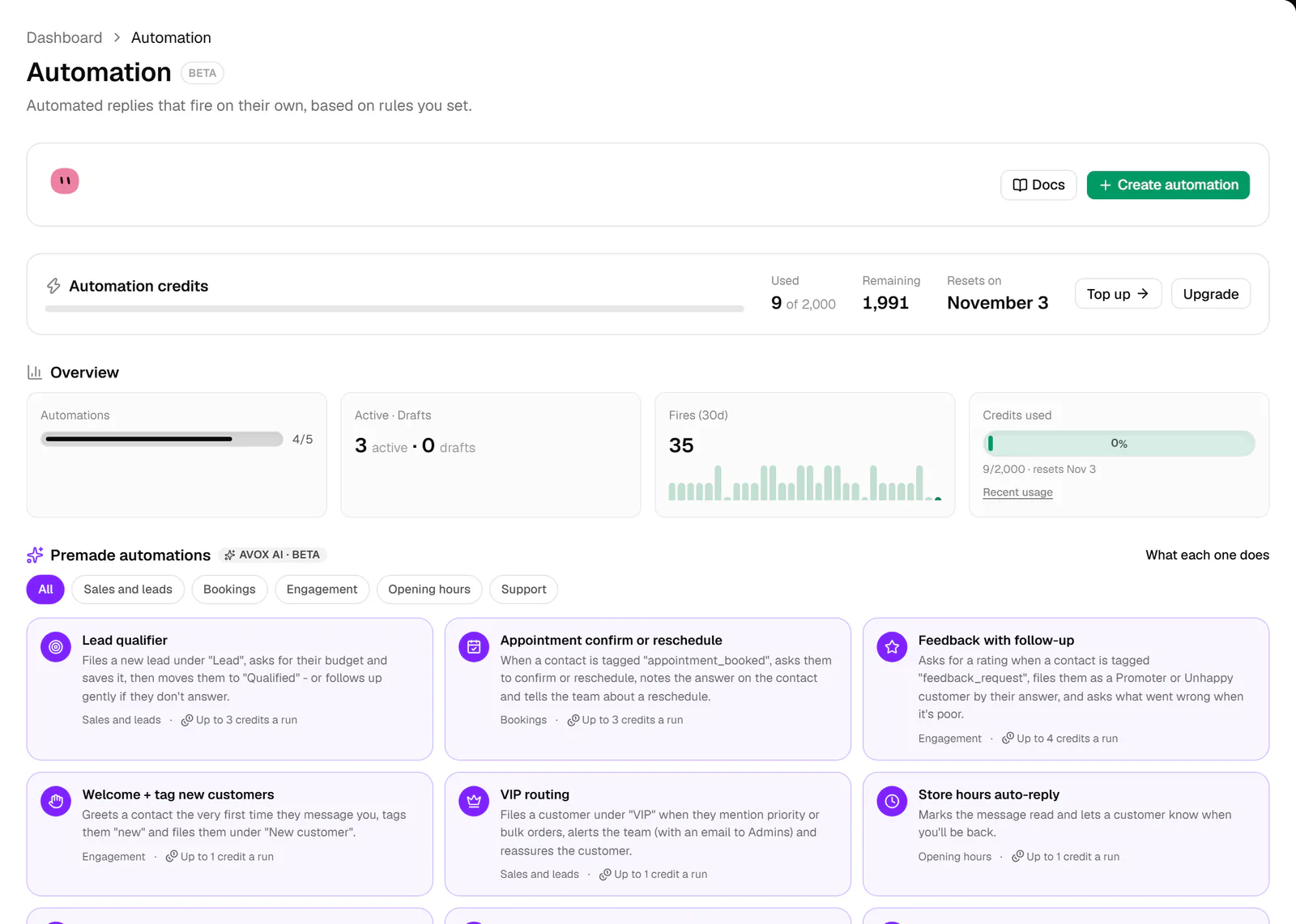
The Automation page. Create automation opens the wizard; the premade cards are a quicker start. - 2
Type: choose what starts it
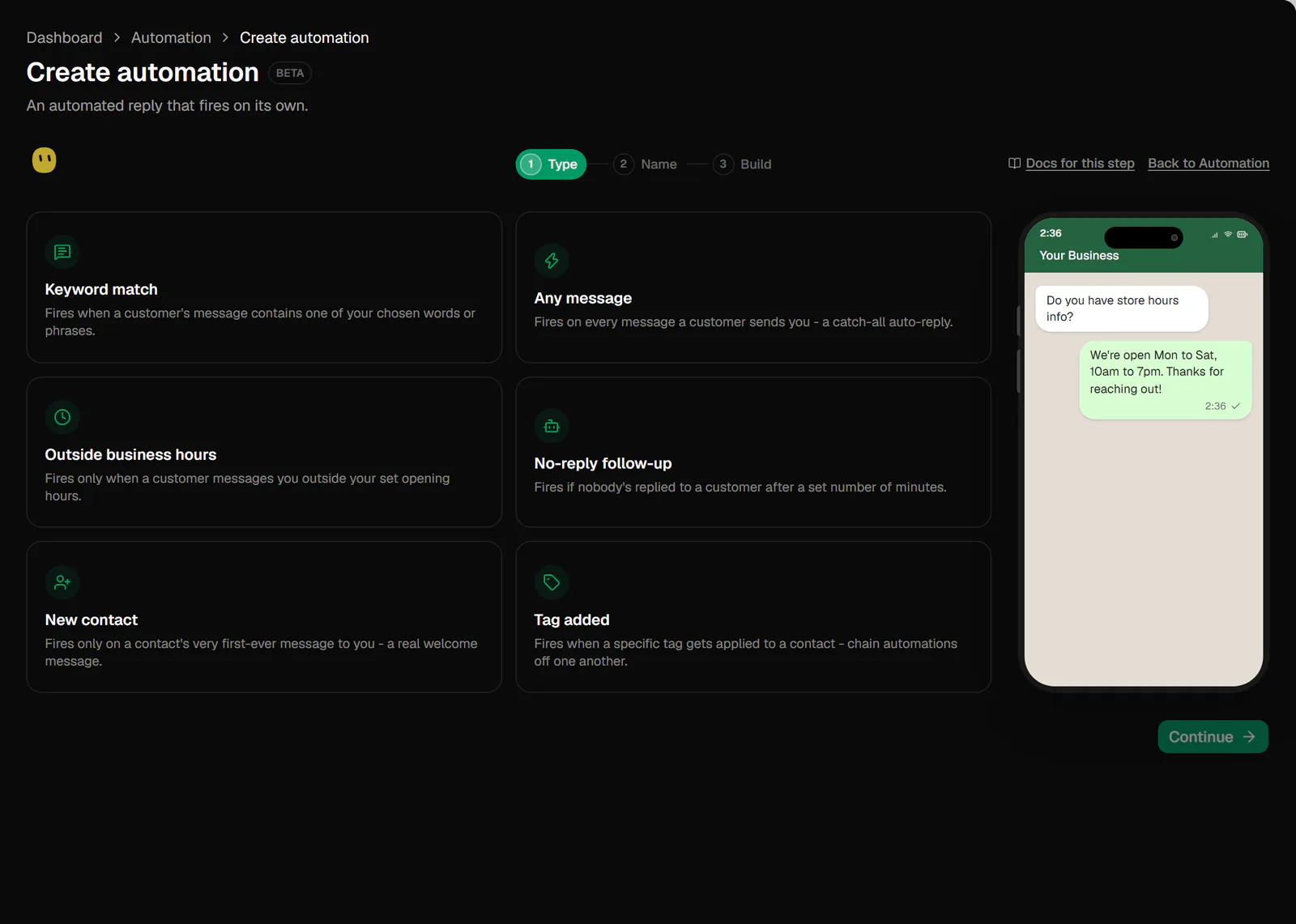
Click one of the six trigger cards: Keyword match, Any message, Outside business hours, No-reply follow-up, New contact or Tag added. Each card says when it fires, and on a wide screen the phone preview on the right plays an example message and reply for the trigger you've selected.
The selected card gets a green border. Click Continue (it's greyed out until you pick one).
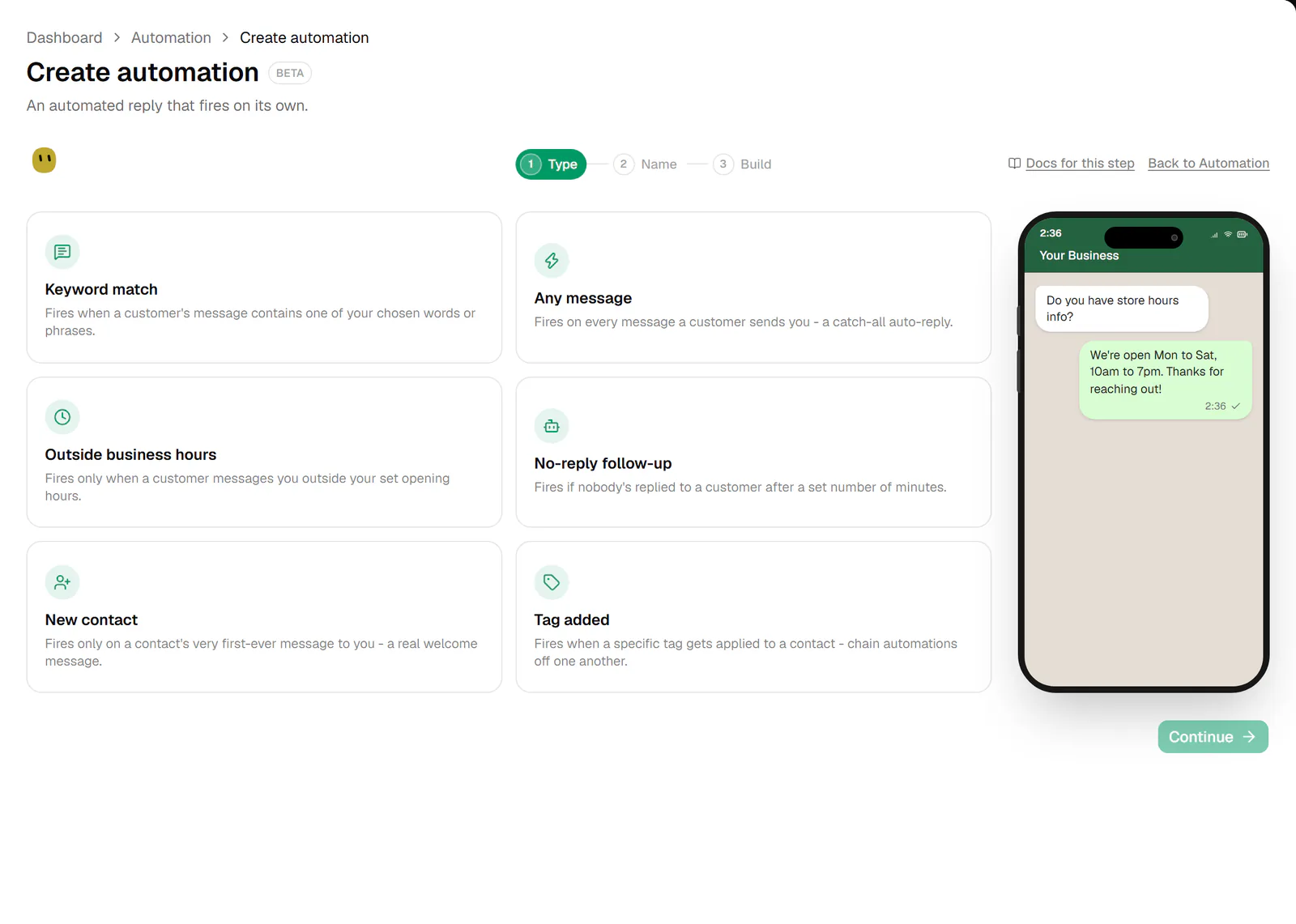
Step 1, Type. Pick the trigger, then Continue. - 3
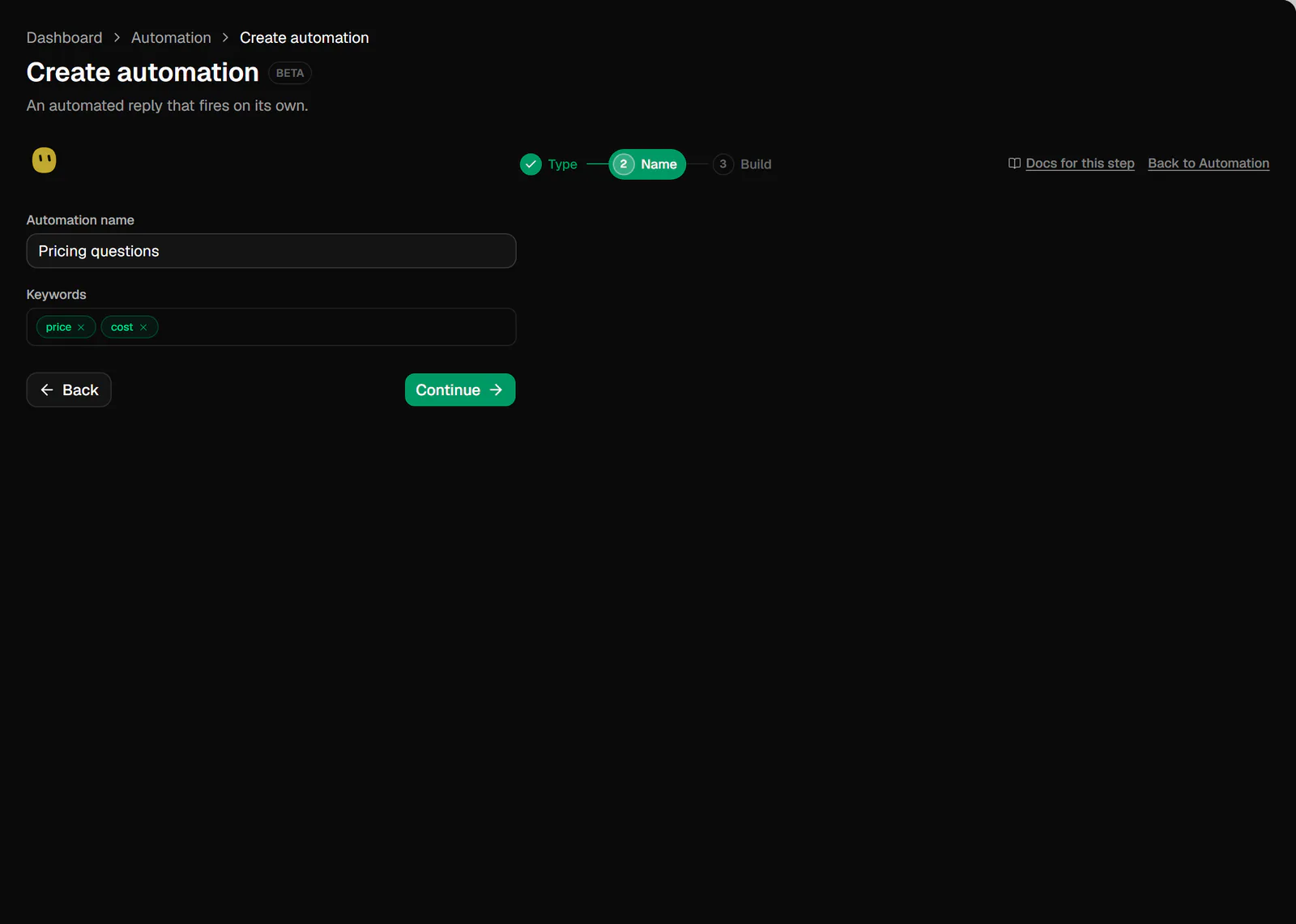
Name: name it and set up the trigger
Type an Automation name, up to 80 characters, for example "Store hours auto-reply". Only your team sees it.
Then fill in what your trigger needs (see What each trigger needs below). For Keyword match, type a word or phrase in Keywords and press Enter (or type a comma) to turn it into a chip. Add as many as you like; click the x on a chip to remove it.
Click Continue once the automation has a name, or Back to change the trigger.
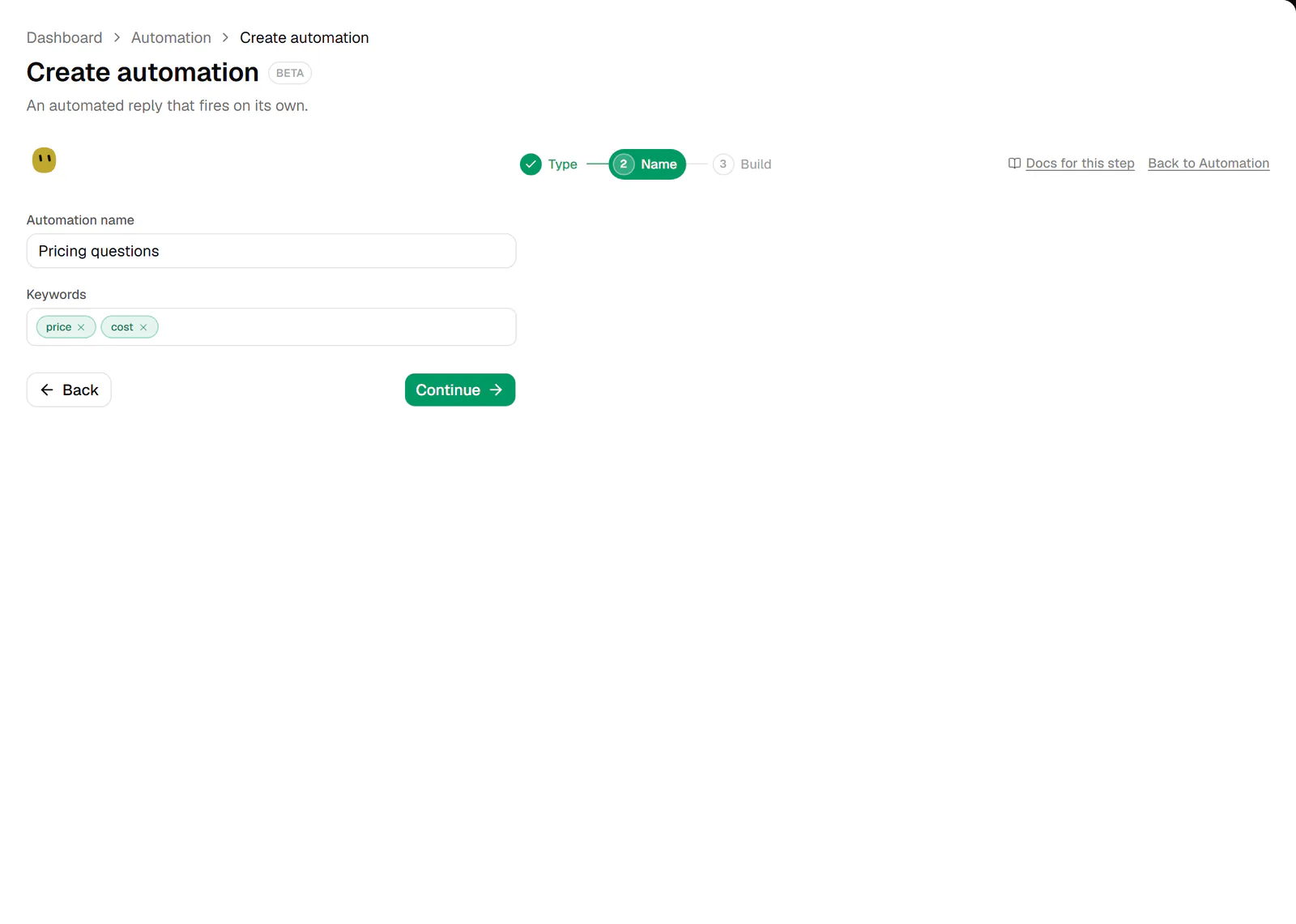
Step 2, Name, for a Keyword match automation. - 4
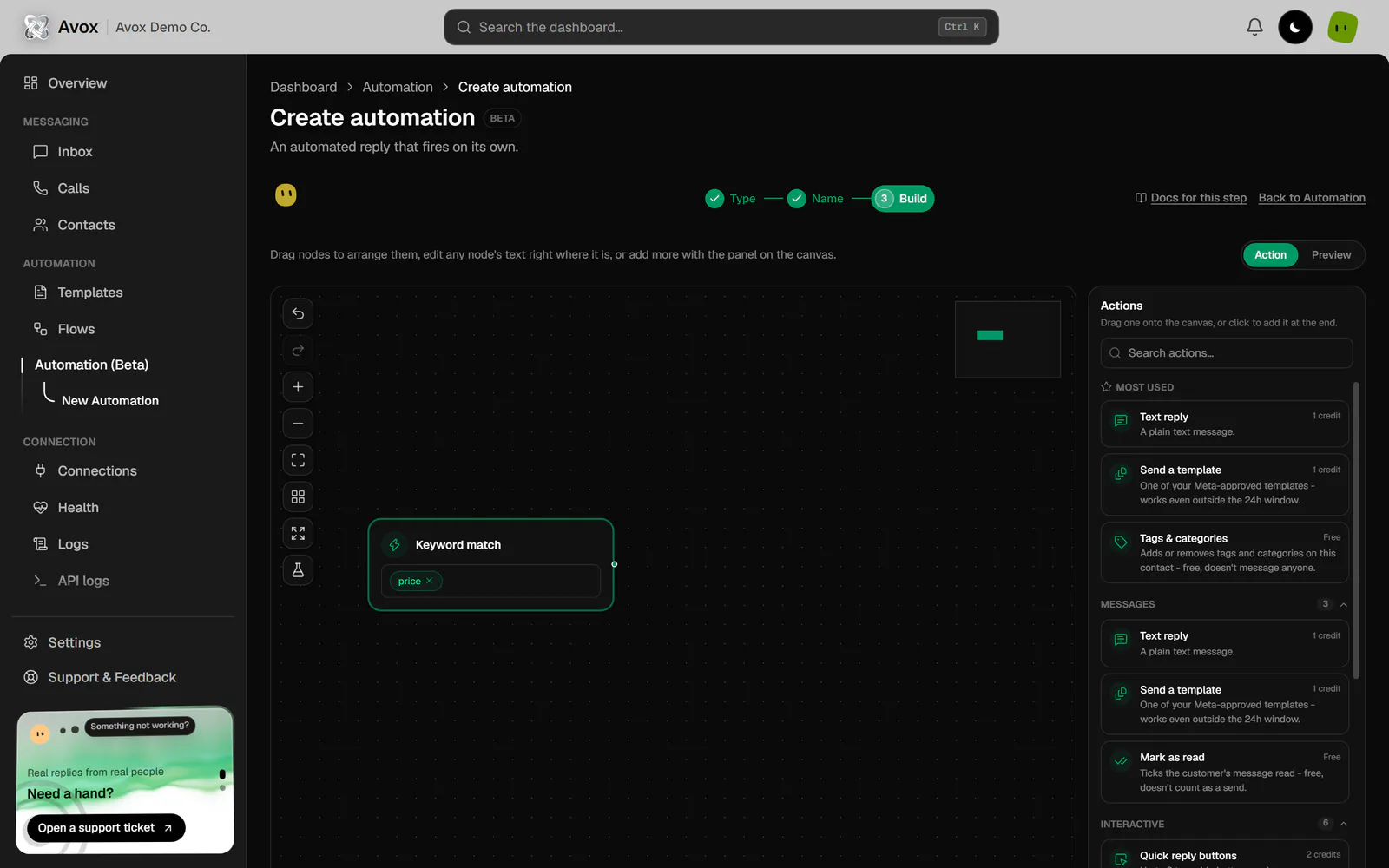
Build: add your first action
The Build step opens the canvas. The green box on the left is your trigger. The Actions panel on the right lists everything the automation can do.
Click an action, for example Text reply, to add it at the end of the chain, or drag it onto the canvas to drop it exactly where you want. Then fill it in right inside its box: for a Text reply, click "Click to write the reply…" and type your message (up to 4096 characters).
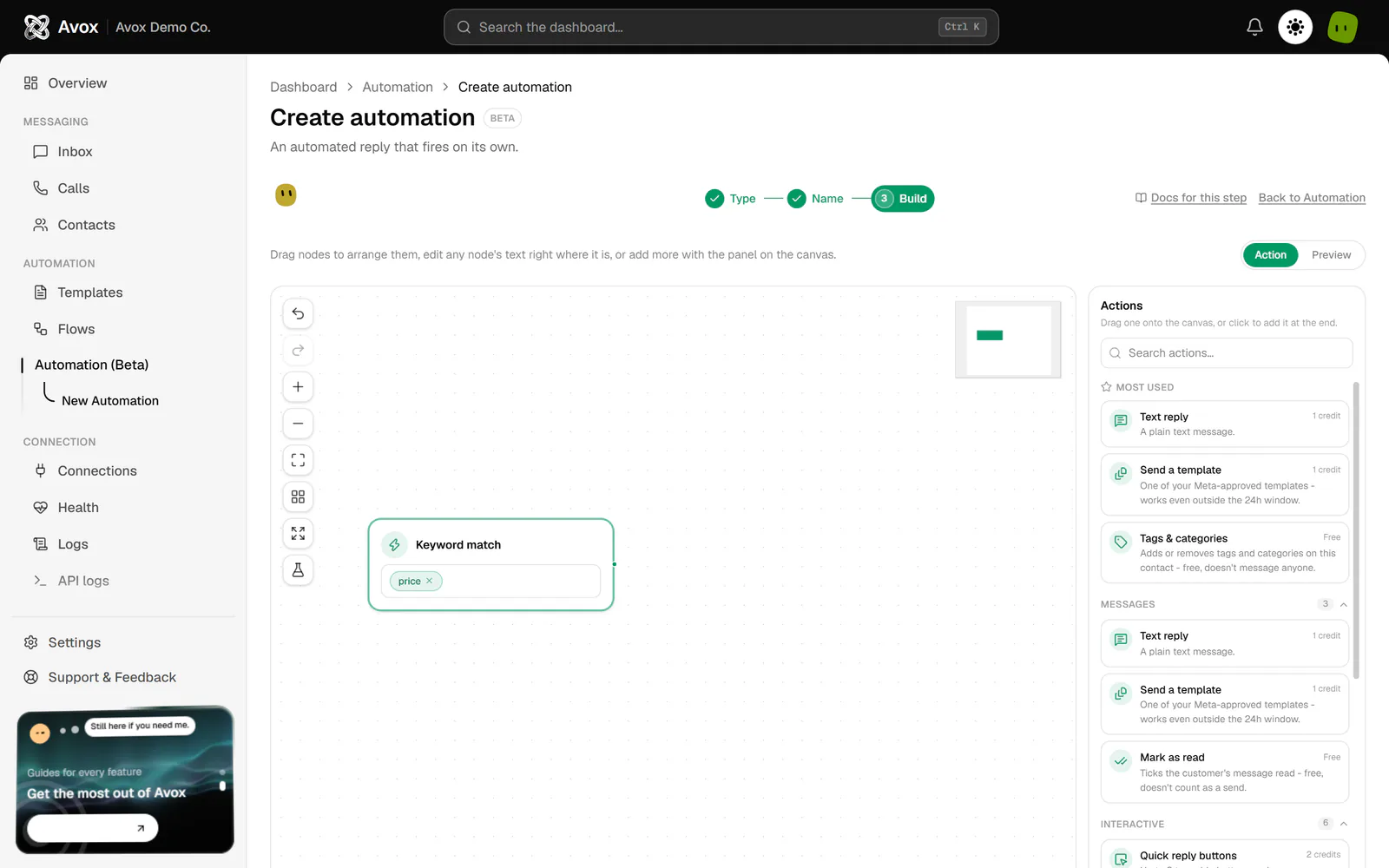
Step 3, Build, before the first action. Pick one from the Actions panel on the right. - 5
Add more actions
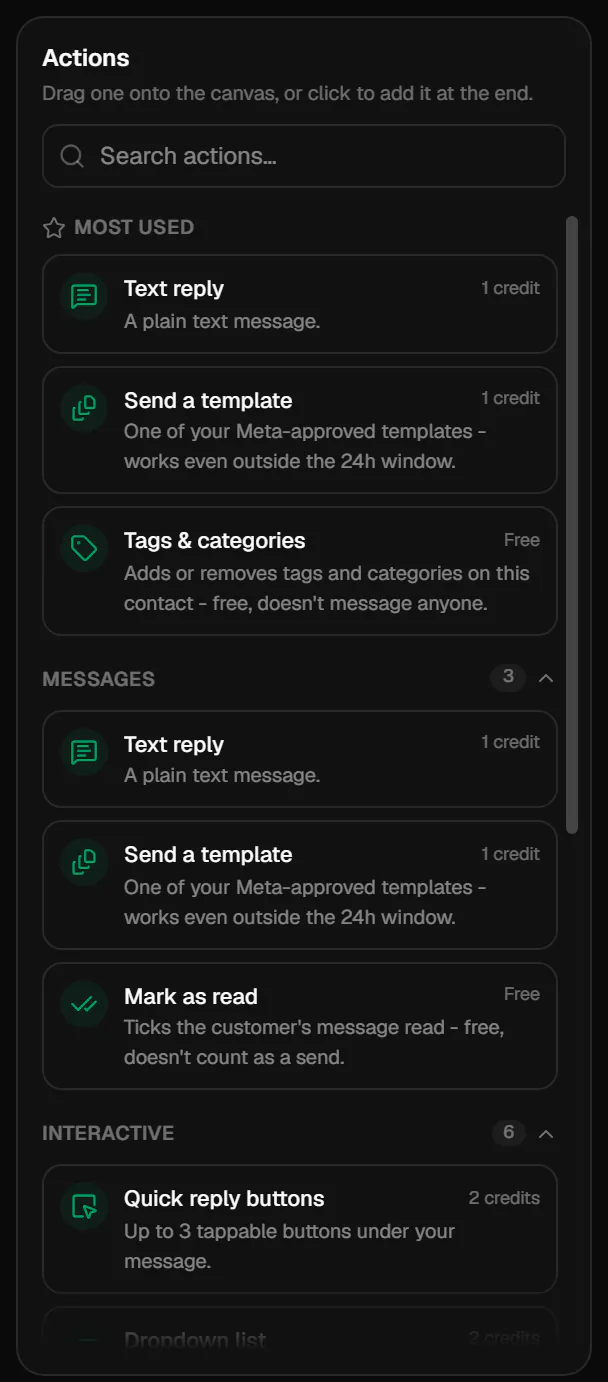
Keep adding actions. They run in the order of the chain, left to right, joined by lines. Each action in the panel shows its cost ("1 credit", "2 credits" or "Free").
- Search actions… finds an action by name or a related word ("pdf" finds Send a document).
- Most used shows the action types your Switchboard uses most.
- The groups (Messages, Interactive, Media, Contact, Flow control, Team & integrations) open and close with a click.
- Premade adds the actions of a premade automation to this one.
Hover a box to show Duplicate action and Remove action (x) in its corner. Most boxes also have a Wait field at the bottom ("Wait 0 seconds before this") for a short pause of up to 30 seconds; for longer pauses add a Delay step.
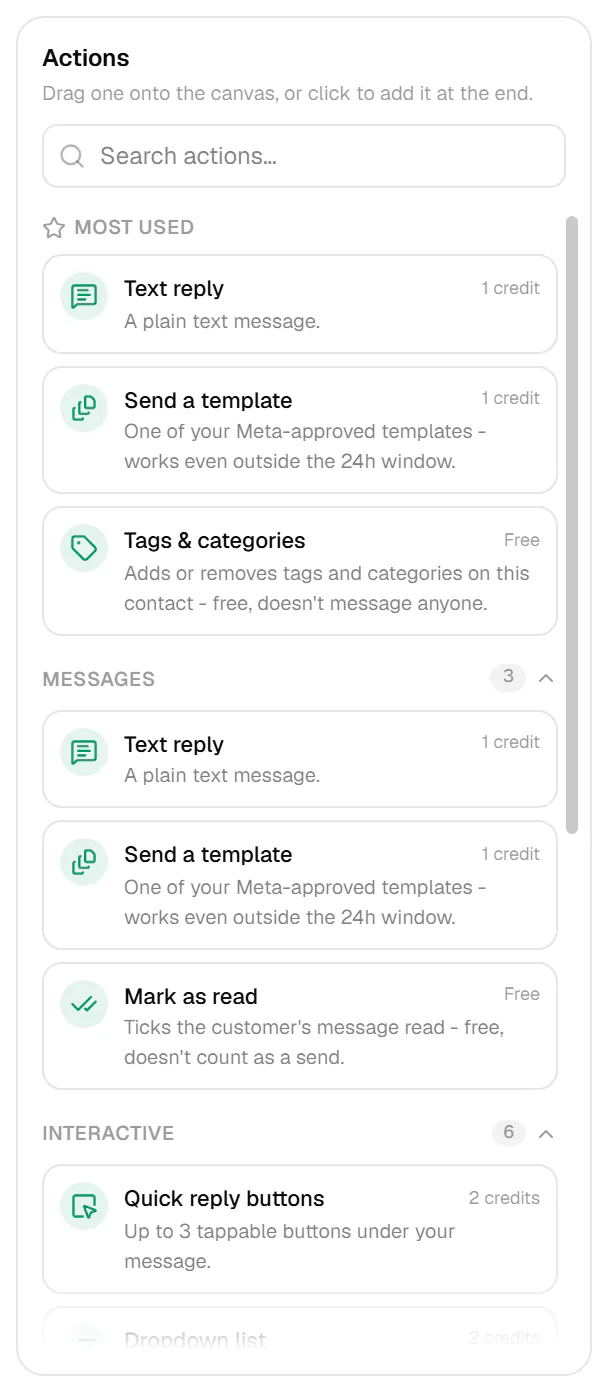
The Actions panel. Click to add at the end, or drag onto the canvas. - 6
Branch with a condition (optional)
To do different things for different messages, add Condition (if / and / or) from Flow control. In its amber box:
- Choose what it checks. Message contains keywords is the usual choice.
- Choose AND (every keyword must appear) or OR (any one is enough).
- Add keywords as chips, for example
refund,cancel. - Read the amber summary, which spells out what happens on a match and otherwise.
On a match, the chain carries on to the next box. To send other messages somewhere else, drag from the handle on the bottom of the condition (the hint reads drag to set "else") to another action; the line is labelled else. Without an else line, the automation stops at the condition when it doesn't match. To remove a branch, click its line and then the small x, or click Remove in the condition's box.
- 7
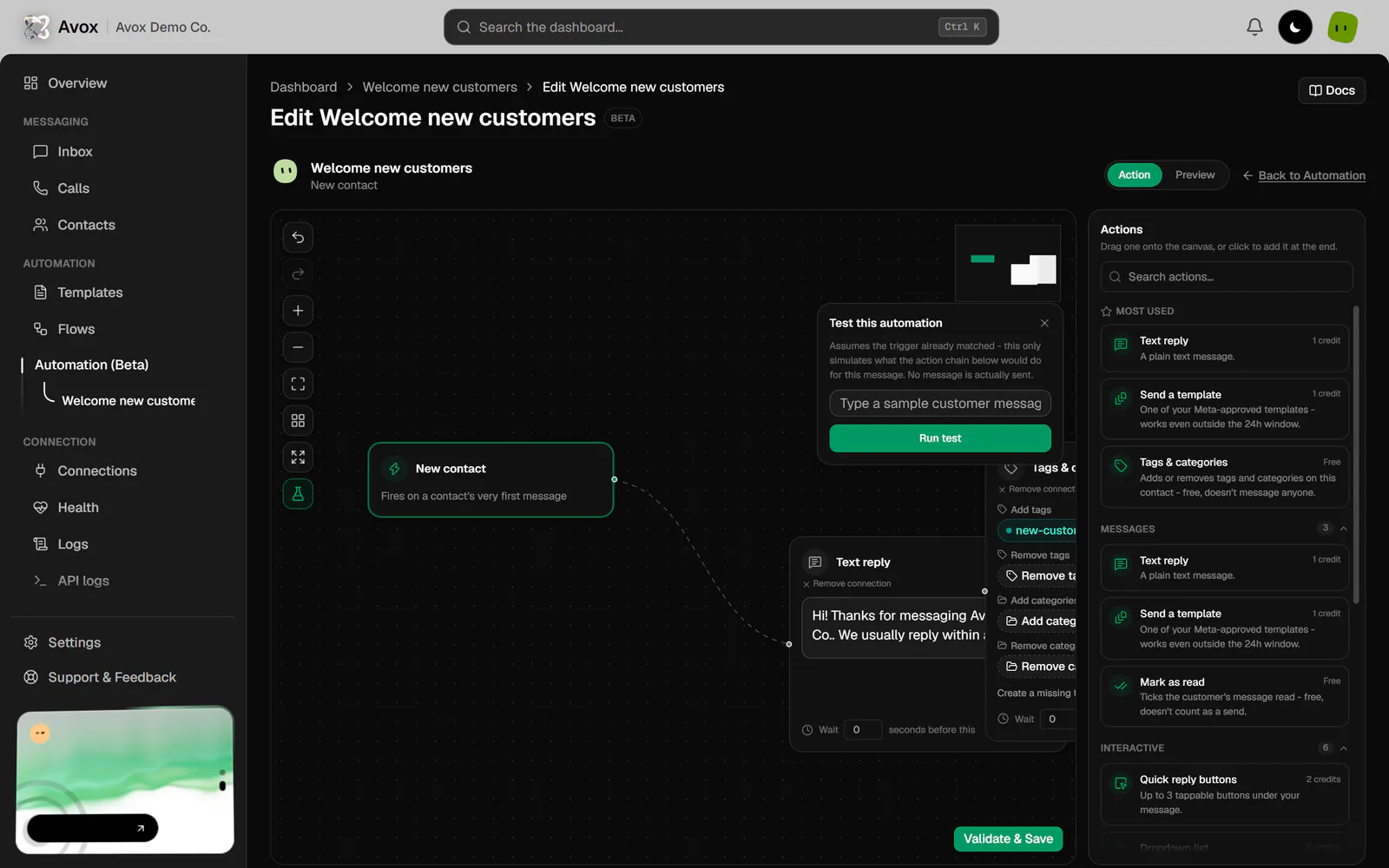
Test it
Click Test this automation (the flask) in the toolbar on the left of the canvas. Type a sample customer message, for example "Can I get a refund?", and click Run test.
The panel lists each step and what happened (ran, matched → continued, didn't match → branched or didn't match → stopped here), and the boxes on that path light up. The test assumes the trigger already matched, sends nothing and costs no credits. Try a message that should match and one that shouldn't.
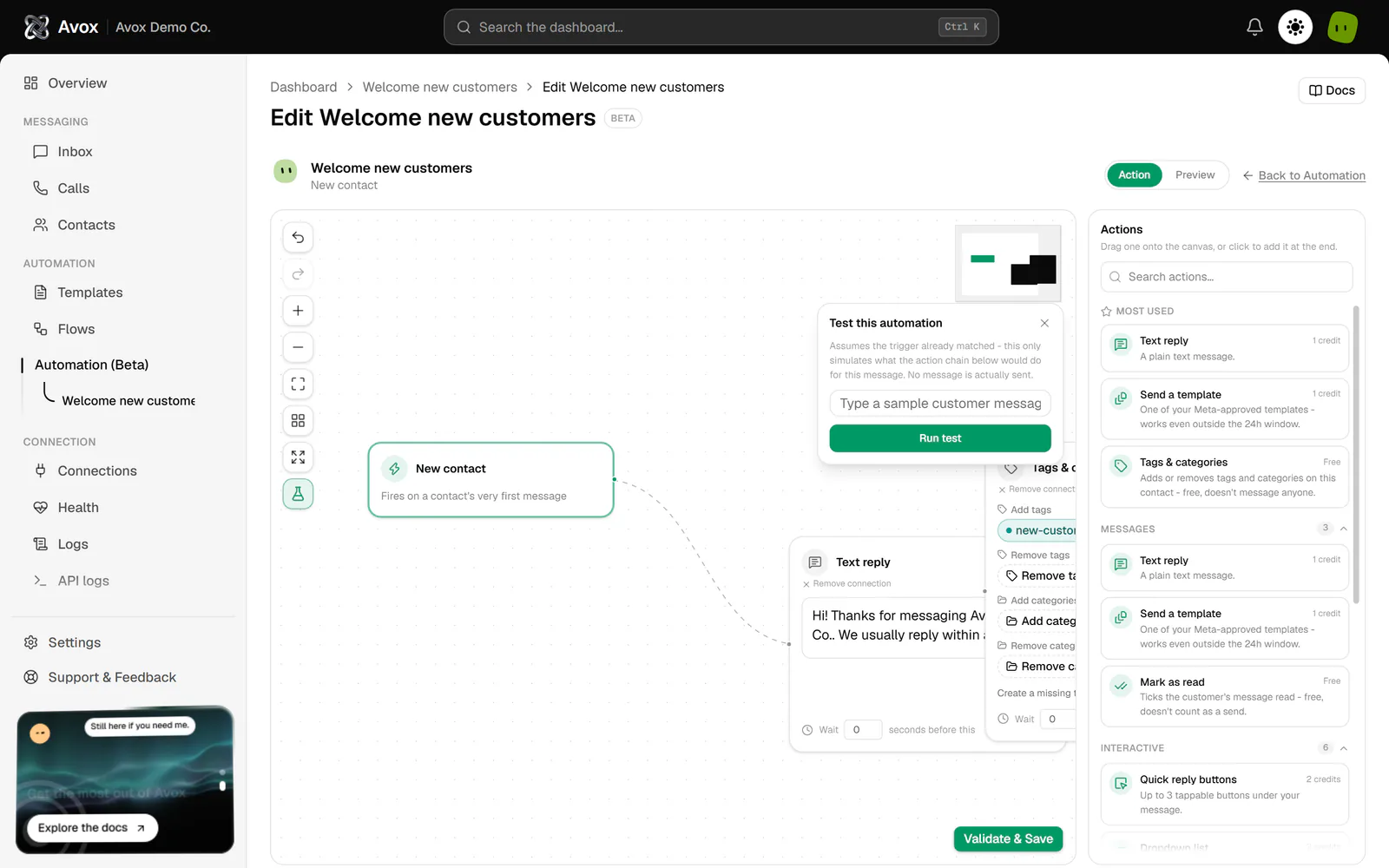
Test this automation. Nothing is sent. - 8
Validate & Create
Click Validate & Create in the bottom-right corner of the canvas (it's enabled once there's at least one action). Avox:
- Checks every action. Anything missing stops here with a message, for example "Finish filling in every action (reply text, keywords, etc.) before creating."
- Switches to the Preview tab and plays a sample message through your actions in a phone, with a checklist of each step ("Sent · 1 credit", "Matched - continuing" and so on). For a Keyword match automation, the sample includes your first keyword so it follows the real path. With keyword conditions, it also plays a message that matches them and one that doesn't ("Test 1 of 3: ..."), so the branches are tried too.
- Creates the automation and opens its Manage page.
Back to builder (or the Action tab) stops the preview without creating anything.
- 9
Switch it on
A new automation starts switched off and shows Inactive. Flip the switch next to the badge on its Manage page (or in the Status column of Your automations on the Automation page) so it reads Active. From now on it runs for every matching message, day and night.
To stop it, flip the switch off again. It stops firing on new messages straight away.
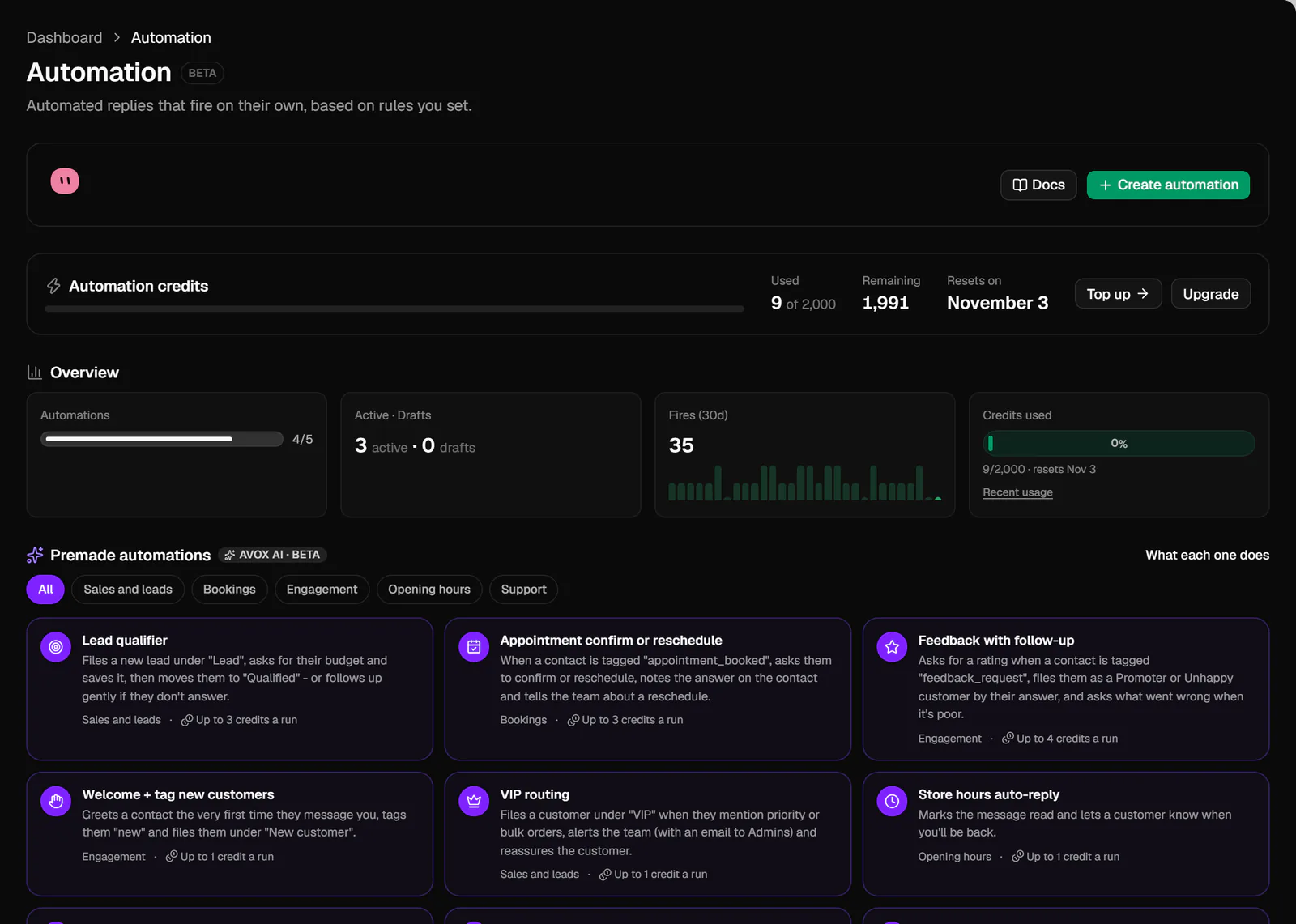
That's it. Watch Fires per day (last 30 days), Credits spent and Recent activity on the automation's Manage page to see it working.
What each trigger needs#
These are the fields the Name step shows for each trigger:
The full rules, including which automation runs when several match and the one-hour cooldown per contact, are on Triggers.
Working on the canvas#
A box that reads Not connected - drag any handle here to reconnect won't run until something connects to it. One that reads Only reached via a branch runs only when a condition's else line leads to it. The full canvas guide is on Builder.
What it costs#
Every message an automation sends spends automation credits from your Switchboard's grant: 1 credit for most messages, 2 for Quick reply buttons and Dropdown list, 3 for Use Flows, and 1 for Ask a question (2 with answer buttons). Steps that don't send a WhatsApp message are free: Mark as read, Tags & categories, Set contact field, Add a note, Condition, Wait for reply, Delay, Stop, Notify the team and Send to webhook. Testing and the preview never spend credits.
Leaving and coming back#
The wizard saves a draft a moment after each change. Close the tab or click Back to Automation and your work is kept: resume it from Drafts on the Automation page with Edit, and the wizard opens on the step you left. You can keep up to 10 drafts per Switchboard (AVX-3073); the draft is removed once the automation is created. If your internet connection drops, your changes stay on this device and are saved as soon as you're back online.
Change it later#
Click Edit on the automation (on its Manage page or in Your automations) to open the same canvas. Changes save automatically a moment after you stop editing, or click Validate & Save to run the full checks and the preview first. The trigger type is fixed once an automation is created; to use a different trigger, create a new automation.
Tips#
- Start small. One trigger and one Text reply is a complete automation. Add branches once it's working.
- Make keywords specific. A short keyword also matches inside longer words. Use a phrase such as "opening hours" when "open" would catch too much.
- Order matters. Avox runs only the first matching automation, oldest first, so create specific Keyword match automations before a broad Any message one. See Triggers.
- Templates need approval. Send a template lists only Approved templates, and Use Flows only published Flows. Get those ready first: Create a template, Create a Flow.
- Test both paths. Run one test with a message that should match a condition and one that shouldn't, before switching it on.
- Replace placeholders. Premade automations contain sample text in brackets and
https://example.com/...links. Change them before you switch the automation on.
Common mistakes#
Validate & Create says to finish filling in every action
An action box is still empty or half filled in: a reply with no text, a condition with no keywords, a Flow or template not picked, or a media step without a link. Look for the box with the empty field, fill it in, and click Validate & Create again.
The switch won't turn the automation on
It's on, but it doesn't reply
Two conditions check the same keywords
Two conditions with exactly the same keywords and the same AND/OR, without a branch between them, are rejected as duplicates (AVX-3077). Remove one, or change its keywords.
The else line won't connect
An action can be the target of only one branch, and an else line can't point at the box the condition already continues to on a match. Pick a different action, or use Remove connection on the target box to free it up for the else line.
The no-reply wait is rejected
Minutes to wait before following up must be a whole number from 1 to 1380 (AVX-3117). WhatsApp only allows a free-form reply within 24 hours of the customer's last message, so a longer wait could never send.
Related#
AutomationAutomated replies, keyword triggers, and premade flowsBuilderThe automation canvas, step by stepTriggersWhat starts an automationActionsEvery action an automation can takeCreditsHow automation credits are counted and topped upCreate a templateA click-through, step-by-step version of the template wizard
Last updated