Create a Flow
Create a WhatsApp Flow in Avox click by click: start from scratch or a premade Flow, name it, edit and check its JSON with Meta, set up an endpoint if it needs one, and publish.
This walkthrough takes you through the Create Flow wizard. A Flow is a structured form a customer fills out inside WhatsApp itself: a booking, a sign-up, a survey or a support request. Once it's published, you send it with an automation. Every part is covered in full on Flows, and what Flows are on WhatsApp Flows.
Before you start
You need a WhatsApp number connected to Avox first (Connect WhatsApp). Admins and Managers can create Flows by default; an Admin can change that per member under Permissions ("Create and edit Flows").
Choose your starting point#
A premade Flow is the fastest start. Avox has ready-made Flows in two groups:
- No endpoint needed - Collect purchase interest, Get feedback, Send a survey, Customer support.
- Needs a live endpoint - Flows that pull real-time data (available slots, a live quote) from your own server, such as Appointment booking or Account sign-in/sign-up.
Start from scratch gives you a simple one-screen form to edit, under a category: Sign up, Log in, Appointment booking, Lead generation, Shopping, Contact us, Customer support, Survey or Other.
You write the Flow in Meta's Flow JSON. If that's new to you, start from a premade Flow and change it.
Step by step#
- 1
Open the wizard
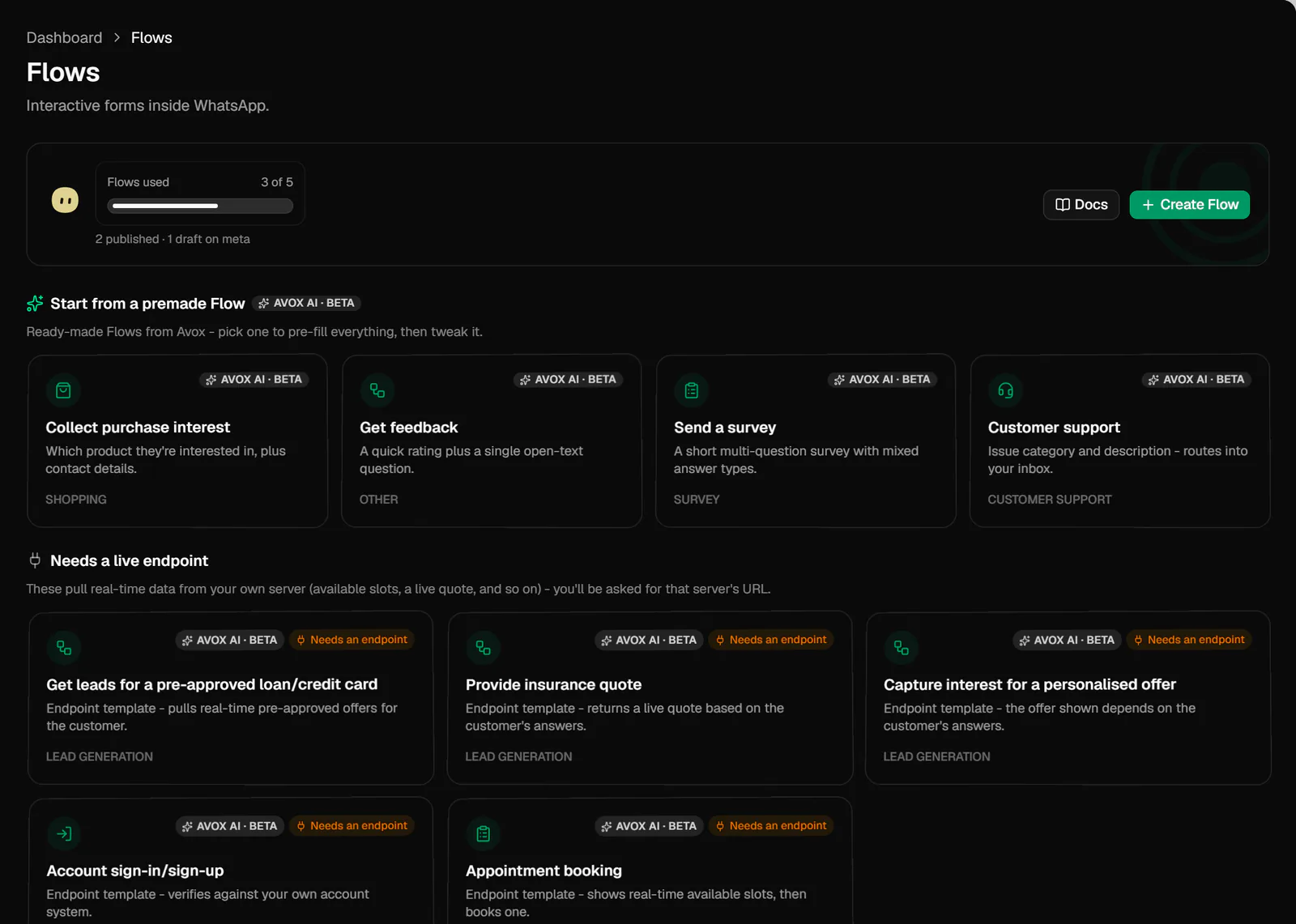
Click Flows in the sidebar, then Create Flow at the top of the page. Or click a card under Start from a premade Flow on the Flows page: it opens the wizard with that Flow filled in, at Name.
The wizard has three steps, Type, Name and Content, with a live phone preview on the right. Back to Flows returns to the list at any time; your work is kept as a draft.
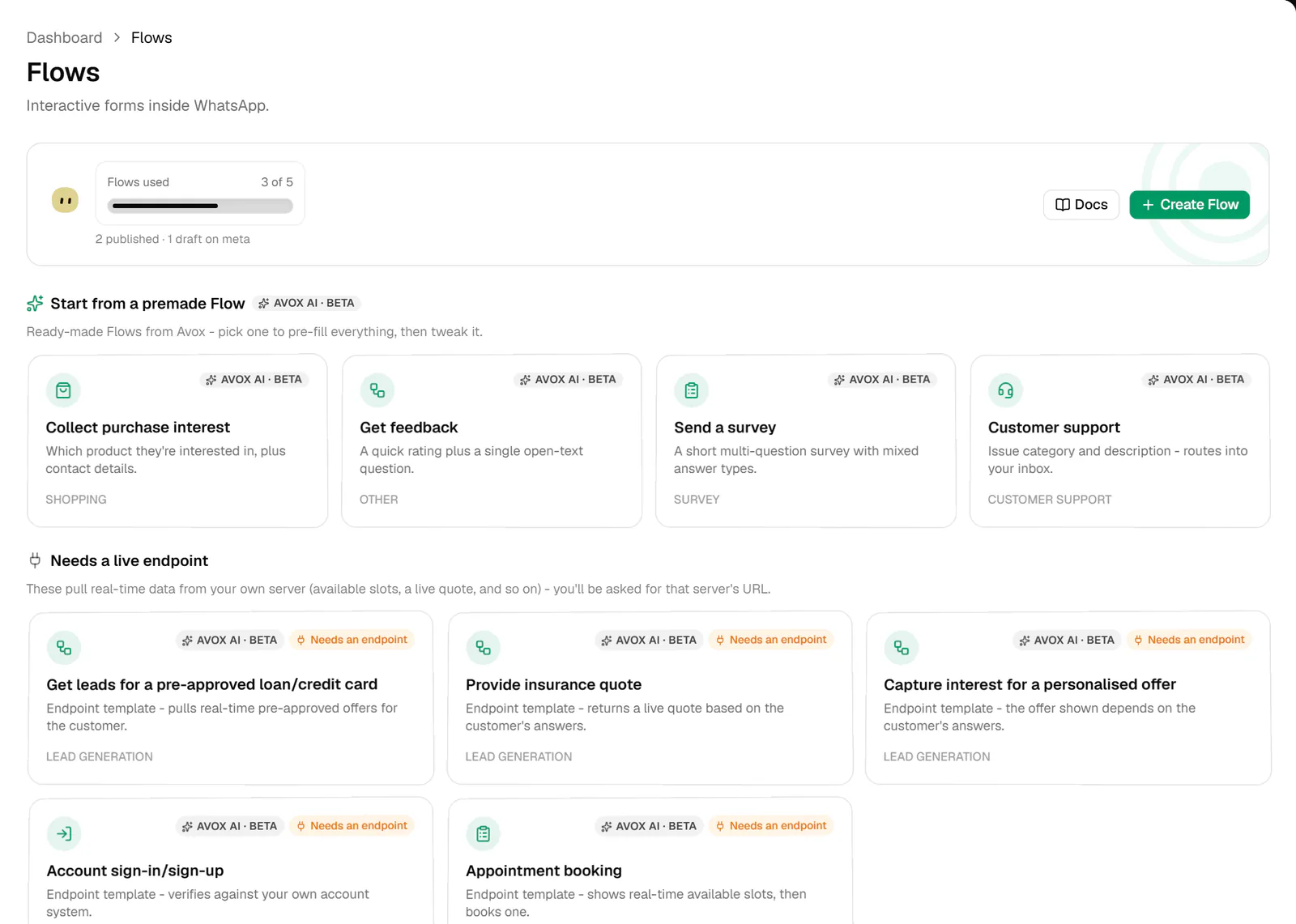
The Flows page. Click Create Flow, or start from a premade card. - 2
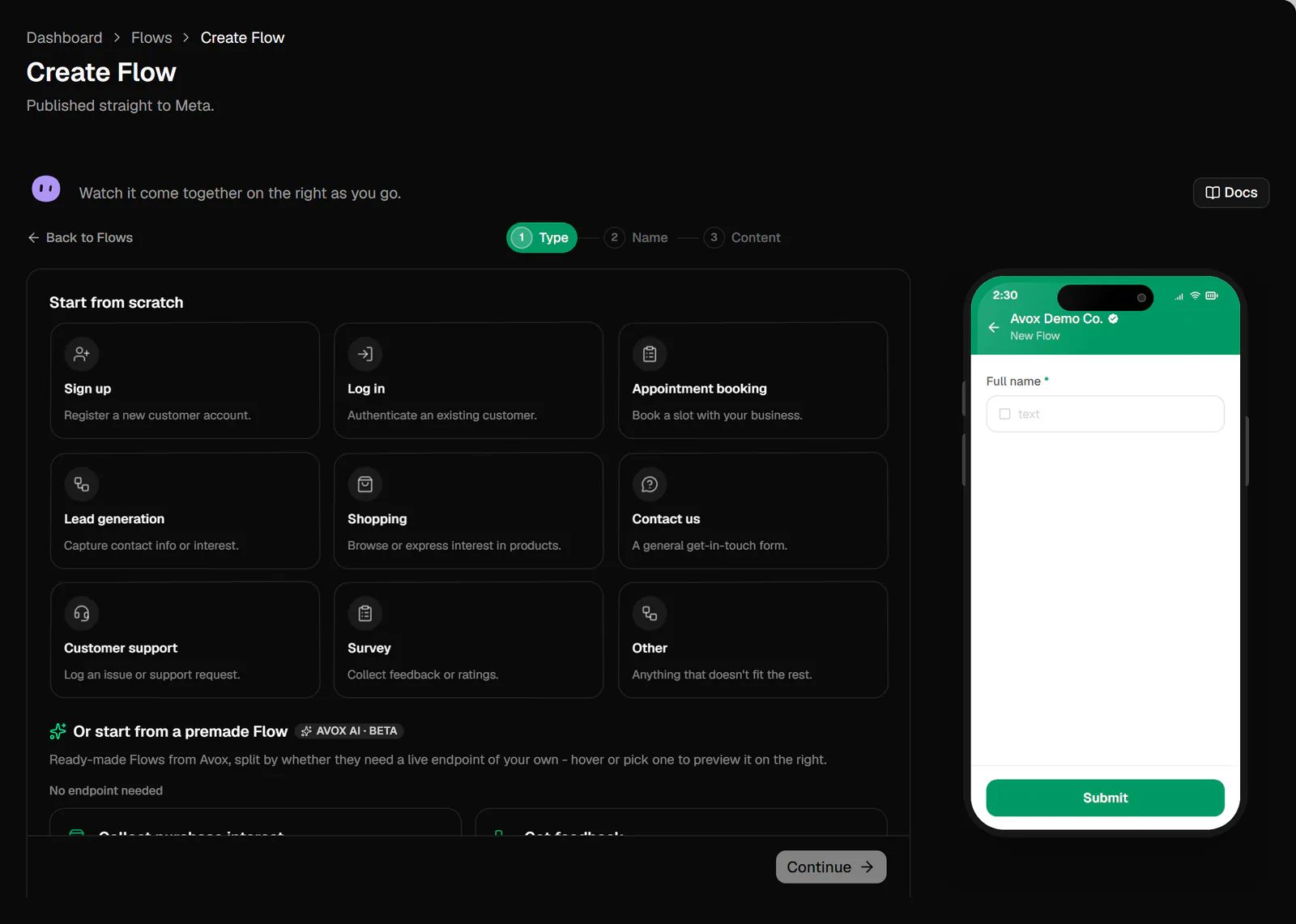
Type: pick a category or a premade Flow
Under Start from scratch, click a category, for example Appointment booking. Or under Or start from a premade Flow, click one listed under No endpoint needed or Needs a live endpoint.
Hovering or clicking a card shows it on the phone; nothing is picked until you click Continue.
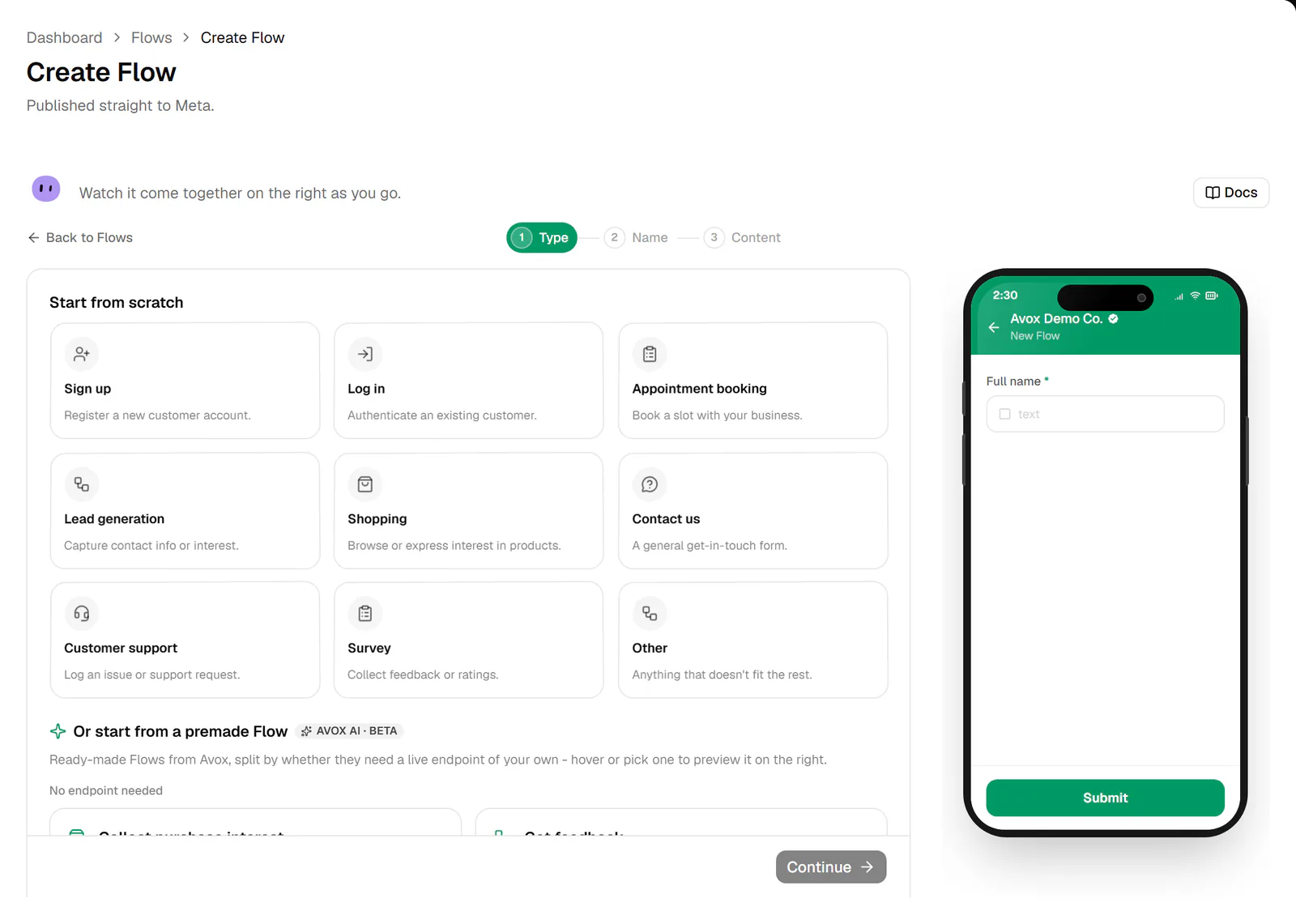
Step 1, Type. Preview any card on the phone, then Continue. - 3
Name: name it and pick categories
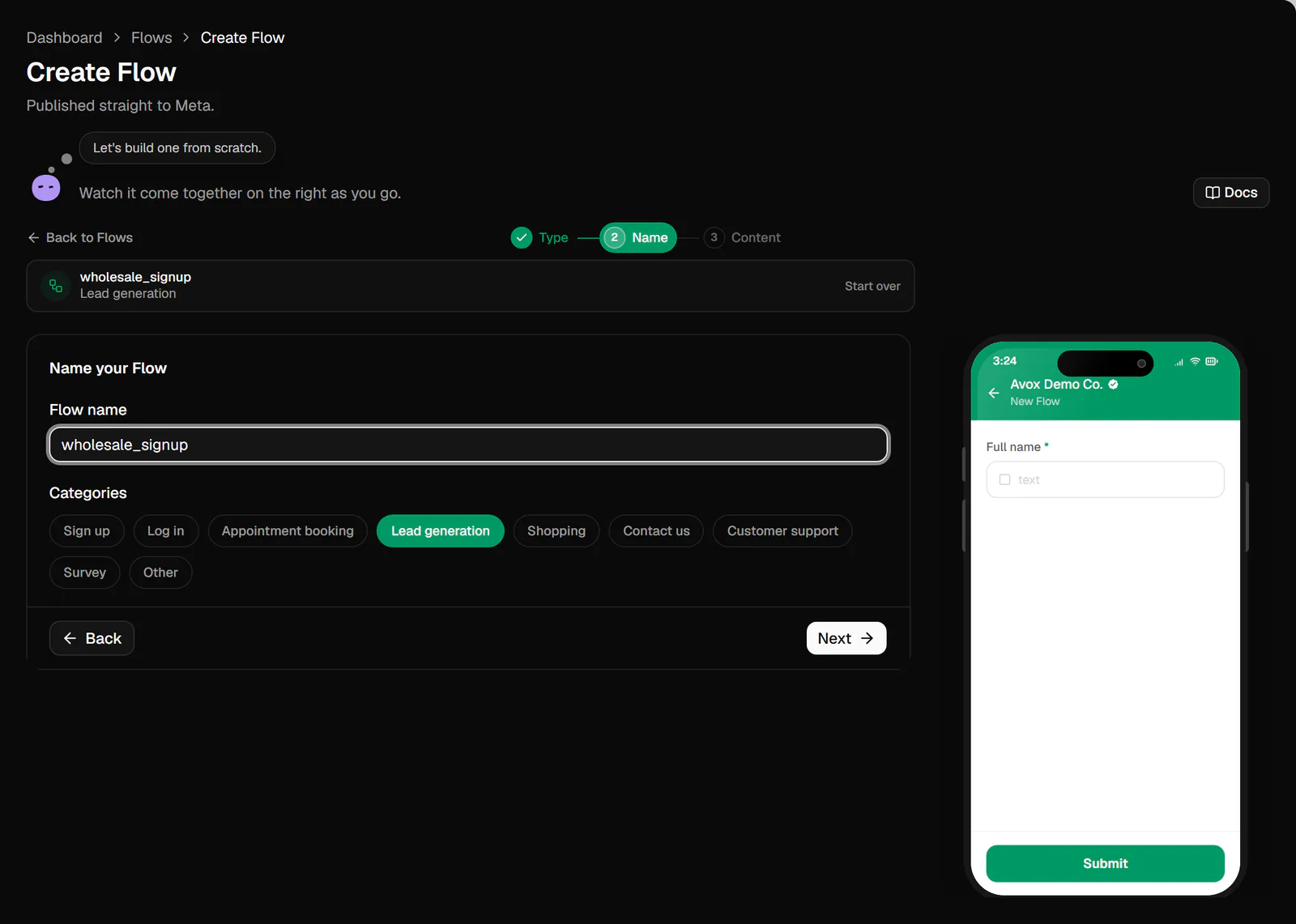
Under Name your Flow, enter a Flow name (up to 100 characters). It's what you'll see in the Flows list and in Meta's. A premade Flow fills in its own title, which you can change.
Under Categories, click one or more chips. Meta allows more than one category per Flow. Click Next.
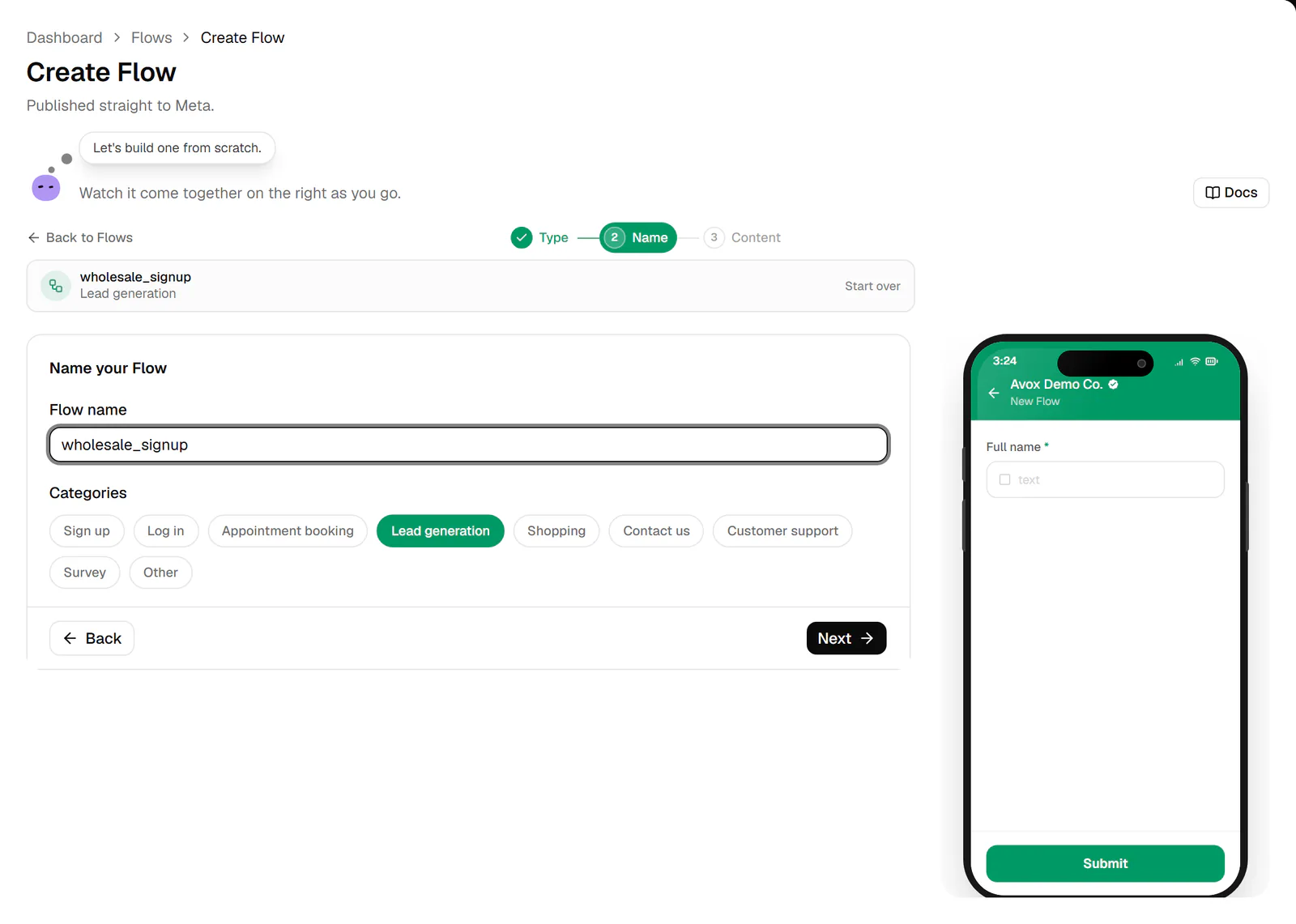
Step 2, Name. Pick at least one category. - 4
Content: edit the JSON
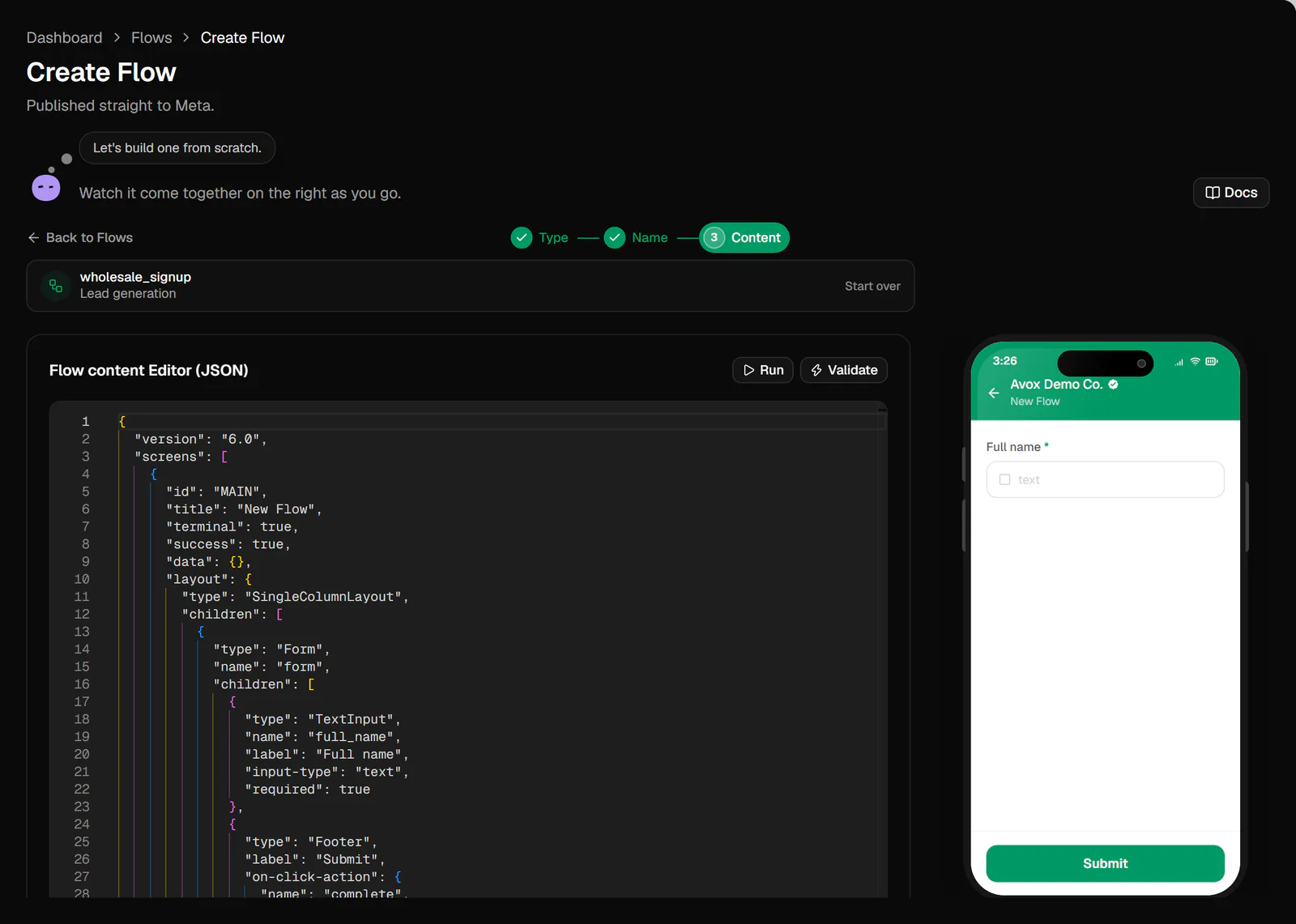
Edit the Flow in the Flow content Editor (JSON). The phone preview reads your JSON as you type. Click Run (or press Ctrl + Enter, Cmd + Enter on a Mac) to refresh it on purpose; the preview pulses to confirm. For a Flow with several screens, use the Previewing menu above the phone to look at each one.
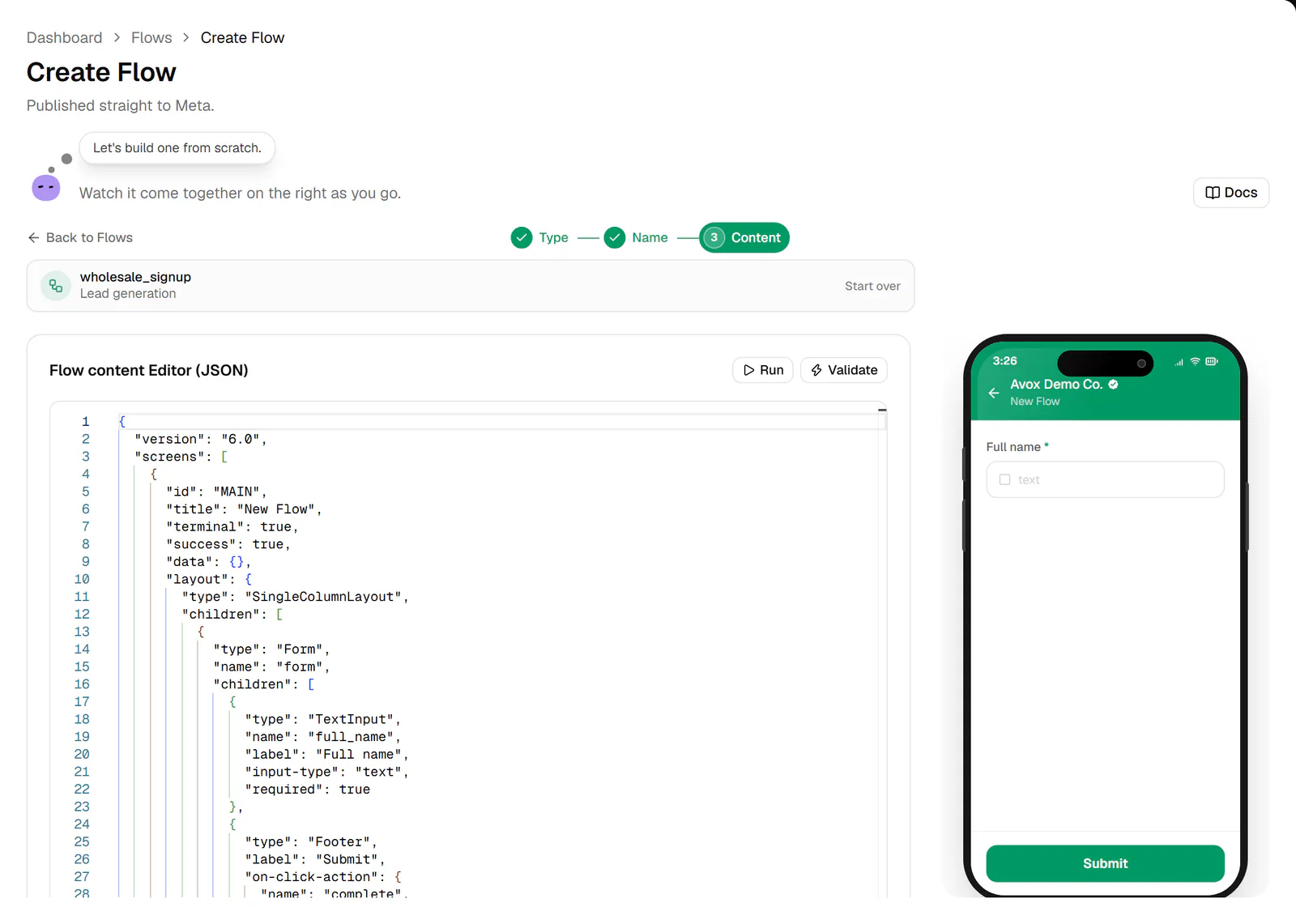
Step 3, Content. Edit the JSON and watch the phone update. - 5
Check for errors
Click Errors in the footer. It lists problems Avox spots as you type, numbered, starting with anything that isn't valid JSON. When there are problems, the button turns red and shows how many.
Then click Validate above the editor to check the JSON with Meta too. Meta's findings join the same list. With nothing left to fix, it reads "No errors - Meta's happy with this JSON."
- 6
Review the actions
Click Actions in the footer to see each action your Flow uses (such as
complete), how many times, and what it does in plain English. - 7
Set up an endpoint (only if needed)
A Flow that needs live data talks to your own server. Click Endpoint in the footer, switch on This Flow needs a live endpoint, and complete the five checklist steps ("Complete the steps below"):
- Set endpoint URI - your server's
https://address. - Add phone number - uses your connected number.
- Sign public key - Generate key pair creates a key pair in your browser. Copy the private key straight away ("Save this private key now - it won't be shown again"), then click Register public key with Meta.
- Connect Meta app - shows Connected. once it's linked.
- Health check - Run health check checks your server answers.
Endpoint snippet gives a working starting point for your server in Next.js or Express. See Live endpoints.
- Set endpoint URI - your server's
- 8
Create & publish
Click Create & publish. You see "Flow created and published", the wizard returns to the Flows page, and the Flow shows as Published under Your Flows.
- 9
Send it with an automation
Flows reach customers through an automation. Add a Use Flows action, pick your Flow, and set its button label (for example "Book now"). It costs 3 credits each time it's sent. See Use Flows and Create an automation.
The starter JSON#
A Flow started from scratch begins with one screen holding a form with a Full name field and a Submit button that completes the Flow:
{
  "version": "6.0",
  "screens": [
    {
      "id": "MAIN",
      "title": "New Flow",
      "terminal": true,
      "success": true,
      "data": {},
      "layout": {
        "type": "SingleColumnLayout",
        "children": [
          {
            "type": "Form",
            "name": "form",
            "children": [
              { "type": "TextInput", "name": "full_name", "label": "Full name", "input-type": "text", "required": true },
              { "type": "Footer", "label": "Submit", "on-click-action": { "name": "complete", "payload": {} } }
            ]
          }
        ]
      }
    }
  ]
}
Add fields to the form's children, change the title, or add more screens. The phone preview
shows each change.
Leaving and coming back#
Your progress saves as a draft as you go. Resume it any time from the Drafts section on the Flows page, which holds up to 10 drafts. Start over in the summary bar at the top of the wizard discards the draft and begins a new Flow. If your internet connection drops, your Flow stays on this device and you can publish it once you're back online.
Tips#
- Start premade. A premade Flow is already complete, working JSON, so you mostly change the wording.
- Validate before publishing. Run only refreshes the preview on your screen; Validate is the real check with Meta.
- Keep the private key safe. For an endpoint Flow, your server needs the private key, and it's shown only once.
- Check the preview on every screen. Use Previewing to step through each screen before you publish.
Common mistakes#
Create & publish says to check the Flow
The avatar shows "Check the Flow's name, categories, and JSON." (AVX-3032). Make sure the Flow has a name, at least one category, valid JSON, and an endpoint URL if This Flow needs a live endpoint is on.
Meta rejected the JSON
Run does nothing
Run is greyed out while the JSON doesn't parse. Open Errors: the first item says where the JSON breaks, often a missing comma or bracket.
My endpoint Flow can't reach my server
Work through the Endpoint checklist until it reads "Endpoint is set up" (5/5). The health check is a plain reachability check; your server still has to decrypt Meta's requests with the private key, as the Endpoint snippet shows.
Related#
FlowsStructured forms inside WhatsAppFlows on WhatsAppHow WhatsApp Flows work on Meta's sideActionsEvery action an automation can takeCreate an automationA click-through, step-by-step version of the automation wizard
Last updated