Connect WhatsApp
Connect your first WhatsApp number to Avox step by step: choose the number type, name the connection, pick how messages are handled, and finish in Meta's secure signup window.
This walkthrough takes you through the connection setup wizard, from your first click on Connections to a number that shows Connected and fills your shared Inbox. Most of the time is spent in Meta's own signup window, and the whole thing usually takes a few minutes. Each part is covered in full on Getting started and Setup.
Have these ready#
- An Avox account with an active plan. Subscribe on Billing first; see Plans for how many numbers each plan can connect.
- Admin access in Meta. You need to be an admin of the WhatsApp Business Account (or the Meta business portfolio) you're connecting, if you already have one.
- Your phone, for an existing number. If the number already runs in the WhatsApp Business app, keep that phone nearby: you confirm the connection inside the app halfway through.
- Pop-ups allowed for the Avox dashboard in your browser. Meta's signup opens in a pop-up.
- Optional: your own server. Only if you also want each incoming message forwarded to an
https://endpoint of yours. Most teams don't need one.
Step by step#
- 1
Create your account and choose a plan
Sign up at avox.com/signup with your email, Google or Facebook, and answer the short welcome chat. Then subscribe to a plan on Billing. Without a plan, connecting stops with "Choose a plan before connecting a WhatsApp number." (AVX-3109).
- 2
Open the wizard
Click Connections in the sidebar.
- No numbers yet: the wizard opens on its own, headed "Set up your WhatsApp connection".
- Already have a number: click Connect another number at the top of the page.
- Started earlier and stopped: a Setup in progress card shows your saved choices. Click Resume setup to carry on where you left off.
The steps run along the top: 1. Number type, 2. Webhook setup, then Connect with Meta (plus Send test event if you forward messages to your own server). Each step has a Docs for this step link.
- 3
Number type
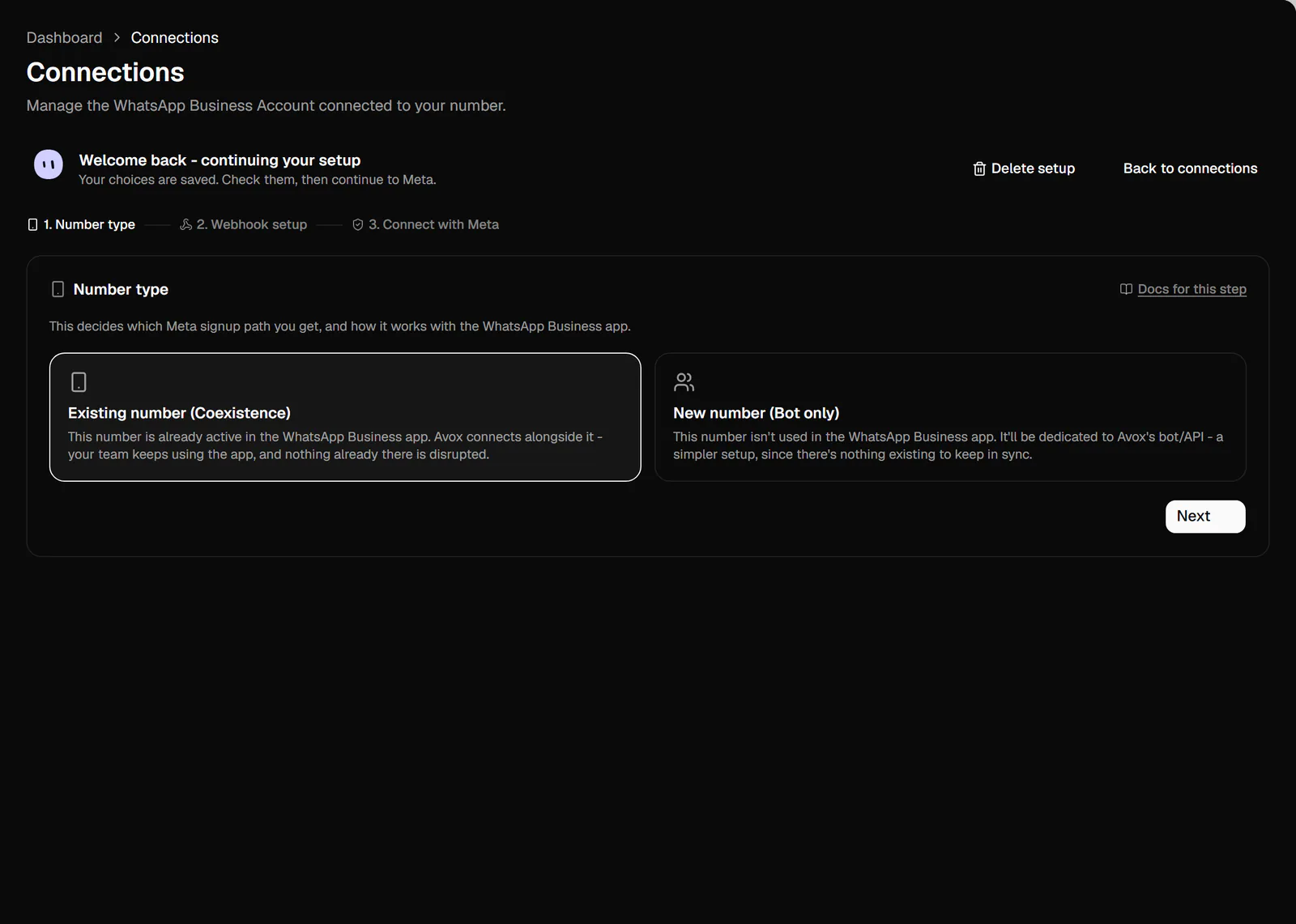
Pick how this number is used today:
- Existing number (Coexistence) - the number is already active in the WhatsApp Business app. Avox connects alongside it: your team keeps using the app, and nothing already there is disrupted.
- New number (Bot only) - the number isn't used in the WhatsApp Business app. It's dedicated to Avox, a simpler setup with no app to keep in sync.
The selected card is highlighted. Click Next. Not sure which? See Connection type and Coexistence sync.
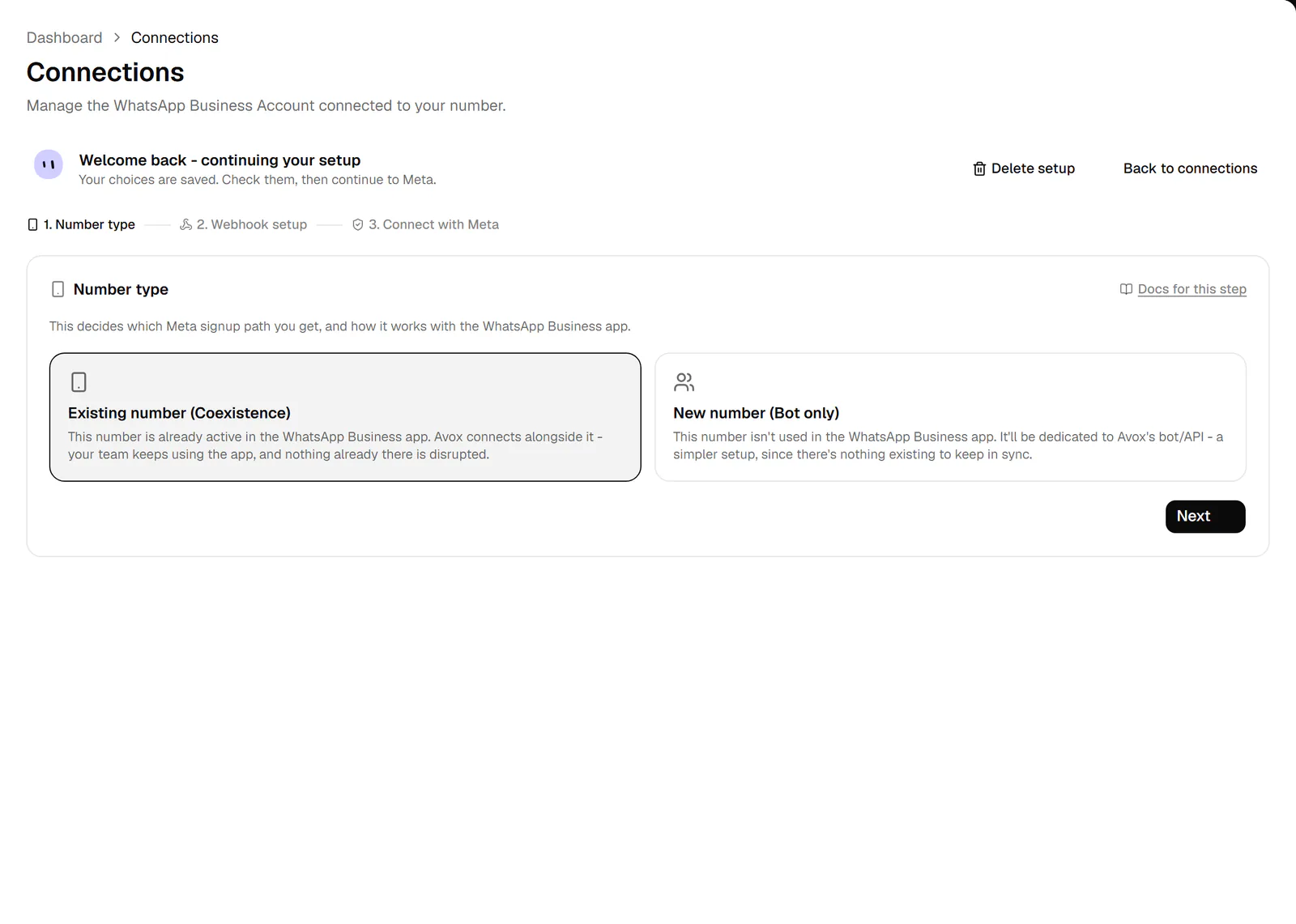
1. Number type. Choose Coexistence for a number already in the WhatsApp Business app. - 4
Webhook setup
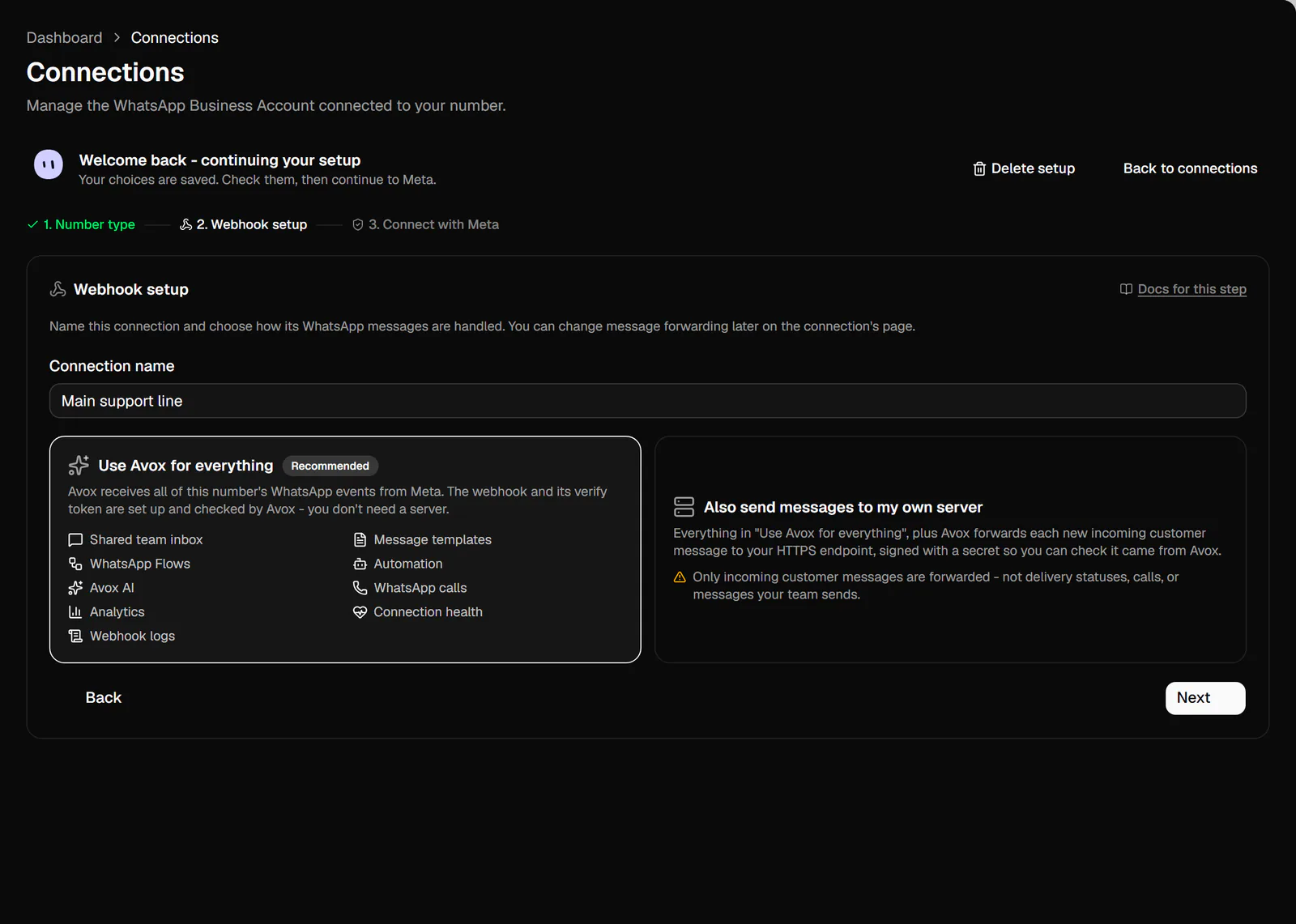
Type a Connection name your team will recognise, for example "Acme Support EU" (up to 60 characters). Then choose how this number's messages are handled:
- Use Avox for everything (Recommended) - Avox receives all of the number's WhatsApp events from Meta and sets up and checks the webhook for you. You don't need a server. It powers the shared team inbox, message templates, WhatsApp Flows, Automation, Avox AI (Beta), WhatsApp calls, Analytics, connection health and webhook logs.
- Also send messages to my own server - everything above, plus Avox forwards each new
incoming customer message to your
https://endpoint, signed with a secret. Only an Admin of the Switchboard can choose this. Delivery statuses, calls and messages your team sends aren't forwarded.
For forwarding, enter Your endpoint URL:
https://on the standard port, reachable from the internet (redirects aren't followed).Click Next. Your choices are saved as a draft, so you can leave and resume any time.
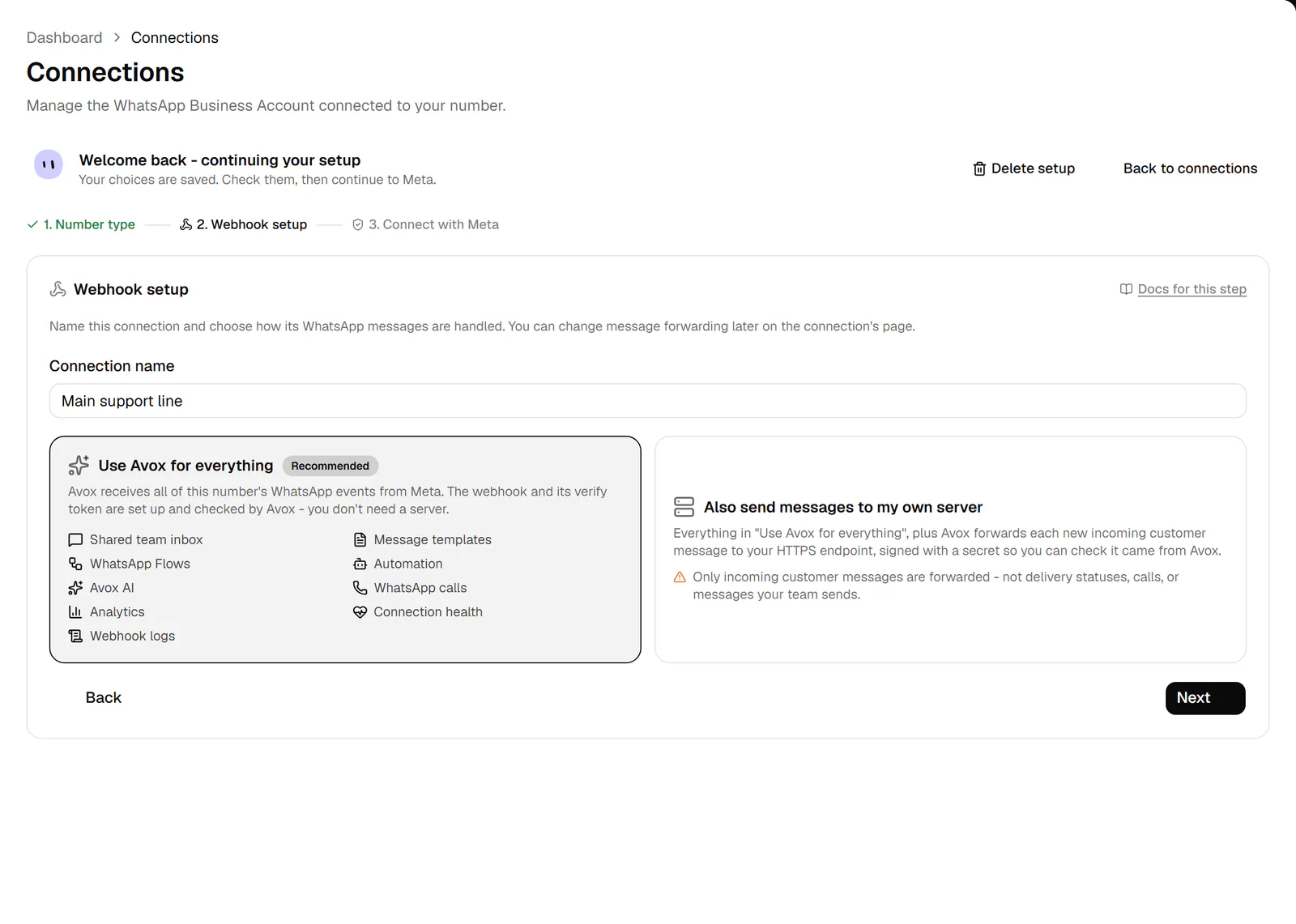
2. Webhook setup. Most teams pick Use Avox for everything. - 5
Save your signing secret (forwarding only)
If you chose forwarding, Avox creates a signing secret when you click Next and shows it once under Your signing secret. Click the copy button, store it on your server, then click I've saved it, continue. After that it's masked for good. Avox signs every forwarded message with it in the
Avox-Signatureheader. See Webhooks for how to check the signature. - 6
Send a test event (forwarding only)
On Send a test event, click Send test event. Avox posts a sample message marked
"test": trueto your endpoint, signed exactly like a real one.- A green "Delivered - your endpoint answered 200." means your server is ready.
- A red result tells you what went wrong. You can continue anyway and fix your server later: forwarding still turns on, failed deliveries are retried, and you can send another test from the connection's page.
Lost the secret? Make a new secret creates a new one; the old one stops working. Click Next once you've sent at least one test.
- 7
Review and see what to expect
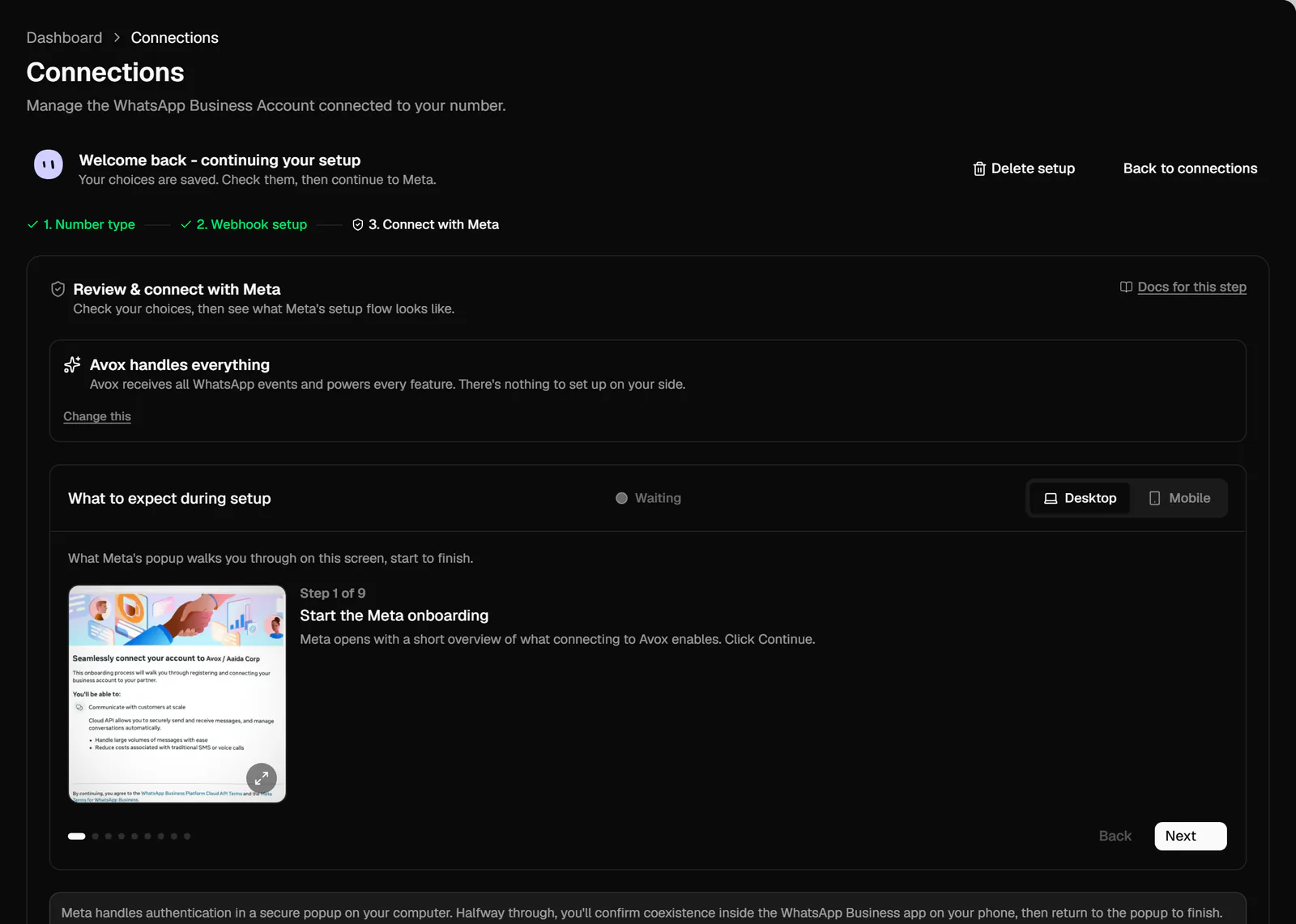
Review & connect with Meta sums up your choice ("Avox handles everything" or "Avox, plus forwarding to your server"); Change this takes you back to edit it.
Below it, What to expect during setup shows Meta's screens before you see them for real. The Desktop tab walks through the 9 screens in Meta's pop-up on your computer; the Mobile tab shows the 4 screens on your phone for a Coexistence number. Click a screenshot to view it larger. The status chip next to the title shows Waiting, Connecting, Error or Connected as your real signup goes along.
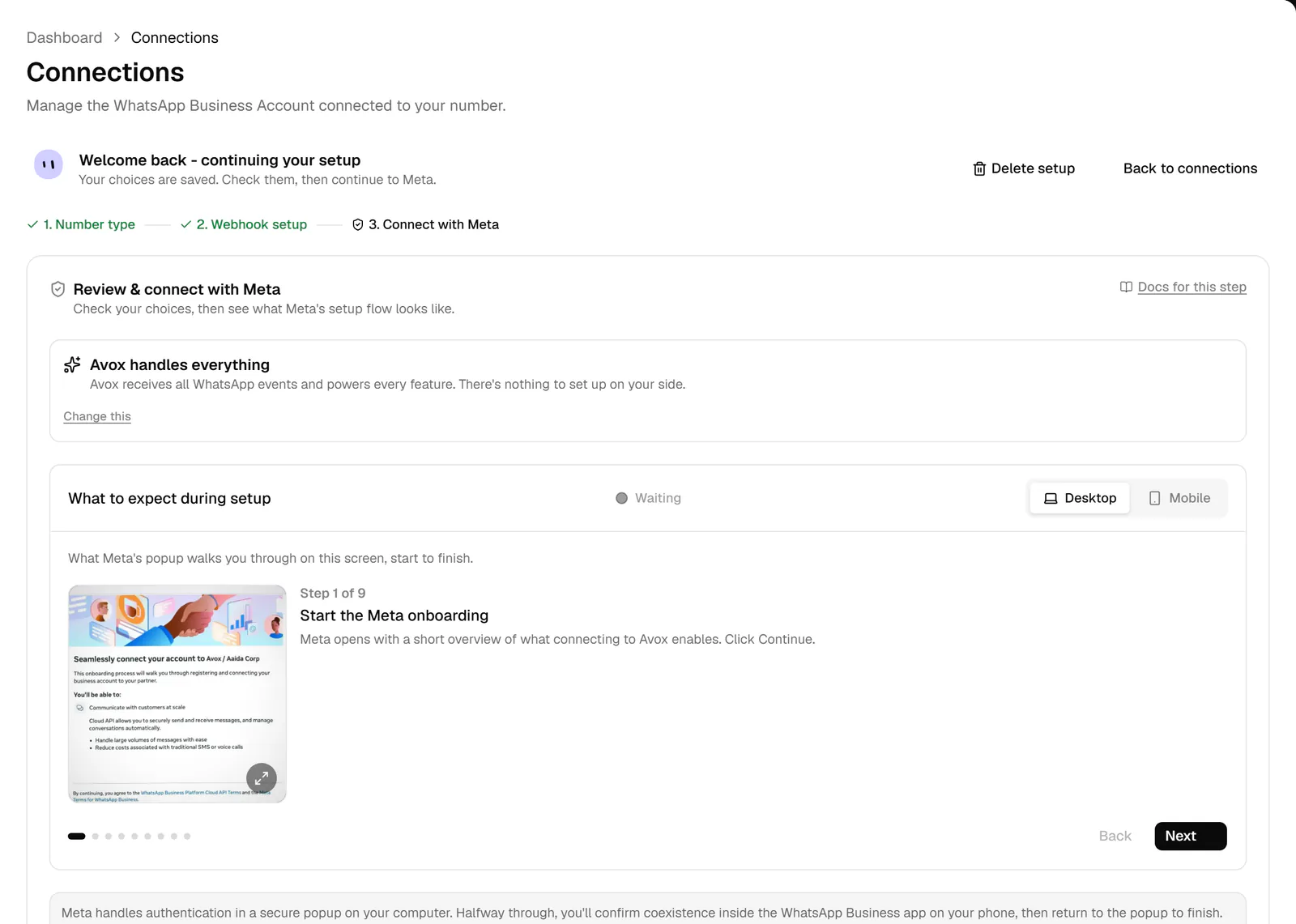
Connect with Meta. Look through the walkthrough, then Continue to Meta. - 8
Continue to Meta
Click the blue Continue to Meta button. By continuing, you confirm you're authorised to connect this WhatsApp Business Account and agree to Avox's Terms of Service. Meta's secure pop-up opens. Keep it open until it closes and sends you back on its own.
- 9
Follow Meta's pop-up
In Meta's window (the order below is for an existing number; for a new number the pop-up completes the whole signup itself, with no step on your phone):
- Click Continue on the overview.
- Pick your number if it's listed as "Registered", or choose "Enter a new phone number" and type it in.
- For an existing number, confirm the WhatsApp Business app profile Meta shows. If Meta asks for an SMS or voice code instead, stop and go back: that path moves the number away from the app.
- Choose the Meta business portfolio that should own the account. Use an existing one when you have it.
- For Coexistence, scan the QR code with WhatsApp Business on your phone (next step).
- Confirm the WhatsApp Business account and pick your time zone.
- Review what you share with Avox and click Confirm.
- Wait while Meta connects the account, then click Finish.
A payment method in Meta isn't needed to finish; you can add one later in WhatsApp Manager.
- 10
Confirm on your phone (Coexistence only)
In the WhatsApp Business app, open the verified "Connect to the Business Platform" message from Facebook Business and tap Connect. Read Meta's explanation of coexistence, then choose whether to share your chat history. That choice is made once and can't be changed later. You see Avox confirmed as the connected Business Platform; return to the pop-up to finish.
- 11
You're connected
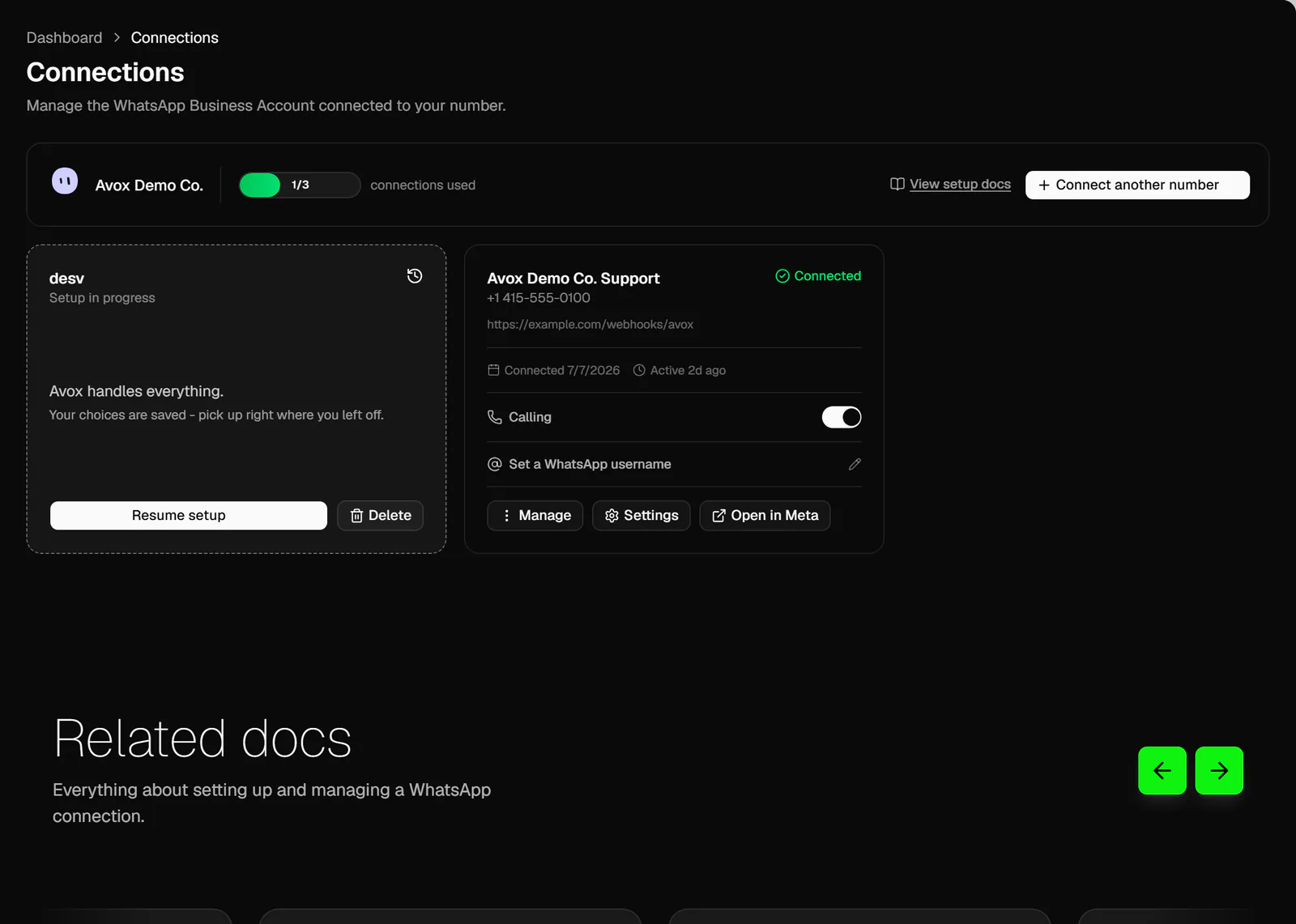
Avox takes you back to Connections, where the number shows Connected. Every Admin gets a confirmation email. Chat history (if you shared it) and contacts sync in, and every new message appears in your shared Inbox.
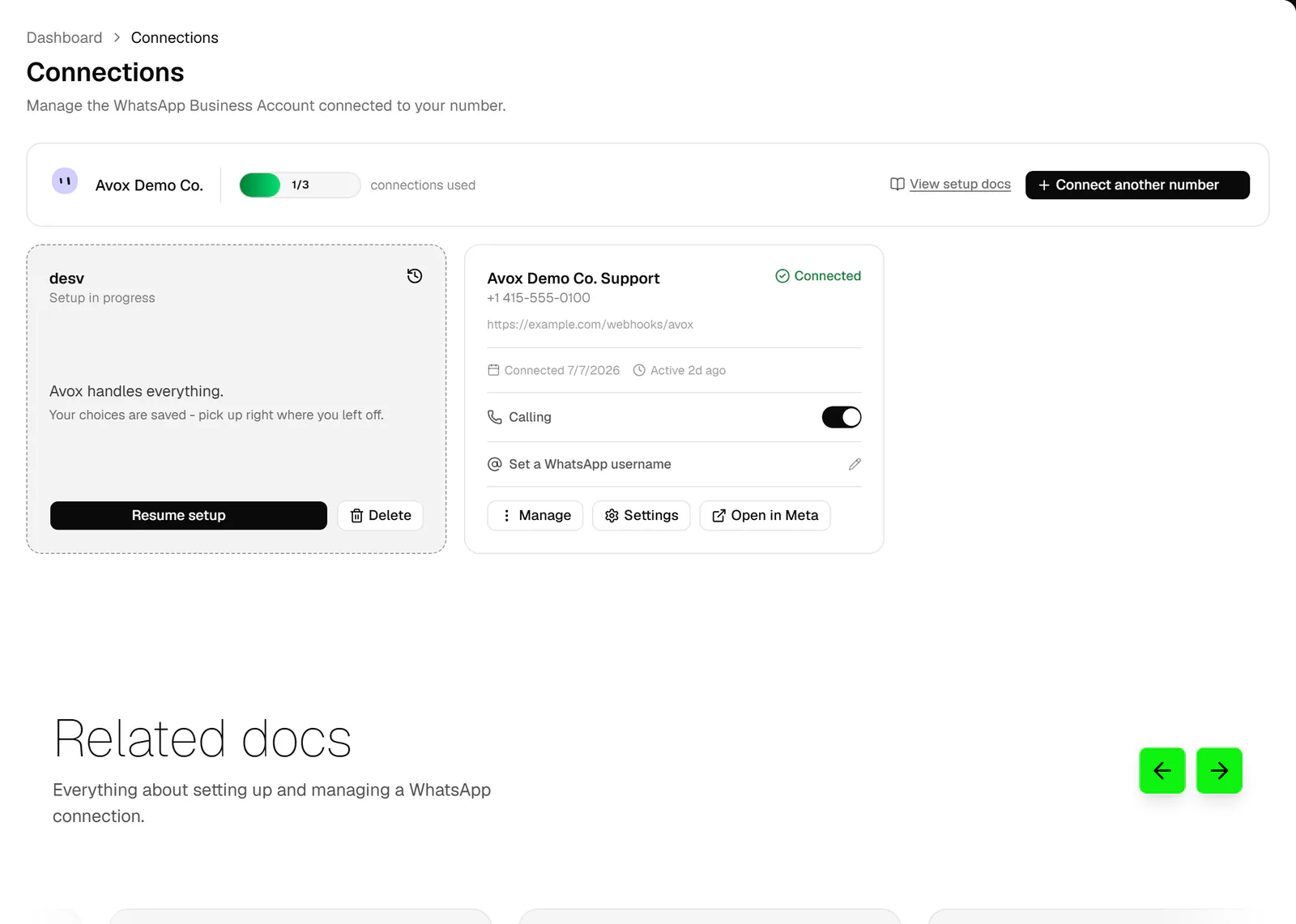
Connections, with the new number showing Connected.
You can also connect straight from the welcome chat after signing up: answer that you want to connect now, and the chat walks you to Meta's window. Either way you need an active plan first.
Your connection's page#
Click Settings on the number's card to open its own page. It shows:
- Meta identifiers - the WABA ID, Phone Number ID and Business ID, plus your Plan. Handy when Meta support or a developer asks for them.
- Message forwarding - turn forwarding to your own server on or off, send a test, and see recent deliveries. See Webhook override.
- Outbound API keys for sending from your own systems. See API keys.
- Calling and Identity-Key Check switches, and the WhatsApp username.
- Open in Meta - opens the number in Meta's WhatsApp Manager.
Then#
- Set a WhatsApp username, where Meta makes usernames available - Connections.
- Invite your team - Invites.
- Create your first template and automation.
- Turn on Calling.
- Create an API key to send from your own systems.
Tips#
- Pick the right number type. If the number is in the WhatsApp Business app today, choose Existing number (Coexistence) so your team keeps the app and its chats.
- Resuming a saved setup? Your connection name and message handling are saved. The number type starts on Existing number (Coexistence) each time, so if you're connecting a new number, click Back to the Number type step and choose New number (Bot only) before you continue to Meta.
- Use an existing business portfolio in Meta's window when you have one.
- Stay on one tab. Finish Meta's pop-up in one go and let it close itself.
- Only an Admin can set up forwarding, send test events and delete a saved setup. A Manager can resume an Admin's saved setup and continue to Meta.
Common mistakes#
Connect another number is greyed out
Meta's window never appears
Your browser blocked the pop-up. Allow pop-ups for the Avox dashboard and click Continue to Meta again.
Meta asks for an SMS or voice code for my existing number
That path moves the number off the WhatsApp Business app. Close the window, check you picked Existing number (Coexistence), and when Meta lists your number with a "Registered" badge, select that one. See Coexistence sync.
The connection didn't go through
The test event shows a red result
Check the endpoint is https:// on the standard port, reachable from the internet, answers with
any 2xx status, and doesn't redirect. You can continue and fix it later; failed deliveries are
retried.
The number shows Error after connecting
Nothing changes on your account or your number until Meta's window finishes, so it's always safe to try again. To throw away a saved setup, an Admin can click Delete setup in the wizard (or Delete on the Setup in progress card). Nothing on WhatsApp changes.
Related#
Getting startedConnect your first WhatsApp numberSetupEvery step of connecting a WhatsApp number to AvoxCoexistence syncWhat syncs between the WhatsApp Business App and AvoxConnectionsManaging your connected WhatsApp numbers
Last updated