Getting Started: Connect WhatsApp
Connecting your WhatsApp number to Avox takes a few minutes and doesn't interrupt anything your team is doing on WhatsApp today. This page walks you from sign-up to your first conversation. Each step of the connection wizard has its own section below - the Docs for this step link in your dashboard opens the matching one.
Prefer a checklist? See the Connect WhatsApp walkthrough. Want every field and error message? See the full Setup reference.
Create your account#
Sign up at Avox sign-up with your email address, or continue with Google or Facebook. Avox creates your account and your first Switchboard - your team's workspace.
A short welcome chat runs before your dashboard opens ("Quick chat before your dashboard's ready. About a minute, promise."). It asks a few questions about you, your business, and how you plan to use WhatsApp, and lets you name your Switchboard. The kind of user you say you are (for example a developer or a business owner) also sets the shape of your Avox Avatar. At the end you can connect your number straight away from the chat, or choose to do it later from the dashboard ("All good. You're in. Connect whenever, straight from the dashboard."). If you leave halfway, the chat picks up where you left off.
Choose a plan#
Connecting a number needs an active plan. Until you have one, Overview shows "No active plan - subscribe to unlock connections, templates, and Flows." with a See plans link. Compare plans on Plans and subscribe on Billing.
Your plan also sets how many numbers you can connect. See How the connection limit works.
Open the connection wizard#
Open Connections in the sidebar. With no numbers connected yet, the wizard starts straight away; otherwise click Connect another number. Any member of your Switchboard - Admin or Manager - can run it. When every connection your plan allows is in use, Connect another number is greyed out and the page reads "You've used every connection your plan allows." (AVX-3009).
The wizard has three steps: 1. Number type, 2. Webhook setup and 3. Connect with Meta. If you also forward messages to your own server, a Send test event step comes before Connect with Meta. The step bar turns a step green with a tick once it's done, and red when it needs fixing. Every step has a Docs for this step link to its section on this page, and the current step is part of the page address, so reloading keeps your place.
If you started a setup earlier and left after Webhook setup, Connections shows a Setup in progress card ("Your choices are saved") with a Resume setup button. The wizard then opens with "Welcome back - continuing your setup" where you left off. An Admin can also Delete a setup in progress, after confirming; nothing on WhatsApp changes.
Connection type#
The first step asks what kind of number you're connecting. This decides which Meta signup path you get.
- Existing number (Coexistence) - the number is already active in the WhatsApp Business app on your or your team's phone. Avox connects alongside it: the app keeps working as before, and Avox adds the shared inbox, automation, and everything else on top. This is the right choice for almost every existing business. See Coexistence, explained.
- New number (Bot only) - the number isn't used in the WhatsApp Business app. It's dedicated to Avox's bot and API. The setup is simpler, since there's nothing existing to keep in sync.
Not sure which one you need? If your team already sends and receives WhatsApp messages from a phone today, choose Coexistence.
Click Next.
Webhook config#
The second step, Webhook setup, asks for a Connection name - a label your team will recognize, such as "Acme Support EU" (up to 60 characters) - and how this number's messages are handled:
- Use Avox for everything (recommended) - Avox receives all of the number's WhatsApp events from Meta and powers the shared inbox, templates, Flows, automation, Avox AI, calls, analytics, health and logs. Avox sets up the webhook with Meta and checks it with its own verify token, so you don't need a server and there's nothing else to fill in.
- Also send messages to my own server - everything above, plus Avox forwards each new incoming customer message to your own HTTPS endpoint. Only incoming customer messages are forwarded - not delivery statuses, calls, or messages your team sends. Admins only.
Message forwarding#
If you choose Also send messages to my own server, enter Your endpoint URL. It must start with
https://, use the standard port and be reachable from the public internet. When you click Next,
Avox checks the address and creates a signing secret. It's shown once, with a copy button - copy
it into your server's settings now, then click I've saved it, continue. After that it's only shown
masked. Avox signs every forwarded message with it (the Avox-Signature header), retries if your
server doesn't answer, and lists every delivery under Recent deliveries on the connection's page.
Forwarding switches on by itself when the connection completes, and your conversations still appear in
the Inbox. See Message forwarding for the request format
and how to check the signature, and Meta webhooks for everything Meta tells Avox
about your number.
Testing on your own computer? localhost can't be reached from the internet. A tunnelling tool gives
your local server a public HTTPS address to use while you build.
Click Next. Avox saves your choices as a draft, so a Setup in progress card brings you back if you leave. If a field needs fixing, the wizard shows the problem under that field, for example "The endpoint URL must start with https://" (AVX-3006).
Webhook test#
This step only appears when you forward messages to your own server. Click Send test event: Avox
sends a sample message marked "test": true to your endpoint, signed exactly like a real one.
- "Delivered - your endpoint answered 200." (in green) - your server accepted it. Any
2xxstatus counts. - A red message - your server didn't answer, or answered with an error. The most common causes are that it isn't deployed yet, isn't served over HTTPS, or rejected the signature (AVX-3101).
Next is available once you've sent a test. A failed test doesn't block you - you can fix your server later and send another test from the connection's page. Lost the secret? Make a new secret replaces it and shows the new one once.
Meta Embedded Signup#
The last step, Review & connect with Meta, hands you over to Meta's own secure window - Meta Embedded Signup - where you authorize Avox on your WhatsApp Business Account. This is the step that creates the connection.
On this step you'll see a summary of your choice from Webhook setup (with Change this to go back), and an illustrated What to expect during setup walkthrough of Meta's screens, with Desktop and Mobile tabs. When you're ready:
- 1
Click Continue to Meta
Meta's window opens. By continuing, you confirm you're authorized to connect this WhatsApp Business Account and agree to Avox's Terms of Service, and you acknowledge the Privacy Policy.
- 2
Follow Meta's screens
The screens below show what to expect. Keep Meta's window open until it closes by itself.
- 3
Click Finish
While Meta's window is open, the walkthrough's status reads Connecting. When it finishes, you're returned to Connections, where your number shows Connected.
Coexistence vs. new number in Meta's window#
- On the Coexistence path, Meta detects that your number is registered to the WhatsApp Business app and shows your existing business profile for you to confirm. Partway through, you scan a QR code with the WhatsApp Business app on your phone and choose whether to share your chat history.
- On the new number path, there's no existing profile. Meta verifies the number itself with an SMS or voice code, and there's no phone-side step.
On your computer - 9 screens, in order#
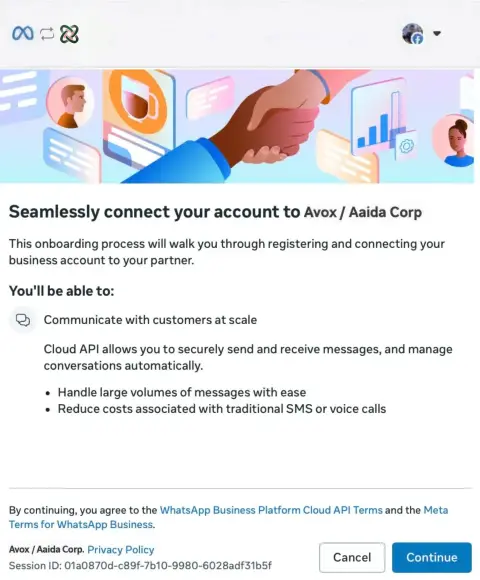
Step 1 of 9
Start the Meta onboarding
Meta opens with a short overview of what connecting to Avox enables. Click Continue.
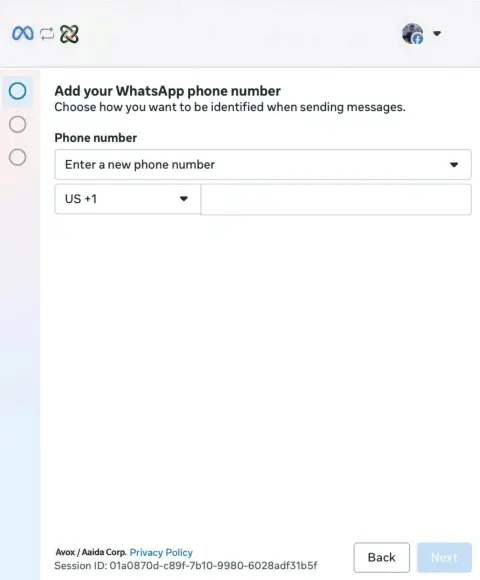
Step 2 of 9
Pick your number if it shows "Registered", otherwise enter it as a new number
Open the dropdown. If your WhatsApp Business app number is listed with a "Registered" badge, select it. If not, choose "Enter a new phone number" and type it in - the wording is Meta's: the number is new to the WhatsApp Business Platform, not to you. Either way Meta detects it belongs to the WhatsApp Business app and switches to the coexistence path itself.
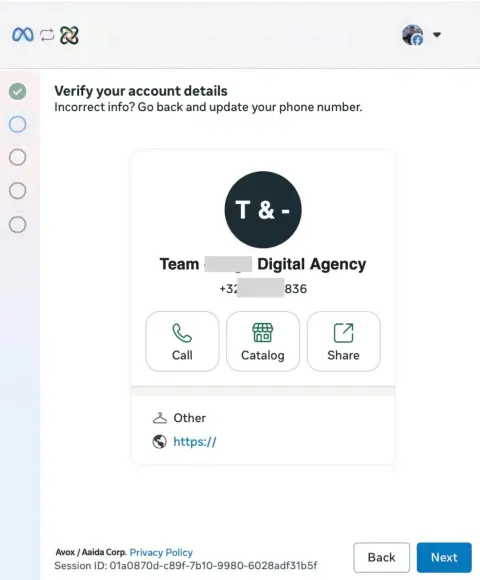
Step 3 of 9
Confirm your WhatsApp Business app profile
Meta shows the business profile from your WhatsApp Business app. Seeing this card means you're on the coexistence path. If Meta asks for an SMS or voice code instead, stop and go back - that path moves the number away from the app.
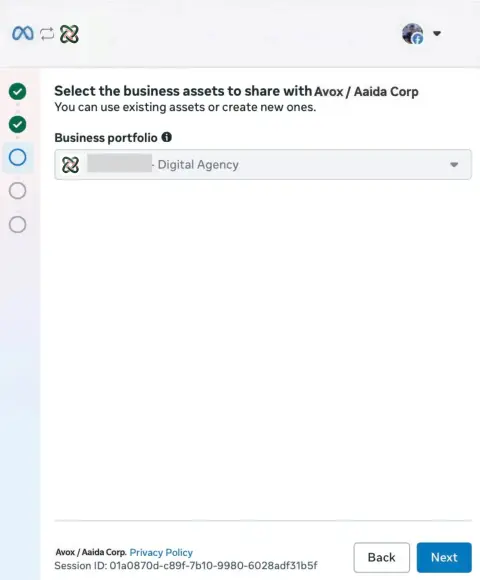
Step 4 of 9
Select the business portfolio
Choose the Meta business portfolio that should own the WhatsApp Business account. Use an existing portfolio when you have one - Meta often restricts brand-new portfolios created inside this popup.
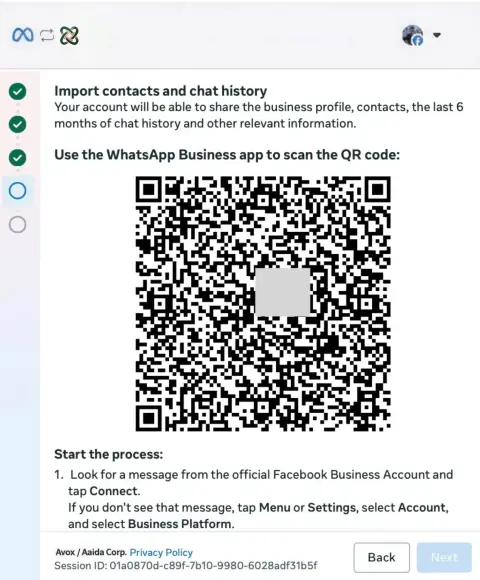
Step 5 of 9
Scan the import QR code
Open WhatsApp Business on your phone and scan the code. Meta also sends a WhatsApp message with the same link to the number. Leave this popup open - Next unlocks on its own once you finish the steps on your phone.
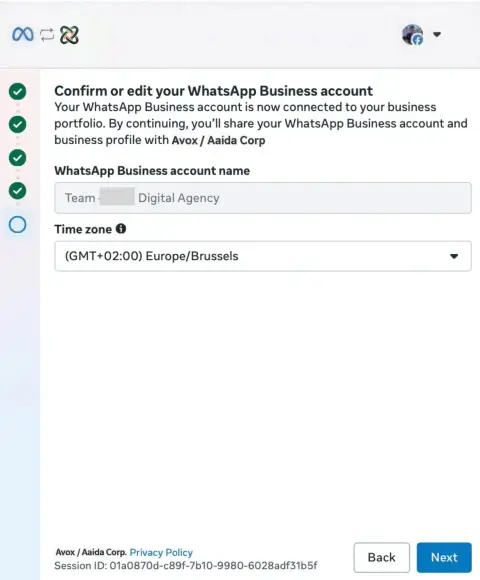
Step 6 of 9
Confirm your WhatsApp Business account
Meta creates a WhatsApp Business account for the number. The name comes from your app profile and can't be edited here. Pick your time zone and click Next.
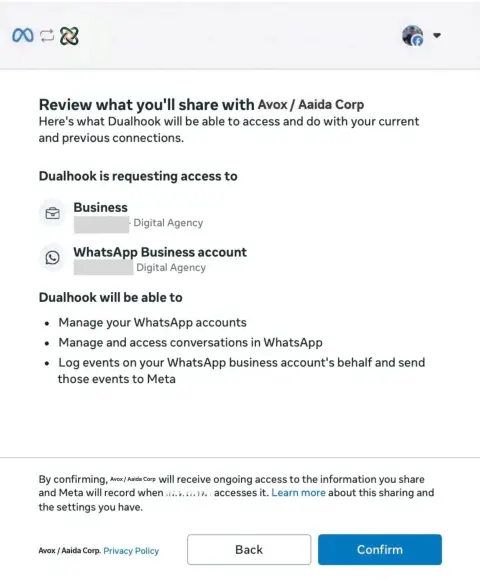
Step 7 of 9
Review what you share with Avox
Check that the business portfolio and WhatsApp Business account listed are the ones you expect, then click Confirm. These permissions let Avox register the connection and receive your number's messages.
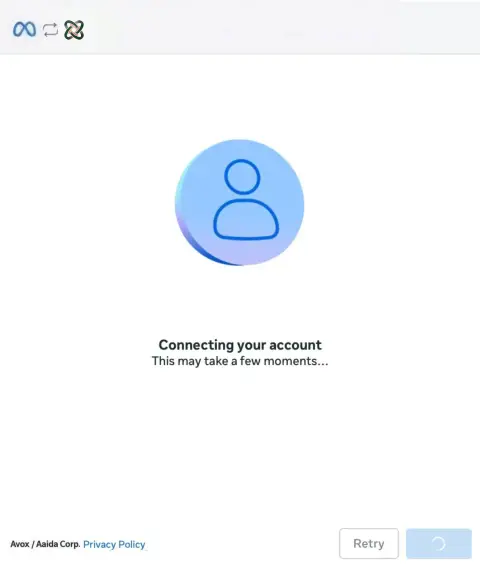
Step 8 of 9
Wait while Meta connects the account
This can take a few moments. Keep the popup open and only click Retry if Meta shows an error.
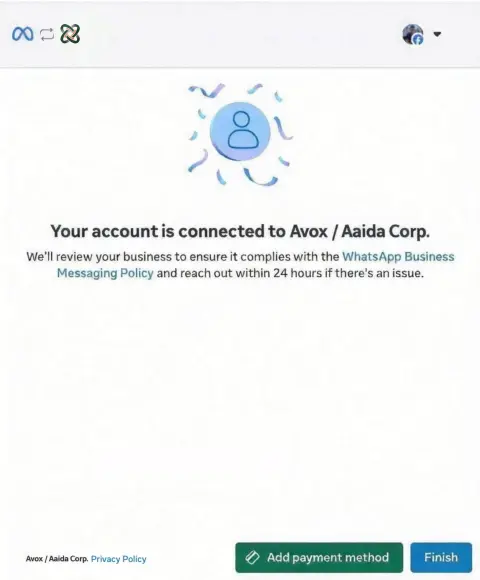
Step 9 of 9
Click Finish
Meta confirms the account is connected to Avox. Click Finish to hand the connection over. A Meta payment method isn't required to finish - add one later in WhatsApp Manager.
On your phone (Coexistence only) - 4 screens#
If you're on the Coexistence path, the WhatsApp Business app on your phone walks you through its own side of the signup, alongside the screens above:
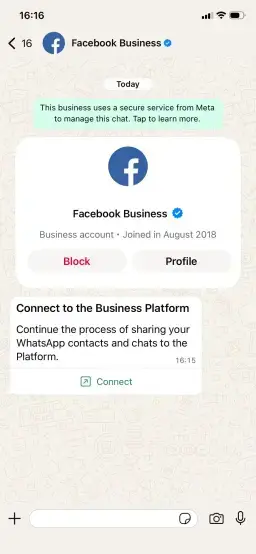
Step 1 of 4
Meta sends a WhatsApp prompt
You'll receive a verified message from Facebook Business with a "Connect to the Business Platform" card. Tap "Connect" to continue on your phone.
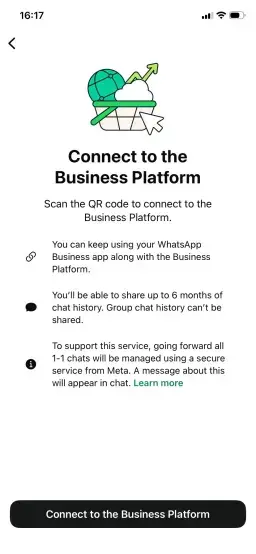
Step 2 of 4
Review the coexistence explanation
Meta explains how coexistence works, including continued WhatsApp Business app usage, chat history sharing limits, and secure handling of 1:1 chats.
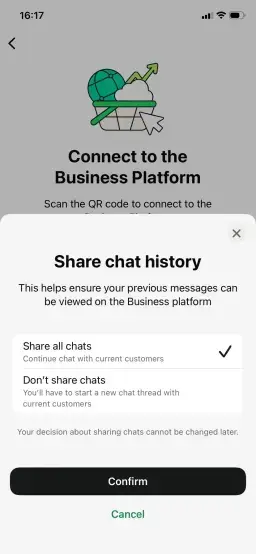
Step 3 of 4
Choose chat history sharing
Pick whether to share all chats or start new threads with current customers. This is a one-time decision and can't be changed later.
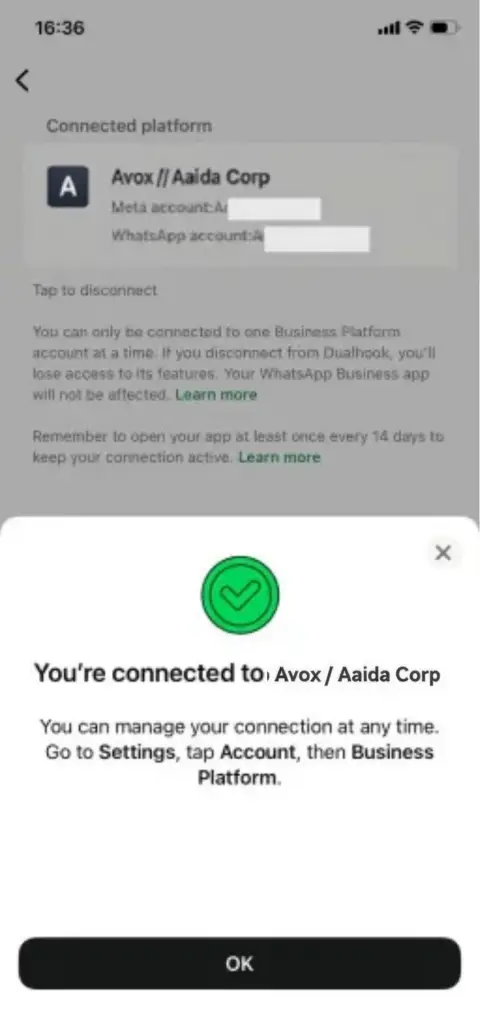
Step 4 of 4
Confirm connection success
Avox appears as the connected Business Platform, with a success confirmation and a reminder that you can manage this later in WhatsApp settings.
If it doesn't go through#
When Meta's window doesn't finish, a red panel titled "The connection didn't go through" explains why (AVX-3002), lists what to check under Try this, and offers Retry connection and View troubleshooting docs. When Meta itself reported the problem, the panel shows Meta's own message and error number. The most common causes:
- Meta's window was closed early. Retry and keep it open until it closes by itself. Make sure pop-ups are allowed for the dashboard.
- You're not an admin on the WhatsApp Business Account. Ask its admin to run the setup, or to give you admin access in Meta Business Suite.
- For Coexistence, the phone step wasn't finished. Tap Connect in the WhatsApp Business app when Meta's prompt arrives.
- No plan or no free connection slot. Subscribe or free a slot, then retry.
If Meta's window doesn't finish for any reason, nothing changes on your account or your WhatsApp number. It's always safe to close it and try again.
Every cause and fix is listed on Setup.
After you connect#
- Chat history and contacts. With Coexistence, the chat history you chose to share and your WhatsApp Business app contacts arrive in Avox. See Coexistence sync.
- New messages. Every new message - whether it arrives through Avox or is sent from the phone app - appears in your shared Inbox.
- The rest of the dashboard unlocks - Inbox, Calls, Contacts, Templates, Flows, Automation, Health, Logs, and Analytics on plans that include it.
- A confirmation email goes to every Admin of the Switchboard.
Connection management#
Once a number is connected, its Manage menu on Connections offers three actions (Admins only):
- Pause - an Avox setting; nothing changes on Meta's side. Sending from Avox stops, and the number stops counting toward your plan's connection limit.
- Resume - turns it back on, after checking your plan still has a free connection slot. A number paused because of a billing issue comes back once the billing issue is resolved on Billing.
- Delete - confirmed with a 6-digit code emailed to the Switchboard's Owner. The connection is kept for 6 days in case it was a mistake, then removed for good.
See Managing a connection for every detail.
Next steps#
- Set a WhatsApp username for your number, so customers can find you by name - subject to Meta's availability in your country and account. See Connections.
- Invite your team - see Invites.
- Create your first template to start conversations outside the 24-hour window.
- Set up an automation to answer common questions.
- Turn on Calling.
- Send messages from your own systems with an API key.
Need help?#
If anything about connecting doesn't go as expected, open Support in your dashboard and we'll help you sort it out.