Create a WhatsApp Template
The Create template wizard builds a template in three steps - Type, Name, and Content - and submits it to Meta for review. A live phone preview on the right updates as you type. Any Switchboard member (Admin or Manager) can create templates.
Want the short version? See the Create a template walkthrough.
Open the wizard#
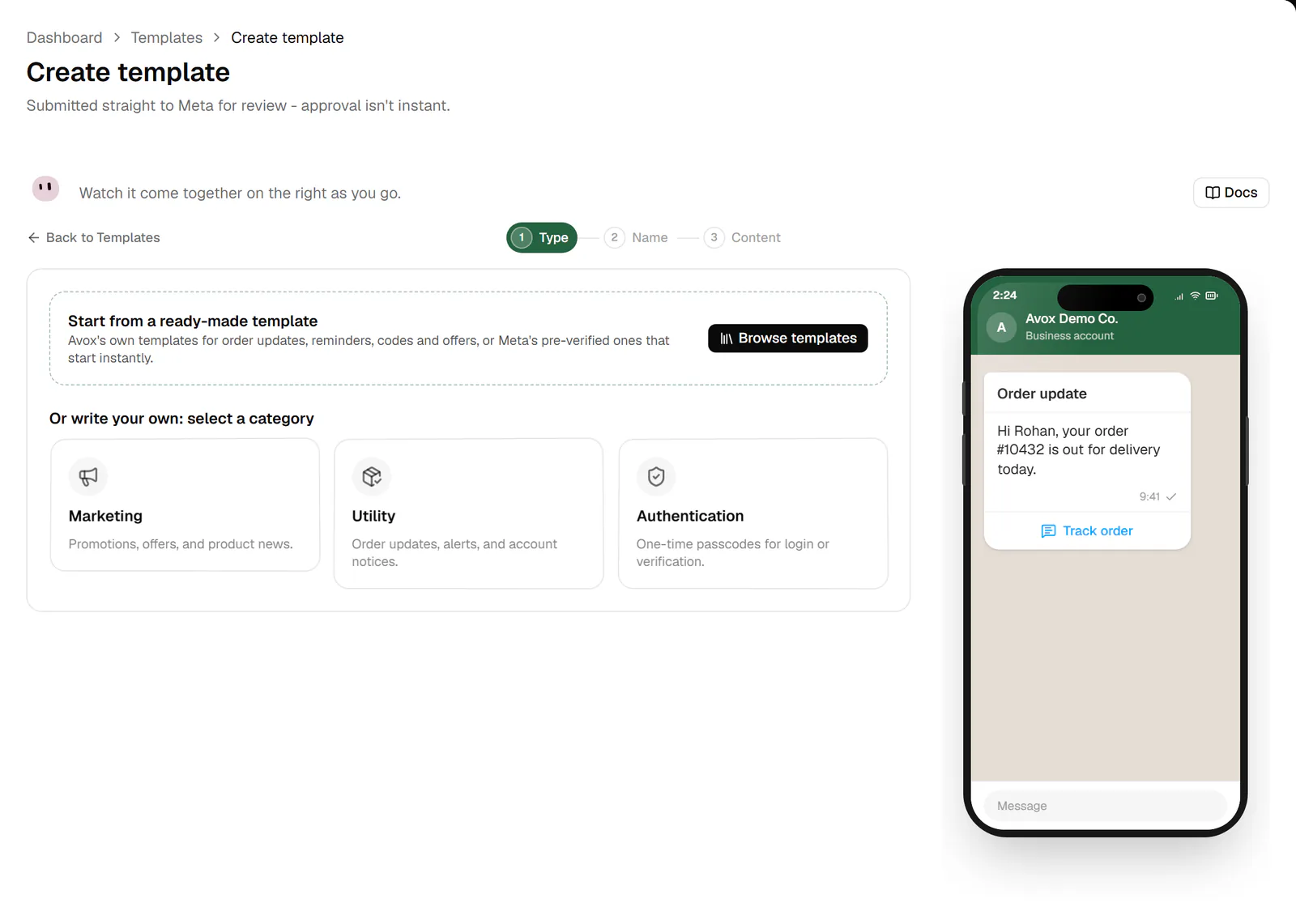
Go to Templates and click Create template. The wizard opens at /templates/new. The page
header reads "Submitted straight to Meta for review - approval isn't instant."
Across the top of the wizard you'll find:
- Docs - opens the Templates docs.
- Back to Templates - returns to the Templates page. Your work stays saved as a draft.
- The step indicator - 1 Type, 2 Name, 3 Content. Click any step you've already reached to jump back to it.
- The summary bar (from step 2 on) - the template name, language, category, and type, plus a Start over link that discards this draft and opens a blank wizard.
The wizard saves your progress as a draft a moment after each change. See Drafts.
Step 1: Type#
Browse templates#
At the top of step 1, Browse templates opens a template browser right inside the page, with two tabs:
- Avox library - Avox's own ready-written templates for order updates, reminders, login codes, offers and more, with the most popular ones first. Search, or filter by Utility, Marketing or Authentication. Show all lists every one, and Open the full library goes to the Avox library page.
- Meta's library - Meta's own pre-verified Utility templates, which start working instantly with no review wait. Search, or filter by the categories Meta gives them. They load when you open the tab; Load more fetches the next page.
Hovering or tabbing to a template shows it on the phone preview. Click one (or press Enter) to fill the wizard in: an Avox template opens step 2 with every field filled in and a box reading "From the Avox library:" with its title and languages; a Meta template opens step 2 ready to name and start. Hide templates, the close button or Escape closes the browser. At your template limit the templates can't be picked, and the browser shows the limit notice (AVX-3014).
Select your template category#
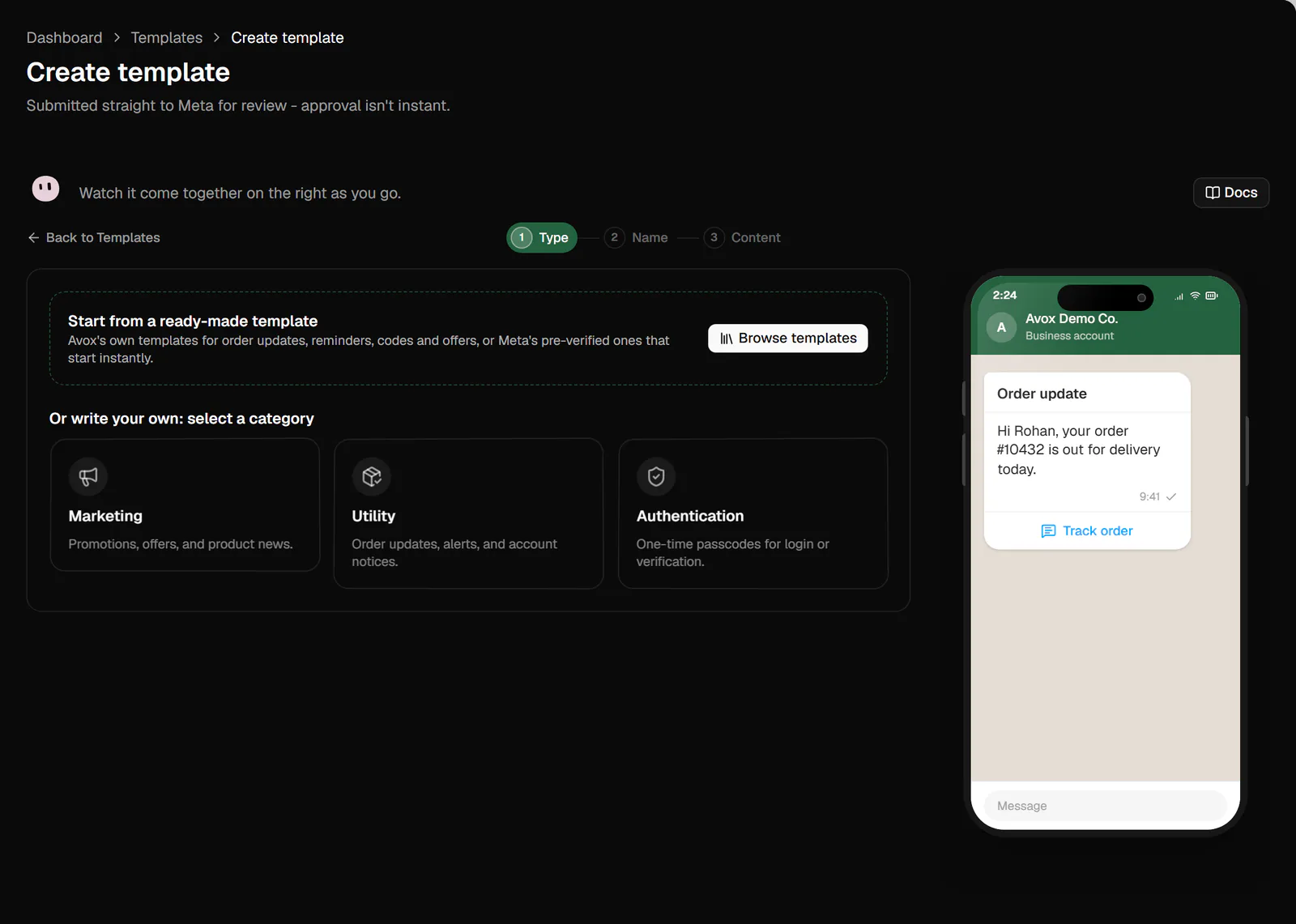
To write your own, pick one of three categories under Or write your own. Hovering a tile changes the phone preview to an example of that kind of message.
See Template categories for how Meta uses categories.
Pick a template type#
After you pick Marketing or Utility, Pick a template type appears. Click a type to move to step 2.
- Custom message - "Fully your own header, body, footer, and buttons."
- Catalogue (Marketing) - "Links your product catalogue with a fixed "View catalog" button."
- Calling permission request (Utility) - "Ask permission before a WhatsApp voice call."
For Authentication, a One-time passcode card explains that "Meta writes the actual message copy, you configure how the code gets delivered." Click Continue to move to step 2.
Meta's pre-verified templates are in Browse templates > Meta's library (above), or on the full Library page.
Step 2: Name#
Step 2 is headed Name your template.
Click Next to continue (it stays disabled until you enter a name), or Back to return to step 1.
A template's name and language can't change after you submit it. To use a different name or language, create a new template.
Unique names#
Meta needs each name and language pair to be unique in your WhatsApp Business Account. If one of
this Switchboard's templates already uses the name in the language you picked, the wizard shows
AVX-3400 under Template name with a button to use the next free name
(for example order_confirmation_2). The same name is fine in another language.
Language of an Avox template#
When you started from the Avox library and change the Language:
- if the template is also written in the new language, a note says the text is still in the old one, with a Load the button that swaps in the new language's text;
- if it isn't written in that language, you see AVX-3401 with buttons to switch back. You can also keep your language and rewrite the text yourself before submitting - Meta reviews the text in the language you choose.
Authentication templates work in every language, since Meta writes their text.
Step 3: Content#
What you fill in depends on the type you picked. Every type ends with the same two controls: Message validity period (optional) and Submit to Meta.
Custom message#
A fully custom message, available under Marketing and Utility.
- 1
Type of variable
Choose how variables are written in this template. Number uses numbered placeholders such as
{{1}}and{{2}}. Text (named) uses names such as{{customer_name}}. - 2
Header (optional)
Choose None, Text, Image, Video, or Document.
- Text - up to 60 characters. Click the
{{1}}button to insert the header's one variable, then type an example value for it in the field that appears. - Image, Video, or Document - click Upload sample image (or video, or document) to upload a real sample file. Meta reviews the template against it. Click the x next to the file name to remove it.
- Text - up to 60 characters. Click the
- 3
Message body
Required, up to 1024 characters (a counter shows how many you've used). The toolbar above the box styles selected text: Bold wraps it in
*, Italic in_, Strikethrough in~, and the</>button in three backticks for monospace. Insert variable adds the next numbered variable (or a named one) at the cursor. - 4
Example values
When the body contains variables, a box titled "Example values - required by Meta for review" appears with one field per variable, such as "Example for
{{1}}". Fill in every one. - 5
A small gray line under the message, up to 60 characters.
- 6
Click Add to add a button, choose its Type, and fill in its fields. See Buttons below.
Calling permission request#
Asks a customer for permission to call them on WhatsApp. It has the same Type of variable, Header, Message body, example values, and Footer fields as a custom message. In place of buttons, Meta adds a fixed calling-permission element that can't be combined with any other button. To place calls you also need WhatsApp Calling turned on for your number - see Calling.
Catalogue#
Shares your product catalogue. It has a Message body, example values for numbered variables, and an optional Footer. It has no header. Meta adds one fixed View catalog button, and its text can't be edited.
9:41
R
Riverside Cafe
Business account
Hi Priya, here's our latest menu - browse and order right inside WhatsApp.
9:41Message
One-time passcode#
Authentication templates carry a one-time code. Meta writes the message itself; you choose how the code reaches your customer.
- 1
Code delivery setup
- Zero-tap auto-fill - "Sends the code automatically - easiest for customers."
- One-tap auto-fill - "Sends when the customer taps the button."
- Copy code - "Customer copies and pastes it into your app."
- 2
App setup - up to 5 apps
For zero-tap and one-tap, click Add app and enter your Android app's package name (for example
com.example.myapplication, up to 224 characters) and its signature hash (exactly 11 characters). At least one app is required. Copy code doesn't need this. - 3
I accept Meta's zero-tap terms
Shown for zero-tap only. Switch it on to accept Meta's zero-tap terms.
- 4
Content
Add security recommendation (on by default) adds "For your security, do not share this code." Add expiry time for the code (on by default) adds an expiry notice; set Expires in to 1 - 90 minutes (default 10).
9:41
R
Riverside Cafe
Business account
123456 is your verification code. For your security, do not share this code.
This code expires in 10 minutes.
9:41Message
Message validity period#
Message validity period (optional) sets how long Meta keeps trying to deliver a message sent with this template. If Meta can't deliver it in that time, the message isn't delivered and you aren't charged. Choose Standard (10 minutes), 5 minutes, 10 minutes, 30 minutes, or 1 hour.
Buttons#
Custom message templates can have up to 10 buttons. Every button lives in one list; pick each one's type from the Type menu.
- Static vs Dynamic URLs. A static URL sends the same link to everyone. Dynamic adds
{{1}}to the end of the URL so each message can carry its own link (for example a tracking page). For a dynamic URL, fill in Example URL with one real finished link - Meta needs it for review. - Your own working links only. See Website links below.
- Country codes. The Country menu offers US +1, UK +44, India +91, Australia +61, UAE +971, Singapore +65, Germany +49, France +33, Brazil +55, and Indonesia +62. The full number must be 6 - 20 characters.
- Share contact info stands alone. Choosing it removes every other button, and Add stays disabled until you remove it.
- The trash icon on a row removes that button.
Website links#
Every Website URL, and a dynamic link's Example URL, must be a working link on your own
website that starts with https://. Meta reviews each link, and customers tap it, so a template
can't be submitted while a button still uses a sample link:
example.com,example.orgorexample.net(or any address on them, such aswww.example.com);localhostor another address that only works on your own computer;- a link that starts with
http://or has nohttps://at all.
The field shows "Replace the sample link with your own working link (it must start with https://)" in red as soon as it holds one, and Submit to Meta stops on it with AVX-3430. Avox checks this again when the template reaches Avox's servers, so it's refused there too.
Templates from the Avox library come with example.com links
as placeholders. The Content step then starts with a red note, "A website button still uses a
sample link", until you replace each one with your own.
Variables and example values#
The preview fills each variable with its example value. A variable without one shows as "[Var 1]" (or "[customer_name]") so you can spot it.
Rules Avox checks before submitting#
Meta rejects these outright, so Submit to Meta stops with a message (and AVX-3404 for variables) instead of sending them:
- numbered and named variables mixed in one template, or a variable written incorrectly;
- numbered variables with a gap (
{{1}}then{{3}}) or a variable without an example value; - more than one variable in the header, a header variable other than
{{1}}or without an example, or a line break in the header; - a variable in the footer;
- a website button whose variable isn't
{{1}}at the very end of the link, or a dynamic link without an example; - a website button, or a dynamic link's example, on a sample link such as
example.com,localhostor a link that doesn't start withhttps://(AVX-3430, see Website links); - a custom message in the Authentication category - Authentication templates only exist as Meta's one-time passcode (AVX-3403).
Example values typed for a variable you later deleted are dropped automatically.
Avoiding a rejection#
Meta most often rejects templates (INVALID_FORMAT) for how variables are placed. Avox checks
these on the template's page (Issues then Our checks) and again before you resubmit an
edit:
- Number variables in order with no gaps:
{{1}},{{2}},{{3}}. - Don't start or end the body with a variable, and don't put two variables side by side.
- Keep enough words around the variables - a message that's mostly variables is rejected.
- Don't use variables in the footer, and use at most one in the header.
- Keep headers free of emoji, line breaks and
*_~formatting. - Use links to your own domain, not shortened links.
- Keep offers, discounts and other promotional wording out of Utility templates - Meta rejects
them (
PROMOTIONALorTAG_CONTENT_MISMATCH) or moves them to Marketing.
Header sample files#
Avox checks the file's real type from its contents, not its name. The file goes straight to Meta as the template's sample. If Meta can't accept it, you see AVX-3028; try a smaller file or a different format. Submitting an Image, Video, or Document header without a sample shows "Upload a sample file for this header type first" (AVX-3402).
Avox library templates with a media header can't include a sample for you. The Content step starts with a note saying what the sample should show (for example "a photo of the product that's back in stock") - upload your own under Header.
Submit to Meta#
- 1
Click Submit to Meta
Avox checks every field first. If something is missing or too long, the problem is shown next to the field and the avatar reports AVX-3013.
- 2
Avox sends the template to Meta
The button shows "Submitting" while Meta receives it.
- 3
You return to the Templates page
You see "Submitted to Meta for review". The new template appears in Your templates with the status Meta returned, usually Pending review, and its draft is removed.
Submit to Meta is disabled while every template slot on your Switchboard's plan is in use. A notice above it reads "You've used X of Y templates. Delete one to create a new one. (AVX-3014)" with a Manage templates link (see Freeing a slot).
What happens next - review, approval, and rejections - is covered on Approval. Every decision Meta makes afterwards shows on the template's own page, in the Issues panel's history.