WhatsApp Message Templates
A template is a message you write once, submit to Meta for review, and then send as many times as you like. WhatsApp uses templates for every message a business starts: a first message to a customer, or a message after the 24-hour messaging window has closed. This is Meta's rule for every business on WhatsApp.
Avox lets you build templates step by step, submits them to Meta for you, keeps their review status up to date, and shows how each one performs.
9:41
R
Riverside Cafe
Business account
Your order has shipped
Hi Aditi, your order #48213 is on its way. Track it any time with the button below.
Thanks for shopping with us!
9:41Message
This preview uses the same component the template wizard and every template's own page use, so it always matches what you see in the dashboard.
Where to go next#
Before you start#
- Connect a WhatsApp number first. Templates live in the WhatsApp Business Account behind your connected number, so the Templates page only opens once a number is connected. Without one, the dashboard sends you to Connections (see AVX-3001).
- Check your plan's template limit. Each Switchboard can hold as many templates as its plan allows - its own plan, or its owner's (see Plans). Templates you've deleted free up their slot.
Who can do what#
Templates belong to a Switchboard, and every member of it can work with them.
If the Create template button doesn't appear for you, template creation has been switched off for your account. Contact Support to have it turned back on. A request made anyway returns "This feature has been turned off for your account. Contact Avox support if you need it."
The Templates page#
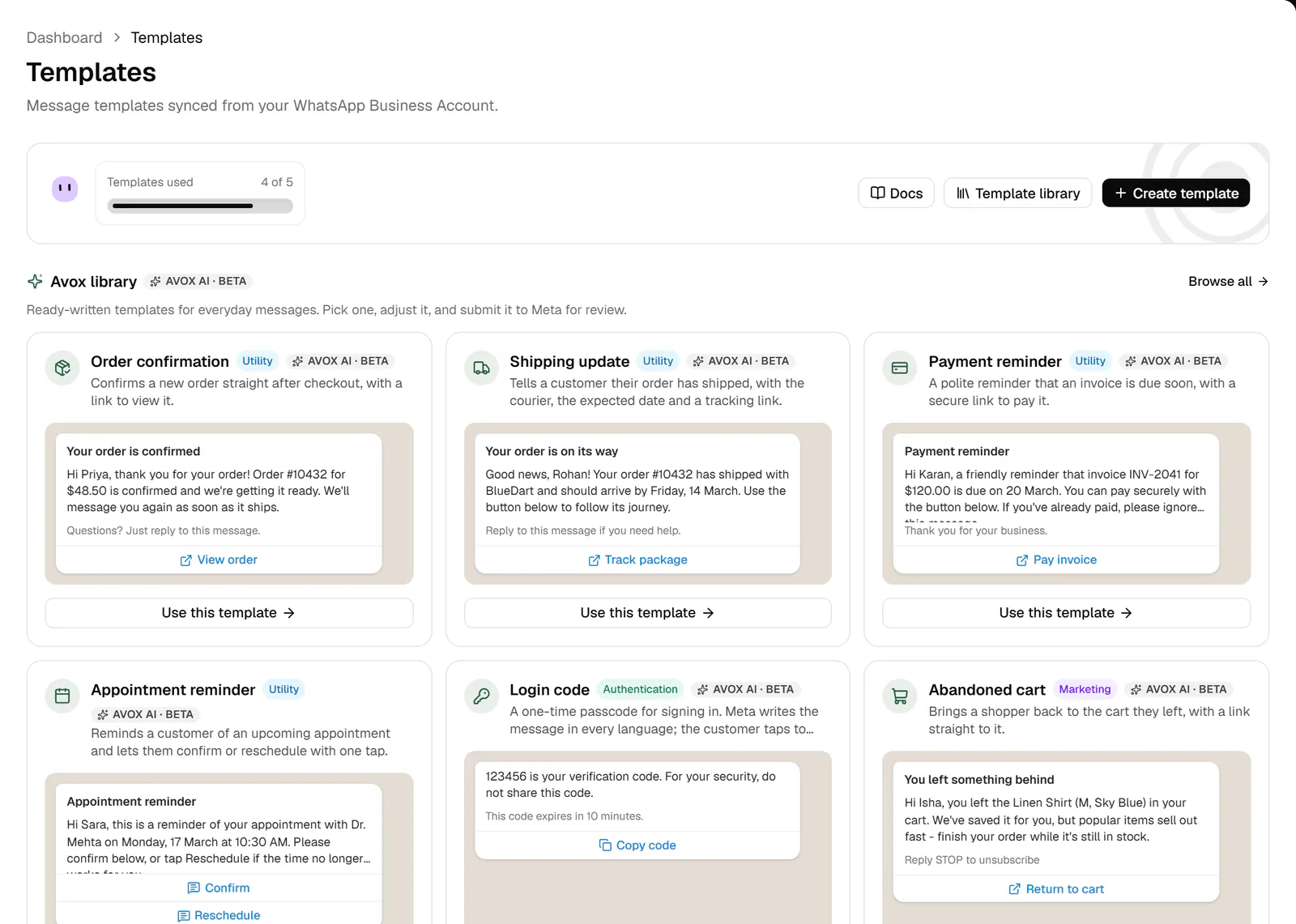
Open Templates in the sidebar. From top to bottom the page shows:
- 1
Usage bar
Templates used shows how many of your plan's template slots this Switchboard is using, for example "3 of 5" on Growth. The Docs button opens this page, Template library opens the Avox library, and Create template opens the wizard. When every slot is used, Create template is disabled and a notice reads "You've used 5 of 5 templates. Delete one to create a new one. (AVX-3014)" with a Manage templates link - see Freeing a slot.
- 2
Avox library
The most popular templates from Avox's own library, such as order confirmation, shipping update and login code, each with a small preview of the message. Use this template opens the wizard with everything filled in, ready to adjust and submit. Browse all opens the full Avox library. While every template slot is used (or you can't create templates) the buttons are disabled. Links in these templates are
example.complaceholders - replace them with your own before submitting (see Website links). - 3
Start from Meta's template library
A strip of six featured templates from Meta's own library, plus a Browse the full library link. See Library.
- 4
Drafts
Templates you started but haven't submitted yet, with a count such as "Drafts (2/10)". See Drafts below.
- 5
Your templates
A table of every template in this Switchboard, with a Refresh from Meta button above it.
The Your templates table has these columns:
A line above the table counts your templates. With none yet, the table reads "No templates yet - create one from the premade gallery or from scratch, or refresh in case one already exists on Meta's side."
Refresh from Meta#
Meta reports status changes to Avox automatically, so the table normally stays current on its own. Refresh from Meta asks Meta right away for the latest status, category, quality rating, and rejection reason of every template in the table. You see "Refreshed from Meta" when it finishes. If Meta can't be reached, you see AVX-3026; try again in a moment.
Drafts#
The wizard saves your work as a draft a moment after you stop typing, so you can close the tab
and come back later. A draft is created as soon as you pick something in the wizard, and its
address (/templates/new?draft=...) can be bookmarked.
- Each Switchboard can keep up to 10 drafts at once. At 10, the wizard stops saving and shows AVX-3029. Delete a draft to free a slot.
- Each draft card shows its name (or "Untitled draft"), its category (or "Not started yet"), which step it's on ("Step 2 of 3"), and when it was last edited.
- Edit reopens the wizard exactly where you left off. If the draft was deleted in another tab, you see AVX-3030.
- The trash icon deletes the draft straight away. If that fails, you see "Couldn't delete that draft. Try again."
- Start over inside the wizard discards the current draft and opens a blank wizard.
- A draft is removed automatically once its template is submitted.
Create template always starts a new draft, so it never overwrites one you have in progress.
A template's own page#
Click Manage on any row to open the template's page ("Everything Meta knows about this template."). Back to Templates returns to the list. It shows:
- Details - the template's type, its status badge, category, language, last-edited time, header, body, example values, footer, buttons, and (for a calling permission request) its fixed interactive element. A One-time passcode template shows "Meta writes this message's copy itself - see the preview." in place of a body.
- A live preview of the template, built from the same content.
- Issues - every problem with the template in one place (see below).
- Last 30 days - delivery numbers straight from Meta. See Insights.
- Edit template (or Edit and resubmit for a rejected or paused template) - shown for Custom message templates. See Editing a template.
- Delete template - removes the template.
Issues#
The Issues panel collects everything that could stop the template from being approved or sent:
- Meta's verdict - for a rejected template, the reason code Meta gave (for example
INVALID_FORMATorPROMOTIONAL) explained in plain English, with how to fix it. A paused, disabled or flagged template gets the same treatment, including any note Meta sent with it. - Quality - a yellow or red quality score, and what it means.
- Category changes - when Meta moved the template to another category, or says it will.
- Our checks - problems Avox finds in the content before Meta does: variables out of order or missing sample values, a body that starts or ends with a variable, text over Meta's length limits, header formatting, button rules, shortened links, and promotional wording in a Utility template.
- History - a timeline of every status, quality and category change Meta reported, and every edit submitted from Avox.
What each rejection reason means is listed in Approval.
Deleting a template#
- 1
Open the template
Click Manage on its row in Your templates.
- 2
Click Delete template
A dialog asks Delete "template_name"? and explains: "This removes it from Meta and from Avox - it can't be undone."
- 3
Confirm
Click Delete template in the dialog. You see "Template deleted" and return to the Templates page. The slot is free for a new template.
Meta deletes every language version that shares the template's name. If the delete fails, you see AVX-3024.
Freeing a slot#
When every template slot is used, Manage templates (on the limit notice in the Templates page, the wizard, or the library) opens the Templates page at Your templates with rejected, paused and disabled templates highlighted. They can't be sent as they are, so they're usually the ones to delete. Open one with Manage, then Delete template.
Automations that send a deleted template can't be switched on again until you pick a different template for that action. See Actions.
Sending a template#
Once a template is Approved, you can send it:
- From an automation - the Send a template action sends one of your approved templates when the automation fires. See Actions.
- From your own systems - the Avox API sends templates, including values for their variables. See Message types.
A template can be sent at any time, inside or outside the 24-hour messaging window. Meta charges for template messages by category - see Pricing.