Create a template
Create a WhatsApp message template in Avox click by click: pick a category and type, name it, write the content with example values, submit it to Meta and track its review.
This walkthrough takes you through the Create template wizard, from a blank page to a template Meta has approved and you can send. Templates are the messages you can send any time, even outside WhatsApp's 24-hour window. Every field and limit is covered in full on Create.
Before you start
You need a WhatsApp number connected to Avox first: templates live in the WhatsApp Business Account behind it (Connect WhatsApp). Admins and Managers can create templates by default; an Admin can change that per member under Permissions ("Create and edit templates").
Pick the right category#
Meta reviews and prices templates by category, so choose the one that fits what the message really is:
More detail and examples are on Template categories.
Step by step#
- 1
Open the wizard
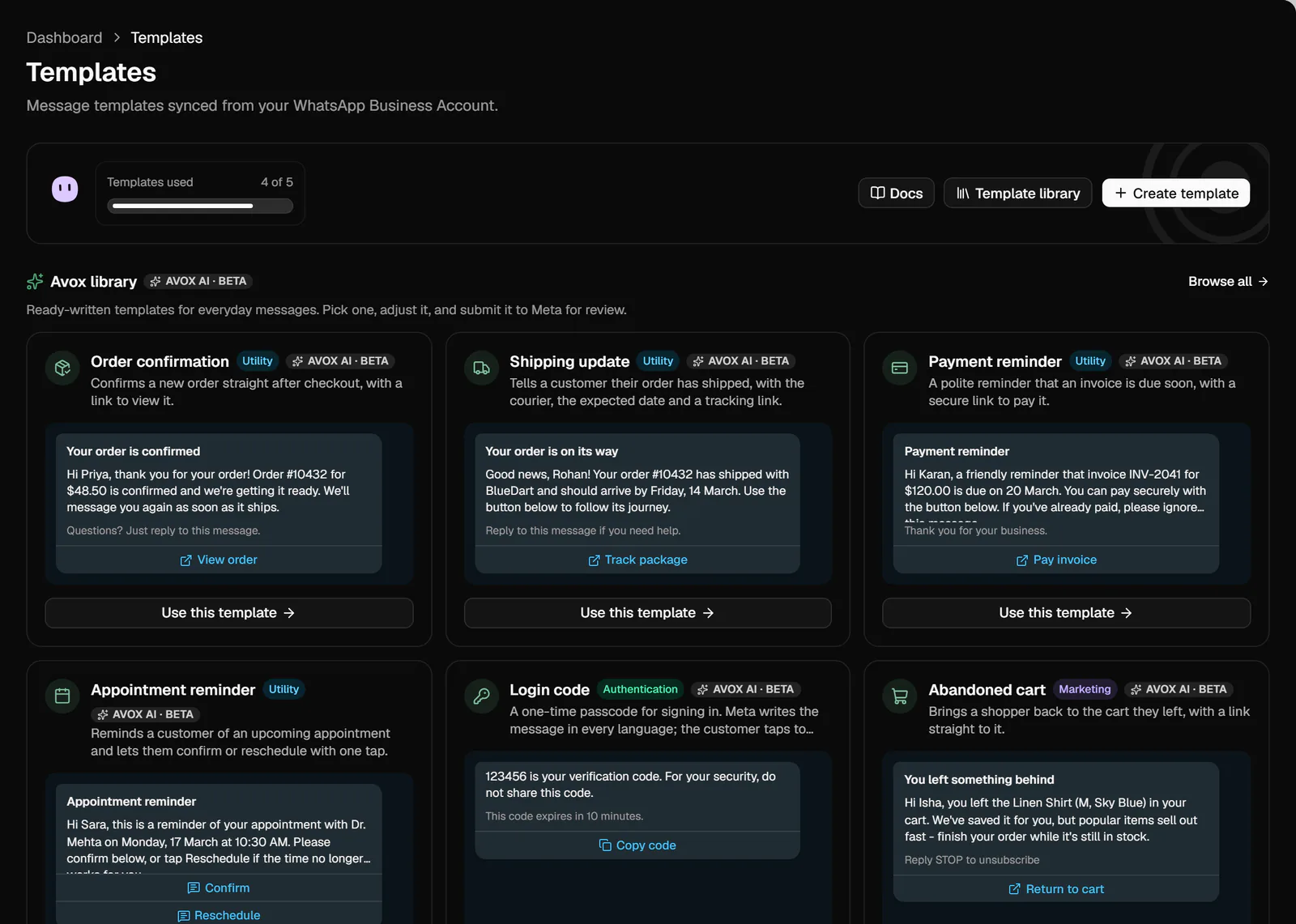
Click Templates in the sidebar, then Create template at the top of the page. The wizard has three steps, Type, Name and Content, with a live phone preview on the right that updates as you go. Once you've reached a step you can click its name to jump back.
Template library next to it opens every ready-written template, and Back to Templates returns to the list at any time; your work is kept as a draft.
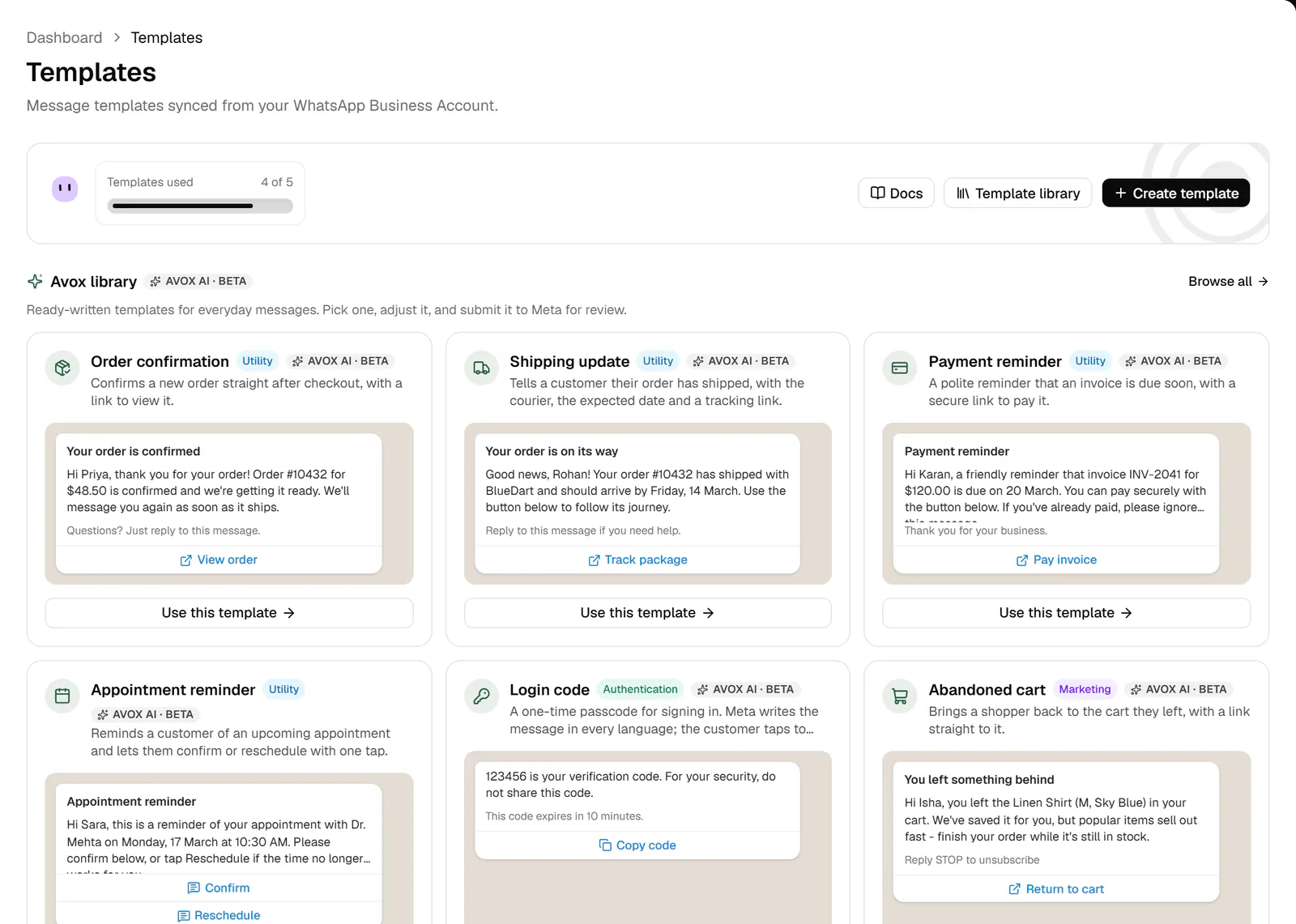
The Templates page. Create template opens the wizard; Template library opens the ready-written templates. - 2
Type: start ready-made or write your own
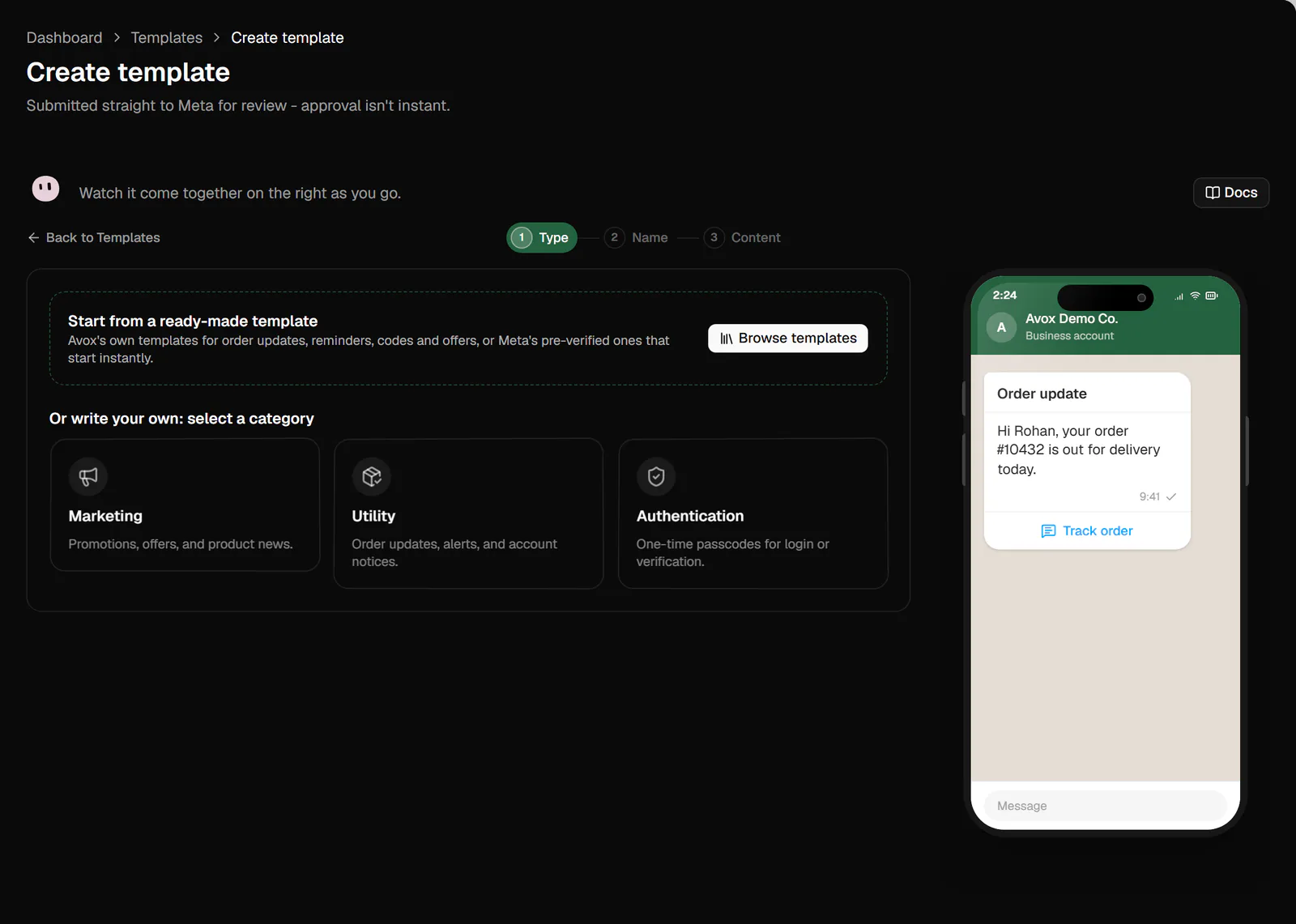
At the top, Start from a ready-made template offers a shortcut: click Browse templates, pick one from the Avox library or Meta's library tab, and the wizard fills everything in and moves on to Name. See Start from a ready-made template below.
To write your own, under Or write your own: select a category, click Marketing, Utility or Authentication. Hover a card to preview an example on the phone.
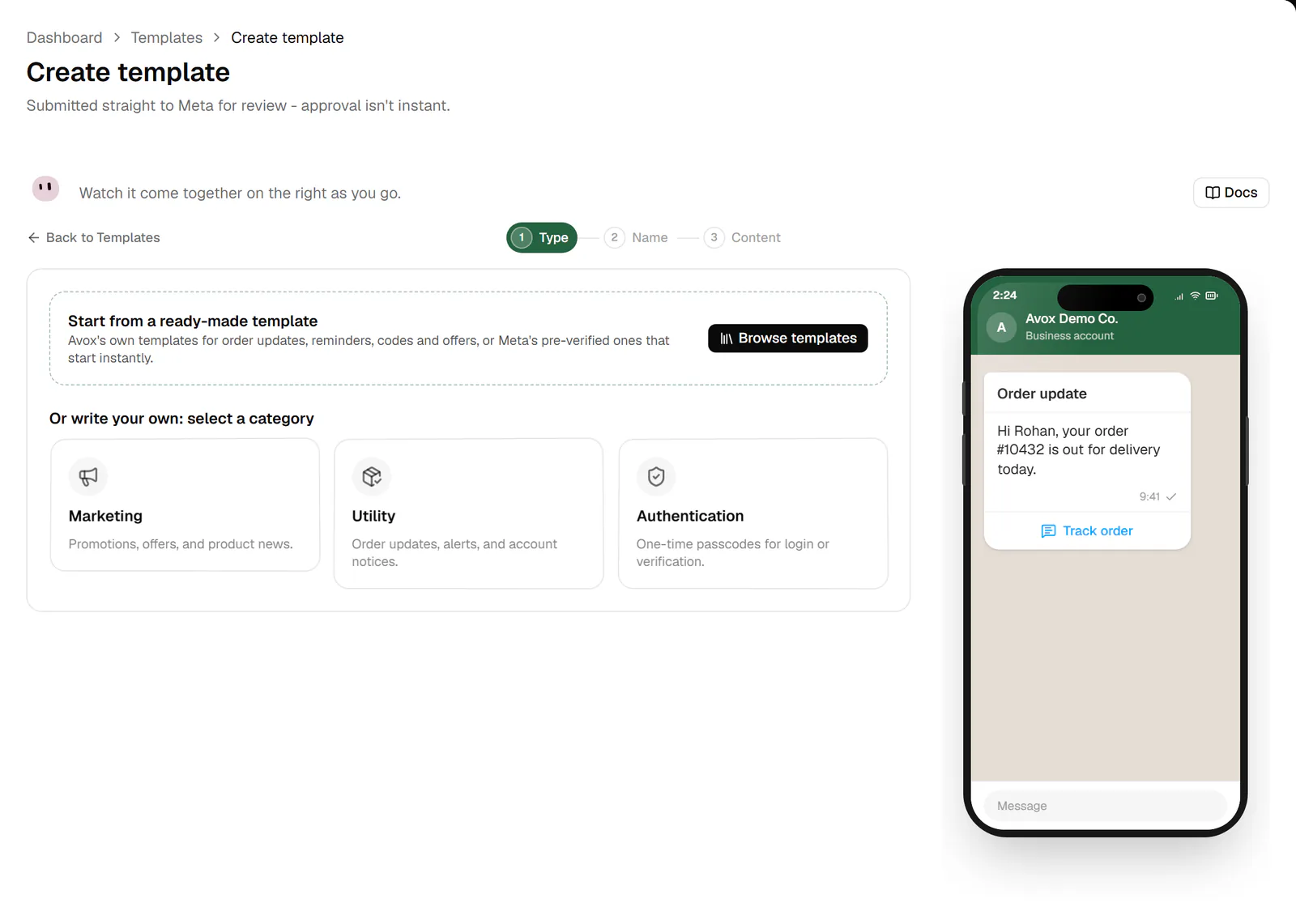
Step 1, Type. Browse ready-made templates, or pick a category. - 3
Type: pick a template type
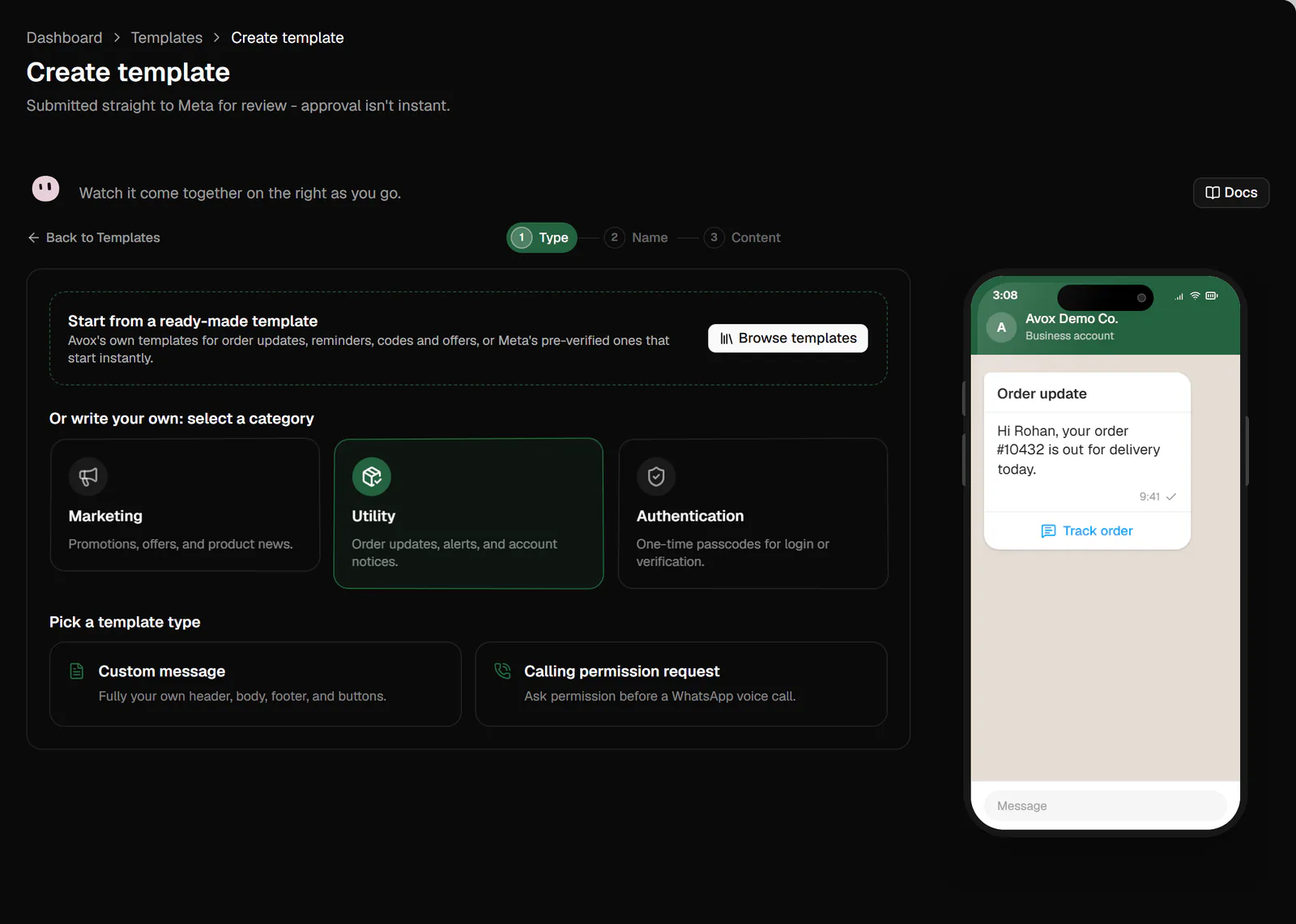
Under Pick a template type, click the one you want. The wizard moves straight on to Name.
- Custom message (Marketing or Utility) - fully your own header, body, footer and buttons.
- Catalogue (Marketing) - links your product catalogue with a fixed "View catalog" button.
- Calling permission request (Utility) - asks permission before a WhatsApp voice call.
- For Authentication, the only type is One-time passcode: click Continue on its card. Meta writes the message itself; you configure how the code is delivered.
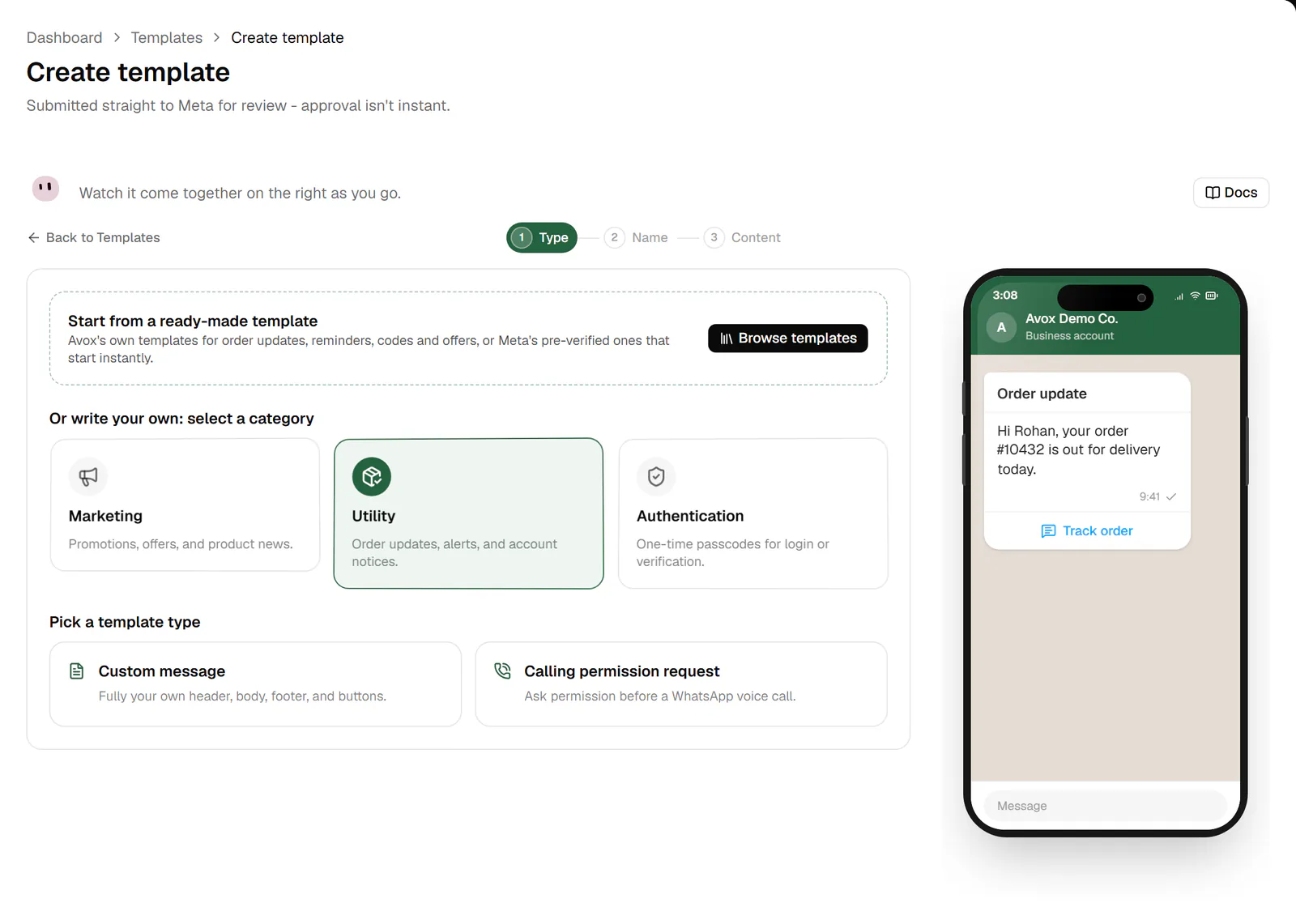
Utility selected. Click a template type to move on to Name. - 4
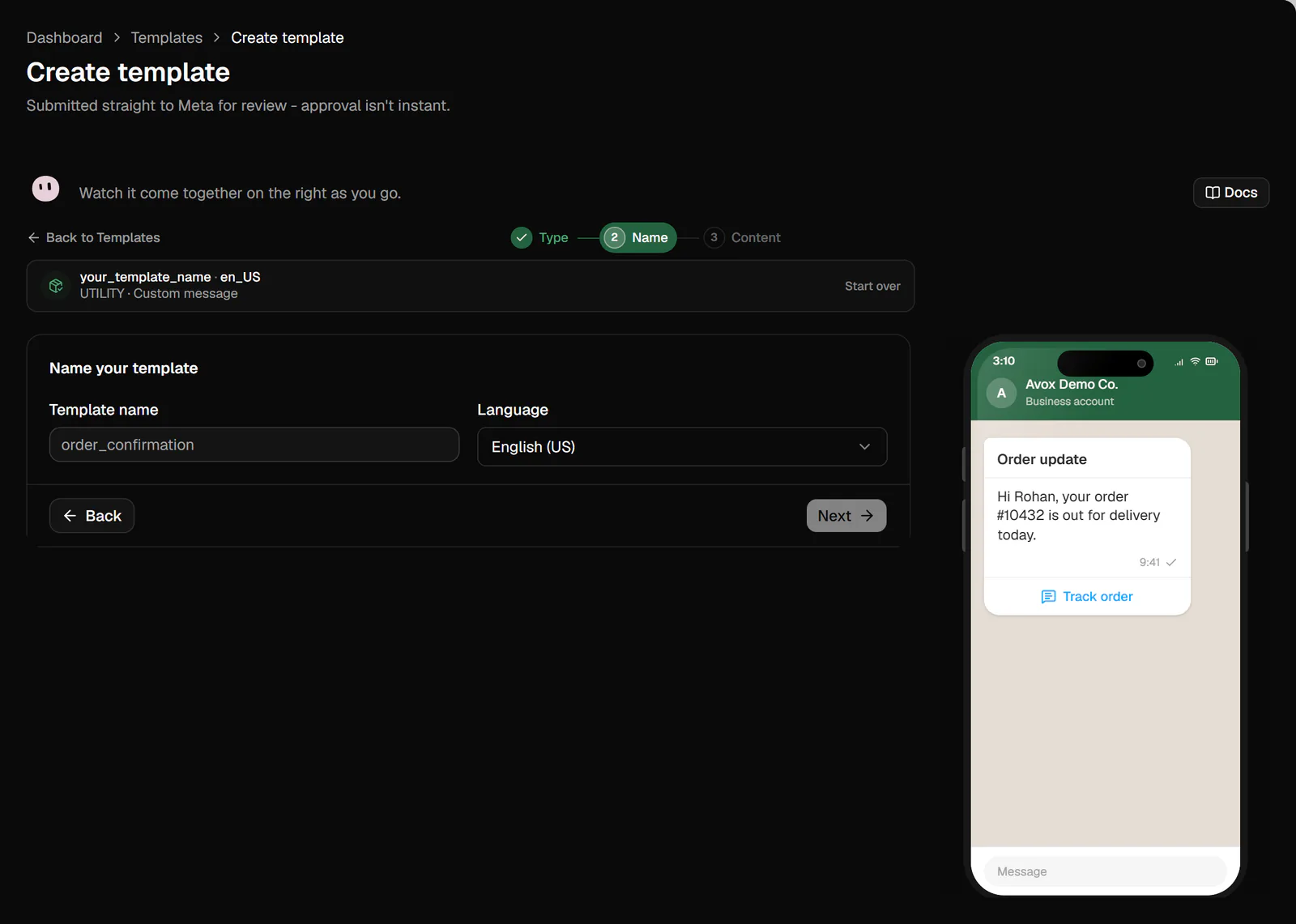
Name: name it and pick a language
Under Name your template, type a Template name using lowercase letters, numbers and underscores, for example
order_update(up to 512 characters). Then pick the Language Meta reviews it in; the list is searchable.If the name is already used in that language, Avox says "A template with that name already exists in this language. Pick a different name." (AVX-3400) and offers Use ... instead with a free name. Click Next.
The name and language can't change after you submit, so choose them carefully.
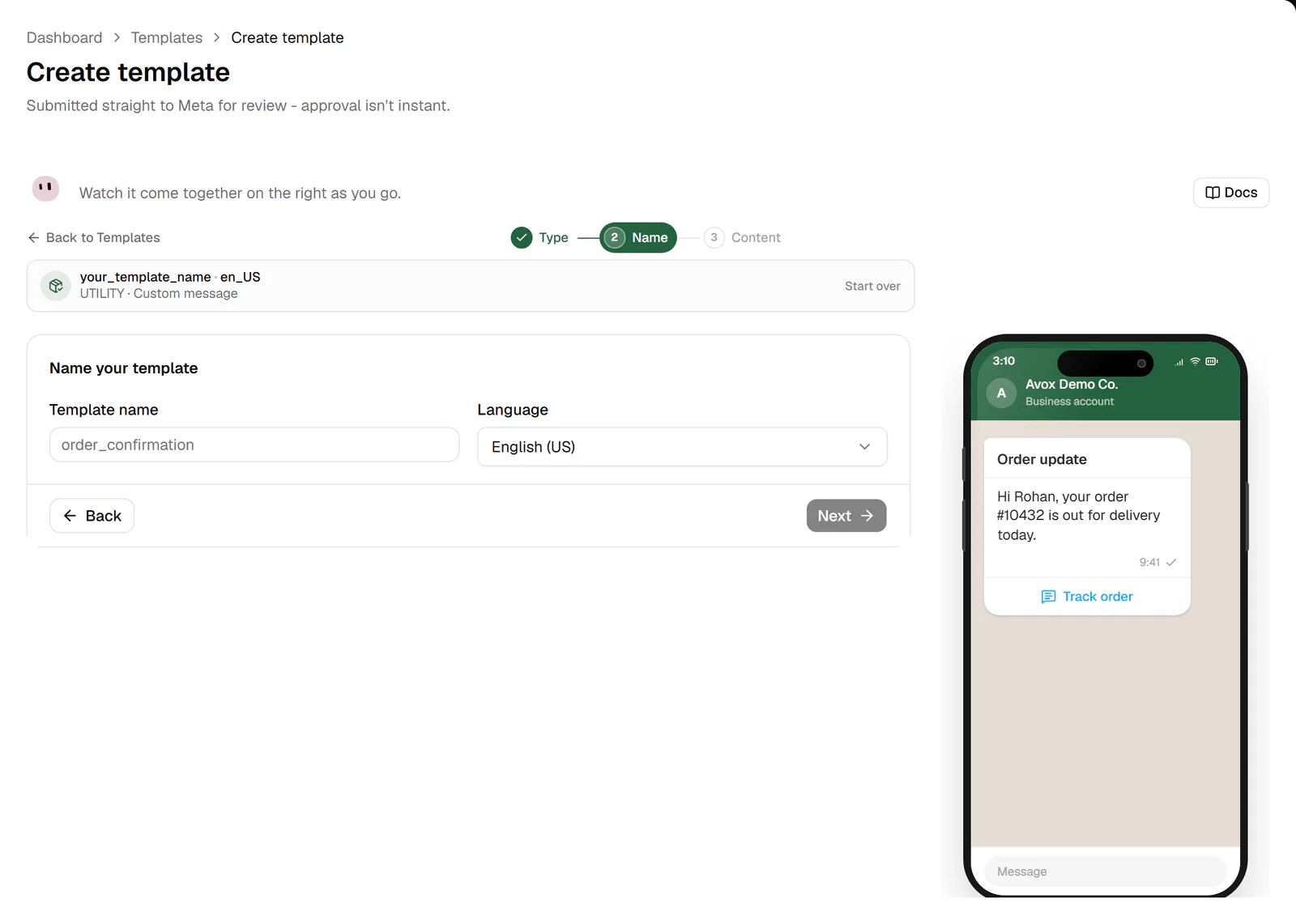
Step 2, Name. Lowercase letters, numbers and underscores only. - 5
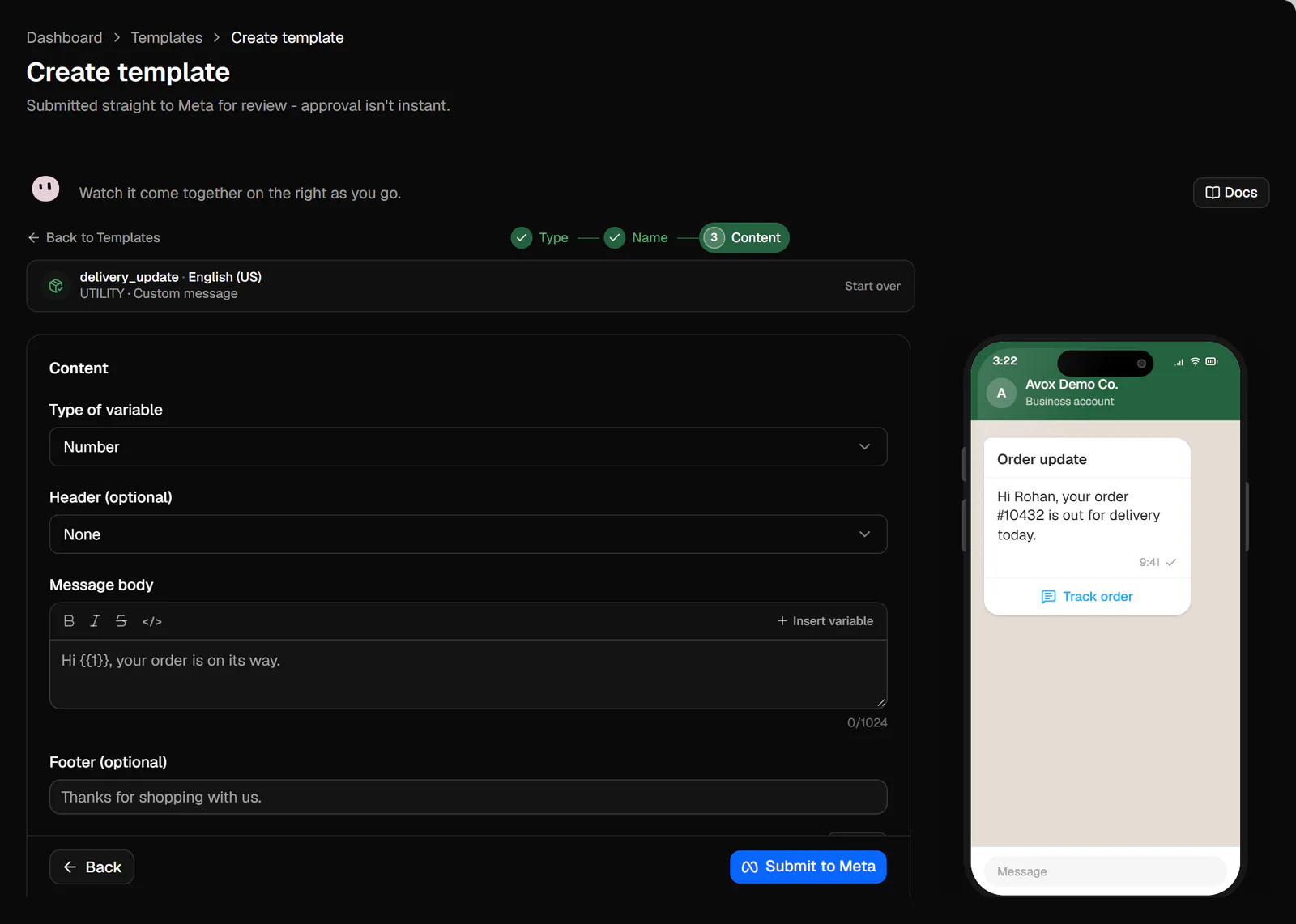
Content: header and message
For a custom message:
- Type of variable - Number for placeholders like
{{1}}, or Text (named) for placeholders like{{customer_name}}. - Header (optional) - None, Text (up to 60 characters, with at most one variable), Image, Video or Document. For a media header, click Upload sample image (or video, or document): Meta reviews it against a real sample.
- Message body - up to 1024 characters. Select text and use the style buttons (Bold,
Italic, Strikethrough, Monospace), and click Insert variable to add a placeholder where the cursor is. With Text (named), it
inserts
{{variable_name}}with the name selected, so you just type your own (lowercase letters, numbers and underscores). - Example values - required by Meta for review - fill in a realistic example for every
placeholder, for example "Aditi" for
{{1}}. These go to Meta's reviewers, never to customers. - Footer (optional) - a small grey line under the message, up to 60 characters.
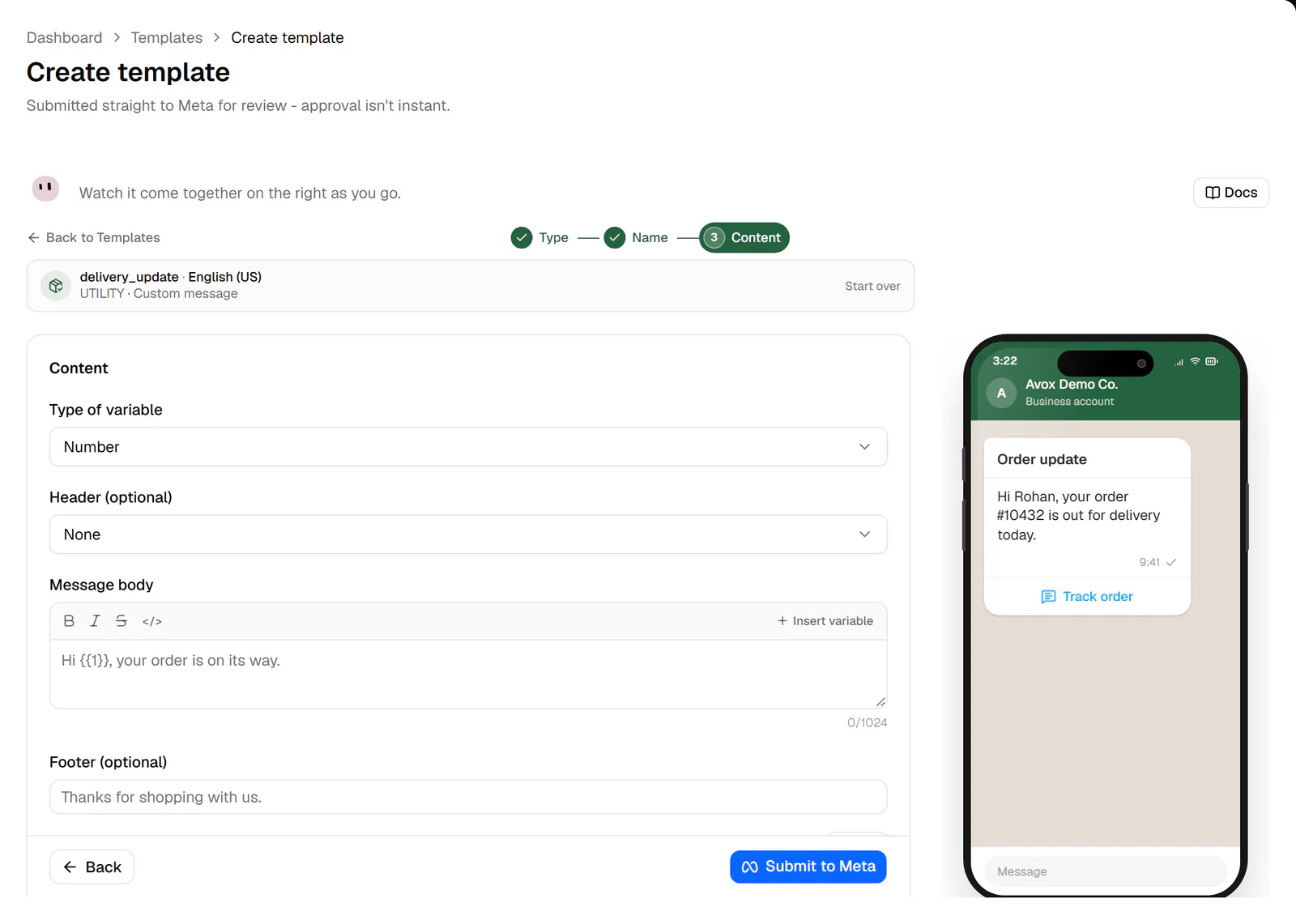
Step 3, Content. The phone shows the message with your example values. - Type of variable - Number for placeholders like
- 6
Click Add next to Buttons · Optional, choose each button's Type and fill in its fields:
- Custom - a quick reply the customer taps.
- Visit website - opens a Website URL. Its URL type is Static (the same link for everyone) or Dynamic (the link ends in a variable, such as a per-customer tracking link).
- Call on WhatsApp and Call Phone Number - start a call.
- Copy offer code - copies a coupon code.
- Share contact info - asks the customer to share their contact details. It's always the template's only button.
You can add up to 10 buttons. Each type's own limits are on Buttons. A Visit website button must point to your own
https://website, not the sample link (AVX-3430). - 7
Content: message validity period (optional)
Leave Message validity period (optional) on Standard (10 minutes), or pick another period. If Meta can't deliver the message in that time, it isn't delivered and you aren't charged. See Message validity period.
- 8
Check the preview
The phone on the right shows the message as your customer will see it, with your example values filled in. The bar above the form sums up the name, language, category and type; Start over there discards this draft and begins a new template.
- 9
Submit to Meta
Click Submit to Meta. You see "Submitted to Meta for review" and return to the Templates page, where the template shows Pending review under Your templates.
- 10
Wait for approval
Meta reviews the template and Avox updates its status. Click Refresh from Meta to check straight away. Once it shows Approved, you can send it from the Inbox, an automation or the API. If it shows Rejected, see Approval for what to do next.
Start from a ready-made template#
Browse templates on the Type step (or Template library on the Templates page) offers two libraries:
Avox library - Avox's own templates for order updates, reminders, codes and offers. Search, filter by category, and click Use this template. The wizard fills in the name, language and content; change anything you like, then Submit to Meta for review as usual. Some are written in several languages: if you pick a language a template isn't written in, the wizard offers its own languages instead (AVX-3401).
Meta's library - templates already verified by Meta, so they start working instantly with no review wait. They're Utility only and the text is fixed. On the Name step you can switch extras on, such as Add a contact number or Add a track-package link, then click Start using. You see "Ready to use - already verified by Meta".
A ready-made template with an image, video or document header needs your own sample before you submit (AVX-3402). Full details are on Library.
Authentication templates#
For One-time passcode, the Content step asks how the code is delivered:
- Code delivery setup - Zero-tap auto-fill (sends the code automatically), One-tap auto-fill (sends when the customer taps the button) or Copy code (the customer copies and pastes it into your app).
- App setup - up to 5 apps (auto-fill only) - click Add app and enter each Android app's package name and its 11-character signature hash. Zero-tap also needs I accept Meta's zero-tap terms switched on.
- Content - Meta writes the message; switch on Add security recommendation and Add expiry time for the code (1 to 90 minutes) if you want them.
Leaving and coming back#
Your progress saves as a draft as you go. Close the tab any time and resume from the Drafts section on the Templates page, which holds up to 10 drafts. If your internet connection drops, your template stays on this device and you can submit it once you're back online.
Tips#
- Write naturally. A template that reads like a real message from your business, with the placeholders inside full sentences, is easier for Meta's reviewers to understand.
- Give realistic examples. Example values that look like real data ("Order 10432", not "test") help the review.
- Match the category to the content. A message with an offer in it is Marketing, even if it also confirms an order.
- Use your own links. Every website button must go to a working
https://page of yours. - Check the limit. The meter on the Templates page shows how many template slots your plan has used. See Plans.
Common mistakes#
The name is refused
Use only lowercase letters, numbers and underscores: order_update, not Order Update. If the
name already exists in the same language, pick another or click Use ... instead
(AVX-3400).
A variable has no example value
Under the message body you see "Add an example value for every variable" with the placeholder
that has none (AVX-3404). Fill in each box under Example values -
required by Meta for review. With Number variables, number them {{1}}, {{2}} in order
with no gaps. A text header's variable needs its own example too.
A website button still uses a sample link
A red notice reads "A website button still uses a sample link." Replace it with your own
working https:// link before submitting (AVX-3430).
The media header has no sample
An image, video or document header needs a real sample file. Click Upload sample ... under Header (AVX-3402).
Meta didn't accept the template
Create template is greyed out
Every template slot on your plan is in use (AVX-3014). Click Manage templates, open a template you no longer need with Manage, then click Delete template to free a slot.
Related#
TemplatesApproved WhatsApp message templatesCreateBuild a template step by step and submit it to MetaLibraryStart from a ready-made templateApprovalTemplate statuses, review, and what to do when one is rejectedTemplate categoriesMarketing, Utility, and Authentication templatesCreate an automationA click-through, step-by-step version of the automation wizard
Last updated