Connection Setup Wizard
Every step of the connection setup wizard - number type, webhook setup (Avox for everything, or also forward to your server), the test event, and Meta Embedded Signup - plus every error and fix.
The setup wizard connects a WhatsApp number to your Switchboard in three or four steps (the test step only appears when you also forward messages to your own server). This page is the full reference for every field, button and message in it. For a lighter first-time guide, see Getting started; for a one-screen checklist, see Connect WhatsApp.
Before you start#
- A plan. You need an active plan to connect a number. Without one, connecting stops with "Choose a plan before connecting a WhatsApp number". See Billing.
- A free connection slot. Your plan sets how many numbers you can connect. When they're all in use, Connect another number is turned off (AVX-3009). See How the connection limit works.
- Admin access to the WhatsApp Business Account on Meta's side, if the number already belongs to one.
- For an existing number: the phone with the WhatsApp Business app on it, nearby. You'll scan a QR code with it and confirm the connection in the app.
- A computer browser with pop-ups allowed for the Avox dashboard, opened over
https://.
Any member of the Switchboard - Admin or Manager - can run the wizard with Use Avox for everything. Setting up Also send messages to my own server, and deleting a setup in progress, need an Admin.
Opening the wizard#
- With no connections and no saved setup, the Connections page opens straight into the wizard.
- With connections already, click Connect another number on Connections.
- With a half-finished setup, click Resume setup on the Setup in progress card.
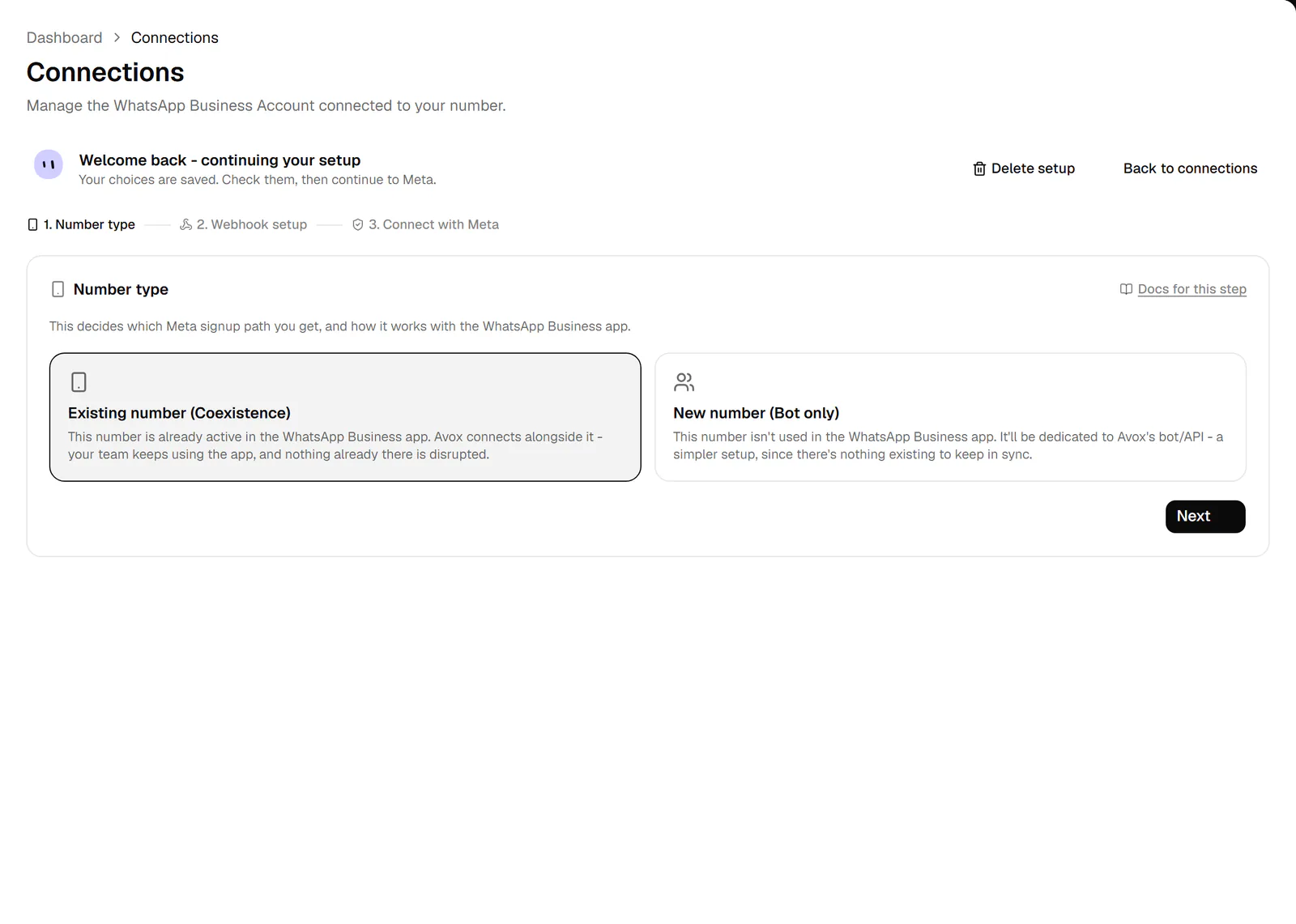
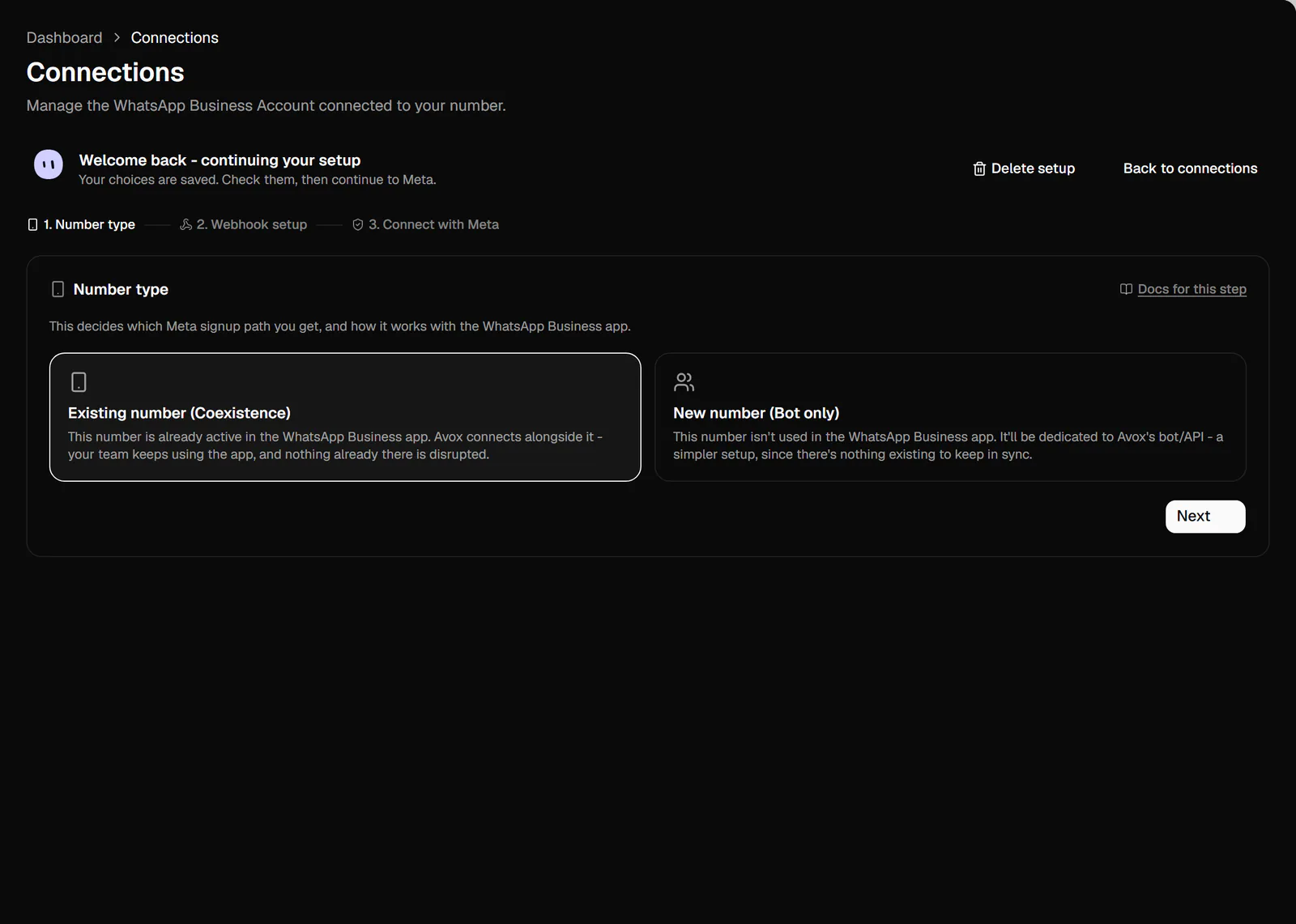
The heading reads "Set up your WhatsApp connection - Pick your number type and how messages are handled, then continue to Meta's secure signup." When you resume a saved setup, it reads "Welcome back - continuing your setup" and "Your choices are saved. Check them, then continue to Meta."
When you have at least one connection or a saved setup, Back to connections in the top right returns to the list. Your saved details are kept.
Deleting a setup in progress#
Once step 2 is saved, an Admin sees Delete setup in the top right of the wizard (and Delete on the Setup in progress card on Connections). A confirmation explains what goes: the saved name, your message handling choice, the endpoint URL and its signing secret. Nothing on WhatsApp changes, because nothing has been connected yet. Click Delete setup to confirm, or Keep it. The deletion is recorded in your Switchboard's audit log. If it fails you see "Couldn't delete that setup. Try again." (AVX-3118).
The step bar#
The bar across the top shows where you are: 1. Number type, 2. Webhook setup, then 3. Send test event (only when you forward messages to your own server) and Connect with Meta. A finished step turns green with a check mark; a step with a problem turns red with a warning shield. Every step also has a Docs for this step link.
The current step is part of the page address (for example /connections?step=test), so reloading the
page brings you back to the same step.
Step 1: Number type#
Choose the kind of number you're connecting. This decides which Meta signup path you get, and how it works with the WhatsApp Business app.
Click Next. If your team already chats with customers from a phone today, you want Coexistence. See Coexistence, explained and Coexistence sync.
Step 2: Webhook setup#
Name the connection, then choose how its WhatsApp messages are handled. The step reads "Name this connection and choose how its WhatsApp messages are handled. You can change message forwarding later on the connection's page."
Connection name is required, 1 to 60 characters - a label for your team, such as "Acme Support EU". You can rename it later.
Then pick one of two paths:
Some features need a plan that includes them - for example, Analytics isn't on the Starter plan. See Billing.
If you forward to your own server#
- 1
Enter your endpoint URL
Your endpoint URL must start with
https://, use the standard port, and be reachable from the public internet. Private network addresses,localhostand addresses that don't resolve are refused when you click Next. Redirects aren't followed. - 2
Click Next and copy your signing secret
Avox saves the setup and creates a signing secret (it starts with
whsec_). It's shown once, decoding onto the screen, with a copy button. Copy it into your server's settings (for example asAVOX_WEBHOOK_SECRET). After you hide it or move on, onlywhsec_••••is shown - Avox stores it encrypted and never shows it again. - 3
Click I've saved it, continue
The wizard moves on to the test step.
Click Next on either path. Avox saves your choice as a draft for this Switchboard, so you can leave and come back: the Setup in progress card on Connections reopens the wizard where you left off (the test step when forwarding, otherwise Connect with Meta).
Testing on your own computer? Avox can't reach localhost. A tunnelling tool gives your local server
a public HTTPS address to use while you build.
Step 3: Send test event#
This step only appears when you chose Also send messages to my own server. Avox sends a sample
message marked "test": true to your endpoint, signed exactly like a real one.
- 1
Check the endpoint and secret
The step shows your Endpoint URL with a copy button and your signing secret, hidden. Lost the secret? Make a new secret replaces it straight away (the old one stops working) and shows the new one once.
- 2
Click Send test event
Avox POSTs the sample to your endpoint with the
Avox-Signatureheader. Your server should check the signature and answer with any2xxstatus. See How to check the signature. - 3
Read the result and continue
"Delivered - your endpoint answered 200." in green, or the reason it failed in red (AVX-3101). Next is available once you've sent at least one test.
A failed test doesn't stop you: you can continue and fix your server later. Forwarding still turns on when the connection completes, failed deliveries are retried, and you can send another test from the connection's page. See Message forwarding.
Step 4: Connect with Meta#
The last step (step 3 when Avox handles everything, step 4 when you forward to your server), Review & connect with Meta, reads "Check your choices, then see what Meta's setup flow looks like." It hands you over to Meta's own secure signup window.
What's on this step#
- Your choice from step 2 - "Avox handles everything", or "Avox, plus forwarding to your server" with your forwarding endpoint and a copy button. Change this takes you back to step 2.
- What to expect during setup - an illustrated walkthrough of Meta's window:
- The Desktop tab shows the 9 screens of Meta's window on your computer, from "Start the Meta onboarding" to "Click Finish".
- The Mobile tab shows the 4 screens you see on your phone in WhatsApp Business during a Coexistence signup.
- Use Back, Next, the dots, or swipe the picture. The last Desktop screen's button reads Next: mobile setup, and the very last screen's reads I understood; Watch again restarts it. Watching it is optional.
- The status chip in its header shows the live state of your signup: Waiting, Connecting (with Meta's current step), Error, or Connected.
- A summary of the flow. For Coexistence: "Halfway through, you'll confirm coexistence inside the WhatsApp Business app on your phone, then return to the popup to finish. The WhatsApp Business app continues to work after connecting." For a new number: "Since this is a new, bot-only number, there's no phone confirmation step - the popup completes the whole signup itself."
- A reminder that once connected you can set a WhatsApp username for the number, where Meta makes usernames available.
- The agreement. Continuing confirms that you're authorized to connect this WhatsApp Business Account, that you agree to Avox's Terms of Service, and that you acknowledge the Privacy Policy.
Connecting#
- 1
Click Continue to Meta
The blue button opens Meta's window. Keep the Avox tab open behind it.
- 2
Follow Meta's screens
Choose or enter your number, confirm your business profile, pick your business portfolio, and review what you're sharing with Avox. For Coexistence, scan the QR code with the WhatsApp Business app when asked, confirm the connection on your phone, and choose whether to share your chat history. See Embedded Signup for each of Meta's screens.
- 3
Click Finish in Meta's window
Meta closes the window and Avox finishes the connection. You're taken back to Connections, where the new number shows Connecting and then Connected.
What happens after you connect#
- Avox confirms the number belongs to the WhatsApp Business Account you just authorized, then subscribes to that account's events with Meta. When that succeeds, the connection becomes Connected; otherwise the connection shows Error.
- Your Connection name moves from the draft onto the new connection. If you chose Also send messages to my own server, your endpoint URL becomes the forwarding Endpoint URL, the signing secret you copied moves with it, and Message forwarding is switched on. The draft is then cleared.
- Every Admin gets a "your number is connected" email.
- With Coexistence, chat history (if you chose to share it) and contacts start arriving. See Coexistence sync.
- The Inbox, Contacts, Health, Logs and the rest of the dashboard unlock.
Next steps: set a WhatsApp username (subject to Meta's availability), turn on Calling, turn on Message forwarding, or create an API key.
If the connection doesn't go through#
A red panel titled "The connection didn't go through" explains what happened, with the code AVX-3002 and, when Meta sent one, Meta's own error number. It lists things to try under Try this, with a Retry connection button and View troubleshooting docs.
A connection that didn't finish changes nothing on your account or your WhatsApp number. It's always safe to close Meta's window and try again.
Still stuck? Contact Support with the AVX code and Meta's error number from the panel.
Related pages#
- Getting started - the whole first-time path, from sign-up to first message.
- Embedded Signup - Meta's side of the signup window.
- Message forwarding - send each new customer message to your own server, signed, with retries.
- Managing connections - everything after setup.
Last updated