Billing and Plans
How paying for Avox works: billing options, currency, the Billing page, billing alerts, plan statuses, failed payments, refunds, and who can manage billing.
Your Avox plan is paid through PayPal. Everything about it - the plan you're on, its status, what you pay, your invoices, and Meta's own WhatsApp charges - is on your dashboard's Billing page. This page explains how it all fits together. The step-by-step guides are:
- Change plan - upgrading, downgrading, and switching billing option.
- Cancel - cancelling, the early-cancellation fee, and what happens after.
- Invoices - invoices, receipts, and payment history.
- Coupons and gifts - discount codes, gifted plans, and business offers.
- Plans - what each plan includes, with live prices and limits.
How billing works#
- PayPal is the payment method. You approve each subscription or payment in PayPal. Avox never sees or stores your card or bank details.
- Charged in US dollars. PayPal charges the US dollar amount shown at checkout. If your billing address is in India, checkout also shows prices in rupees (₹) - those are an estimate at today's exchange rate, and your bank may convert slightly differently. If your card or bank account uses another currency, PayPal or your bank converts it at their own rate.
- Rupees first for India accounts. If your billing country is India (or, before you've added a billing address, Avox detects you're in India), your dashboard's Billing pages show amounts in rupees first, converted at the current rate, with the US dollar amount you're actually charged beside them - for example "₹2,436 (charged as $29.00)". This covers your plan's price, Manage subscription, payment history, invoices and credit packs. Everyone else sees plain US dollars.
- Whole numbers only. Every price Avox shows or charges is a whole number of the currency - no cents.
- One plan covers all your Switchboards. Your plan lives on the first Switchboard you joined (your billing Switchboard) and covers every Switchboard where you're an Admin. Its WhatsApp connections are one shared pool; templates, Flows, and automations are counted per Switchboard.
- Meta's message fees are separate. WhatsApp conversation charges are billed by Meta to your own WhatsApp Business Account, not by Avox. See Meta charges and payment problems.
Billing options#
At checkout you pick one of three options. The discounts for Yearly and One-time are the ones shown on the pricing cards and at checkout - they're set by Avox and can change, and checkout always shows the exact amount before you approve anything in PayPal.
A coupon applies on top of whichever option you pick. See Coupons and gifts.
Buying a plan#
- 1
Pick a plan
On avox.com/pricing, choose a plan and a billing option. You're asked to sign in (or create an account) first if you aren't signed in.
- 2
Your details
Step 1 of 3 asks for Your name, Business name, your email address, and Phone number (with its country code). Your name also renames your account. Click Save & Continue.
- 3
Billing address
Step 2 of 3: Country, Address line 1, Address line 2 (landmark, optional), City, State, and Postal code (shown as Pincode for India). Click Save address & Continue. This address is saved to your Business settings.
- 4
Checkout
Step 3 of 3: check the Checkout summary, switch between Monthly, Yearly, and One-time, and add a code under Have a coupon? if you have one. Tick the box to agree to the Terms of Service, Privacy Policy, and Cancellation & Refund Policy.
- 5
Approve in PayPal
PayPal's button appears once you've agreed (until then the button area reads "Agree to the terms above to continue"). Approve the subscription or payment in PayPal's window.
Your plan starts as soon as PayPal confirms the payment. The thank-you page shows "Confirming your payment…" and then "You're all set". If the confirmation doesn't reach Avox, checkout keeps your PayPal approval and shows Try again - "You won't be charged twice."
PayPal's button is a third-party script, so it only loads once you've allowed Third-party integrations in the cookie banner. If you haven't, checkout shows Allow PayPal to load and continue instead.
A checkout tab left open for 15 minutes times out with "This session gave up on you" - click Back to plans and start again.
You can only have one live plan at a time - checkout won't start a second one, because that would bill you twice ("You already have an active plan. To switch, use Change plan in your dashboard's Billing page - subscribing again would bill you twice."). To move to another plan, use Change plan. A plan you've cancelled that's still running out its paid time doesn't block a new checkout: the new plan replaces it straight away.
Offers and discounts#
Now and then Avox may send you a small offer or reminder, for example:
- a thank-you before your plan renews
- a code if you cancelled and might want to stay
- a reminder to finish a checkout you started
Each one arrives as a notice in your dashboard bell, and usually by email too.
- Personal codes. A code made for you works once, only while you're signed in to your own account with the same email address, and only until the date shown. It doesn't work for anyone else.
- Your offers. Unused codes and gifts are listed in Your offers on the Billing page, with the date they stop working. Apply at checkout opens checkout with the code filled in (a gift has Accept gift). You can also type a code under Have a coupon?. See all offers opens Settings > Offers, where every offer from Avox is kept - see Offers in your dashboard.
- Plans that renew by themselves. A code applies to a new checkout rather than to a monthly or yearly PayPal plan that's already running - for example after you've cancelled the renewal.
- Bonus credits. Credits that come with a reminder email are added to your account straight away. Credits, higher limits and perks sent to your dashboard as an offer are added when you click Claim on them.
- Not interested? Just ignore the email. Nothing changes. You can turn offers and reminders off any time with Setup reminders in Email Preferences on your dashboard's Compliance page, and every offer email has an unsubscribe link. Emails about a failed payment are service emails, so they're still sent.
Who can manage billing#
Only an Admin of your billing Switchboard can subscribe, change plan, cancel, or check out with a coupon. Anyone else sees "Only a Switchboard Admin can manage billing. Ask an Admin to make this change." Every member can open the Billing page and see the plan, payment history, and invoices. Payment receipts and payment-failed notices go to the Switchboard's Owner (its first Admin). See Members and roles.
The Billing page#
With no plan, Your plan says "Subscribe to a plan to create a Switchboard and start using connections" with View plans.
Billing > Manage subscription shows your plan's Price, Paid via, Next billing date (or Ends on once cancelled), and for Yearly the Installments paid, followed by your Payment history and Invoices. It's also where you cancel.
Billing alerts#
A banner at the top of the Billing page appears only when your plan needs attention. Click it to see the status, the period end, and (for Yearly) the installments paid.
The Your plan has ended banner shows once a plan's last paid day has passed - after a cancellation, at the end of a One-time year, or when a plan switched on by a free code or gift reaches its end date. Renew or buy a plan and your numbers switch back on as soon as it's paid.
Plan statuses#
Failed payments#
- 1
The payment fails
Your plan shows Payment due. The Owner gets a Payment failed email, the Billing page shows "Your last payment didn't go through" (AVX-3003), and the failed attempt appears in your payment history as "Payment didn't go through".
- 2
PayPal retries
PayPal retries the payment by itself. Your numbers keep working, but your automation credits aren't topped up until a payment succeeds.
- 3
If it keeps failing
PayPal can suspend the subscription. Your plan shows Paused, and your WhatsApp numbers and automations pause too. You're told in the dashboard ("Your plan is paused").
- 4
Once a payment goes through
Everything switches back on automatically ("Your plan is active again") - you don't need to resume anything by hand.
The usual fix is to update the payment method in your PayPal account. If you're stuck, open a ticket in Support.
When numbers pause for billing#
When your plan is Paused or has ended, every connection on your Switchboards is paused: no sending, no calls to Meta, no automations. A connection paused for billing can't be resumed by hand from Connections or Health (AVX-3082); it switches back on by itself as soon as a plan is active again. Nothing is deleted - your contacts, conversations, and settings stay where they are.
Automation credits#
How you pay decides how many automation credits your plan includes: Monthly gets the plan's monthly allowance, Yearly a larger monthly allowance, and One-time a full year's credits at once. Monthly and Yearly allowances refresh every month. Credits have no cash value. The exact numbers for each plan are on Plans.
Credits that roll over#
Your unused plan credits roll into the next period when your plan renews, on top of its full new allowance, and they're used first. Your plan's rule (and how long they last) is shown on Settings > Usage. If the plan is cancelled, expires or its renewal payment fails, unused plan credits are lost at the end of the period - so if you have credits that would roll over and your renewal is at risk, we remind you 3 days before and on the last day, sometimes with a renewal code such as GET10. Details: Credits that roll over.
Buying more credits#
Need more before your credits renew? Buy credits (under Your plan, or Top up on the Automation page) opens Billing > Buy credits, where you pick a credit pack and pay for it once with PayPal, in US dollars. Nothing renews. The credits are added to the Switchboard you're in as soon as PayPal confirms the payment, and you get an invoice and a Credits purchased receipt email.
- Top-up prices depend on your plan. A pack can cost less on some plans or billing options; Buy credits always shows (and charges) the price for your own plan. Indian accounts also see a rupee estimate; you're charged in US dollars.
- Bought credits are used after your plan's own credits (and any rolled-over ones) each period.
- They don't reset with your plan: each pack lasts 12 months from the day you buy it.
- Buying needs the Manage billing permission, and the Switchboard needs its own plan. A paused Switchboard can buy credits; they're used once it's resumed.
The full details are in Buying more credits.
Meta charges and payment problems#
WhatsApp charges for some messages. That's Meta's cost, billed by Meta to your own WhatsApp Business Account, separate from your Avox plan. Avox never takes, holds or marks up these payments. See Pricing for how Meta prices messages.
What Meta charges for#
- Marketing, utility and authentication template messages are charged per message delivered. The rate depends on the category and on the country of the person you message.
- Service messages - your replies while the 24-hour customer service window is open - are free.
- Messages sent while a free entry point window is open (for example after someone taps an ad that opens WhatsApp) are free too.
Meta charges#
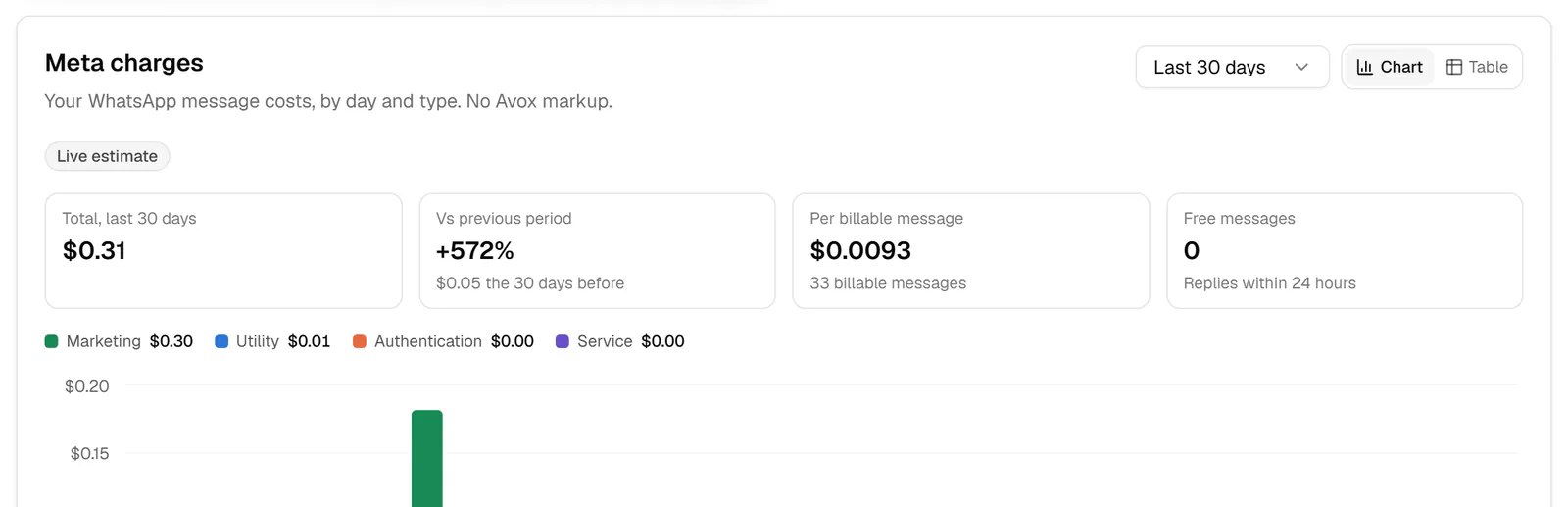
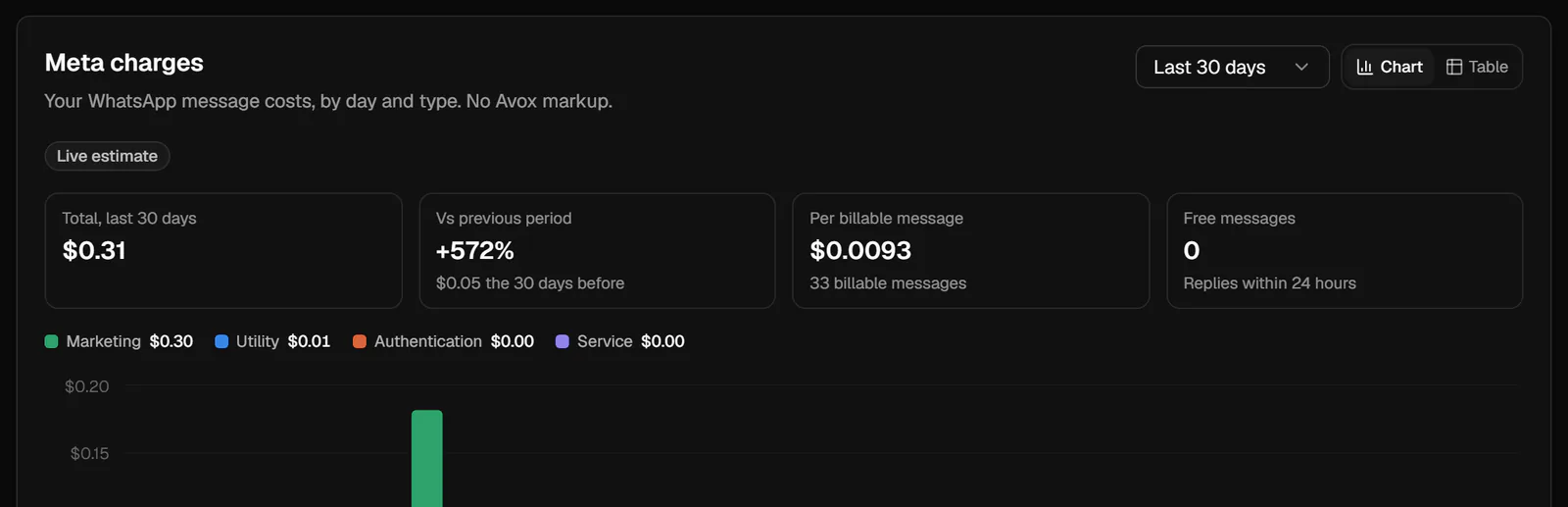
The Meta charges chart shows what Meta charges for the Switchboard you're viewing, day by day and by category. Pick Last 7 days, Last 30 days or Last 90 days. Above the chart:
- Total for the range. Indian accounts also see an "about ₹" figure next to US dollar amounts, at today's exchange rate, as a reference only.
- Vs previous period - the change from the same number of days before.
- Per billable message - the total divided by the messages Meta charged for.
- Free messages - messages Meta didn't charge for.
Hover over a day (or tap it) to see each category's cost. Switch between Chart and Table to see the same figures as a table.
Estimate vs reported figures#
Every figure is labelled:
- Synced with Meta - Meta's figures for your WhatsApp Business Account, in the currency Meta bills you in. Avox syncs them daily, and when you click Check again.
- Live estimate - calculated from every billable message as it's sent, at Meta's published rates, in US dollars. It covers the most recent day or two until Meta's daily figures arrive.
Usage estimates#
Rates depend on each recipient's country. Once Meta's daily figures arrive, the chart uses them.
Reconciliation#
Under the chart, Reconciliation lists each day and category with the number of billable messages Avox saw Meta price, the number Meta reports, Meta's cost, and the difference:
CSV downloads the table. It also shows how many messages were free (customer service replies and free entry points) and how many were billable.
Where your Meta invoices are#
Meta's WhatsApp invoices are in Billing & payments in Meta Business Suite. View Meta invoices on the Billing page takes you straight there.
Payment problems#
Avox watches for two signs that Meta can't take payment for a WhatsApp number: Meta's own health check for the number, and messages Meta refuses with its payment error. When either shows a problem, the number's Meta payment status turns to Problem, a red banner appears on Billing, the alert bar and the bell on Overview show it, and every Admin gets one email about it.
- 1
Open Meta's billing
On Billing in Avox, click Fix in Meta. It opens Billing & payments in Meta Business Suite. Pick the WhatsApp Business Account for the number.
- 2
Fix the payment method
Add a payment method, or update a card that expired or was declined.
- 3
Pay anything due
If Meta shows an amount due, or a credit line over its limit, pay it or ask Meta to raise the limit.
- 4
Check again
Back on Billing in Avox, click Check again. It can take a few minutes for Meta to show the change. If Meta still blocks sending after the payment is fixed, contact Meta support from Meta Business Suite.
Refunds#
Every plan - Monthly, Yearly, or One-time - has a 15-day money-back guarantee. If it isn't right for you, ask within 15 days of your first payment and that payment is refunded in full. The guarantee covers the first payment for a plan; later monthly payments and the early-cancellation fee are outside it. Outside the guarantee, Avox can still refund all or part of a payment, up to what you paid, at its discretion.
- 1
Open Billing > Manage subscription
Click Request help / refund. Inside the guarantee, the card also tells you which day of the guarantee you're on.
- 2
Pick what you need
Choose Cancel and request my money back, Ask for a refund, or another option (for a One-time plan, a plan change during a Yearly commitment, or help cancelling), and add anything we should know.
- 3
Send the request
Avox opens a Billing support ticket with your plan, your payment references and your guarantee status already filled in, and emails you a confirmation. A refund request inside the guarantee goes up the queue.
Sending a request doesn't cancel or refund anything by itself: the Avox team checks it and replies on the ticket. You can also email hello@theavoxai.com or open a ticket in Support from your account's registered email address and say which payment it's about. Approved refunds go back through PayPal to the account or payment method you paid with, and can take a few days to show. When a plan is refunded under the guarantee, it's also cancelled so you aren't charged again, with no early-cancellation fee. You get a Refund issued email, the refund appears in your payment history, and the invoice is marked Refunded or Partly refunded (a payment can be refunded in more than one part).
If something looks wrong with a charge, contact Avox first - it's usually the fastest fix. While a payment is disputed or reversed in PayPal, the plan it paid for is paused until the dispute is resolved. The full rules are in the Cancellation & Refund Policy.
New Switchboard (/switchboards/new)#
Creating another Switchboard gives you a separate workspace that spends from the same plan. You need an active plan and room under your plan's Switchboard limit. The full steps are on Creating a new Switchboard.
Related errors#
- AVX-2002 - a plan is needed to create a Switchboard.
- AVX-3003 - payment is needed to keep this Switchboard active.
- AVX-3082 - a connection is paused because the plan ended.
- AVX-3009 - you've used every connection your plan allows.
- AVX-3440 - Meta can't take payment for a WhatsApp Business Account.
- AVX-3441 - Meta has stopped sending until a billing problem is fixed.
- AVX-3442 - Avox couldn't check the payment status with Meta.
Last updated