WhatsApp Automation
Automated WhatsApp replies in Avox - the Automation page, the 3-step wizard, managing and editing automations, credits, and the monthly credit limit.
Automation replies to your customers on WhatsApp by itself. You choose what starts an automation (a trigger, such as a keyword) and what it does (its actions, such as a text reply, a button or link message, a document, one of your Flows, tagging the contact, or alerting your team). From then on Avox runs it for every matching message, day and night, while your team handles the conversations that need a person.
Automation is the engine behind Avox AI. It's marked Beta in the dashboard.
In this section#
Before you start#
- Connect a WhatsApp number. The Automation page opens once a number is connected (AVX-3001).
- Have an active plan. Automations send only while the Switchboard has an active subscription, and each send spends automation credits.
- Check your plan's automation limit. Each Switchboard can hold as many automations as its plan allows (see Plans). This count is separate from your credits.
Who can do what#
If Create automation doesn't appear for you, automation creation has been switched off for your account - contact Support.
The Automation page#
Open Automation in the sidebar. The page reads "Automated replies that fire on their own, based on rules you set."
First visit#
A Switchboard with no automations sees a short introduction: Meet Automation, Pick a trigger, choose a reply, and Let's build your first one. Click Next to move through it and Create your first automation to open the wizard, or Skip to go straight to the page. Once skipped, it stays hidden in that browser until the Switchboard has no automations and no drafts again.
Page layout#
- Header - Docs opens this page and Create automation opens the wizard. When every automation slot is used, the button is disabled and the page shows "You've used X of Y automations. Delete one to create a new one. (AVX-3068)" with a Manage automations link - see Premade automations.
- Overview - four tiles:
- Automations - how many of your plan's automation slots are used, for example "2/5".
- Active · Drafts - how many automations are switched on, and how many drafts you have.
- Fires (30d) - how many times your automations ran in the last 30 days, with a small trend line.
- Credits used - credits used out of your grant this period, and when they reset. See Credits.
- Premade automations - ready-made starting points. See Premade automations.
- Drafts - automations you started in the wizard but haven't created yet, "Drafts (n/10)". Edit resumes one; the trash icon deletes it.
- Your automations - every automation, with its Name, Trigger and a short summary under it (the first three keywords or tags, or the wait time such as "after 30m"), number of Actions, Status, Last edited, and three buttons: Edit (the canvas), Manage (the automation's own page), and a trash icon that deletes it straight away. In this table a No-reply follow-up automation's trigger reads Follow-up (no reply).
With no automations yet, the table reads "No automations yet - create one above."
Switching an automation on or off#
The switch in the Status column turns an automation on (Active) or off (Inactive). New automations start switched off. Before switching one on, Avox checks that:
- it has at least one action (AVX-3072);
- every Flow it sends is still published (AVX-3078);
- every template it sends is still approved ("One of this automation's actions sends a template that's no longer approved").
Switching one off takes effect straight away: it stops firing on new messages.
The Avox team can pause an automation that is misbehaving, for example one that fires far more than expected. A paused automation shows as Inactive. Once you've fixed it, switch it back on yourself.
Creating an automation#
Building your first one? Follow the Create an automation walkthrough, a click-by-click guide with a screenshot for every step.
Click Create automation to open the wizard at /automation/new. It has three steps - Type,
Name, and Build - and each step's Docs for this step link opens the matching section
below. Back to Automation returns to the list; your work stays saved as a draft.
The wizard saves a draft a moment after each change. You can keep up to 10 drafts per Switchboard (AVX-3073 at the limit), and the draft is removed once the automation is created.
Step: Type#
Pick what starts the automation, then click Continue. On a wide screen, a small phone preview shows an example message and reply for the trigger you've selected.
Each trigger is covered in full on Triggers.
Step: Name#
Enter an Automation name (required, up to 80 characters, for example "Store hours auto-reply"), then fill in whatever your trigger needs:
Click Continue (enabled once the automation has a name), or Back to change the trigger.
Step: Build#
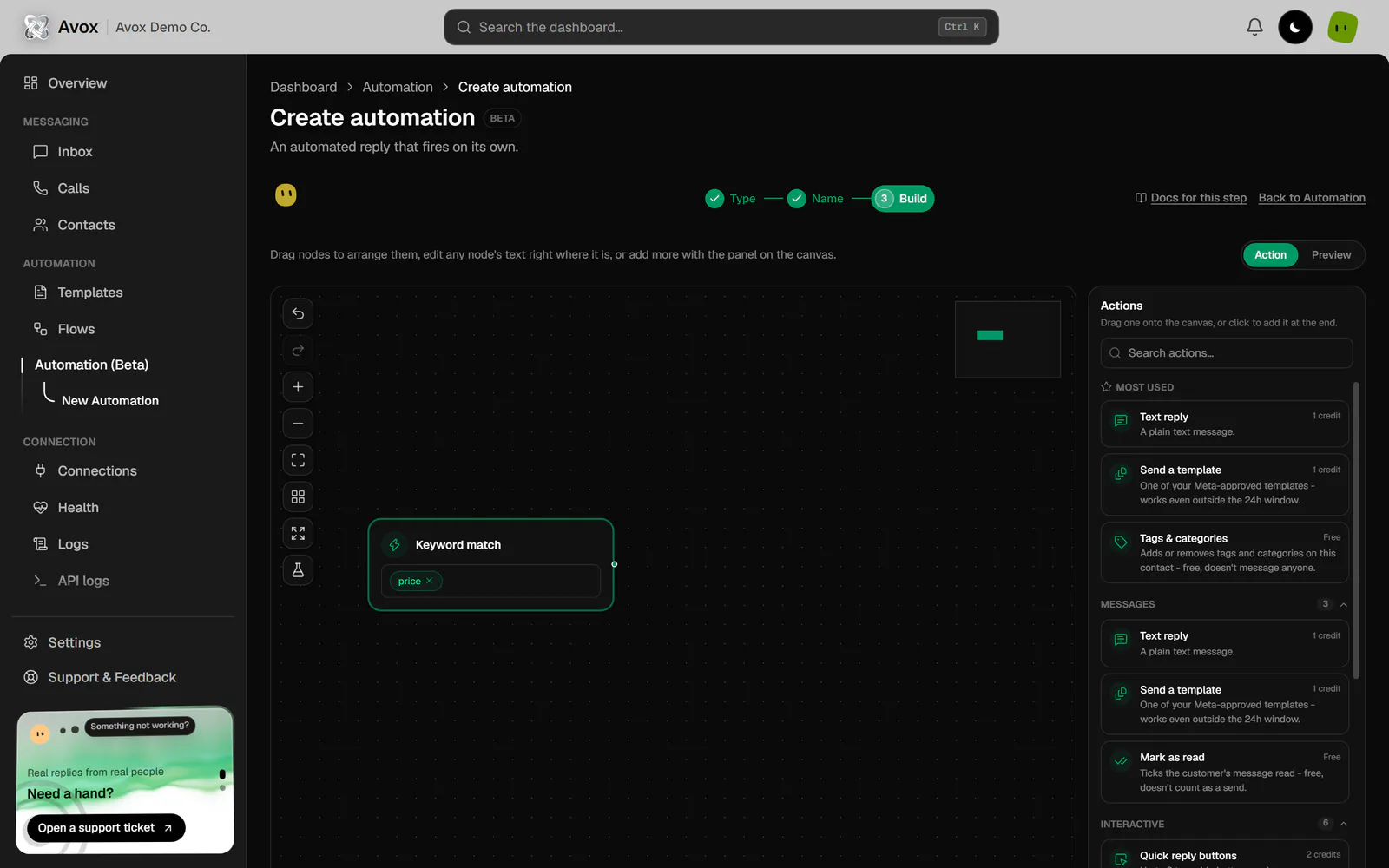
Build the actions on the canvas. Drag actions in from the Actions panel, edit each one right in its box, and add a Condition to branch. The canvas is covered step by step on Builder, and every action on Actions.
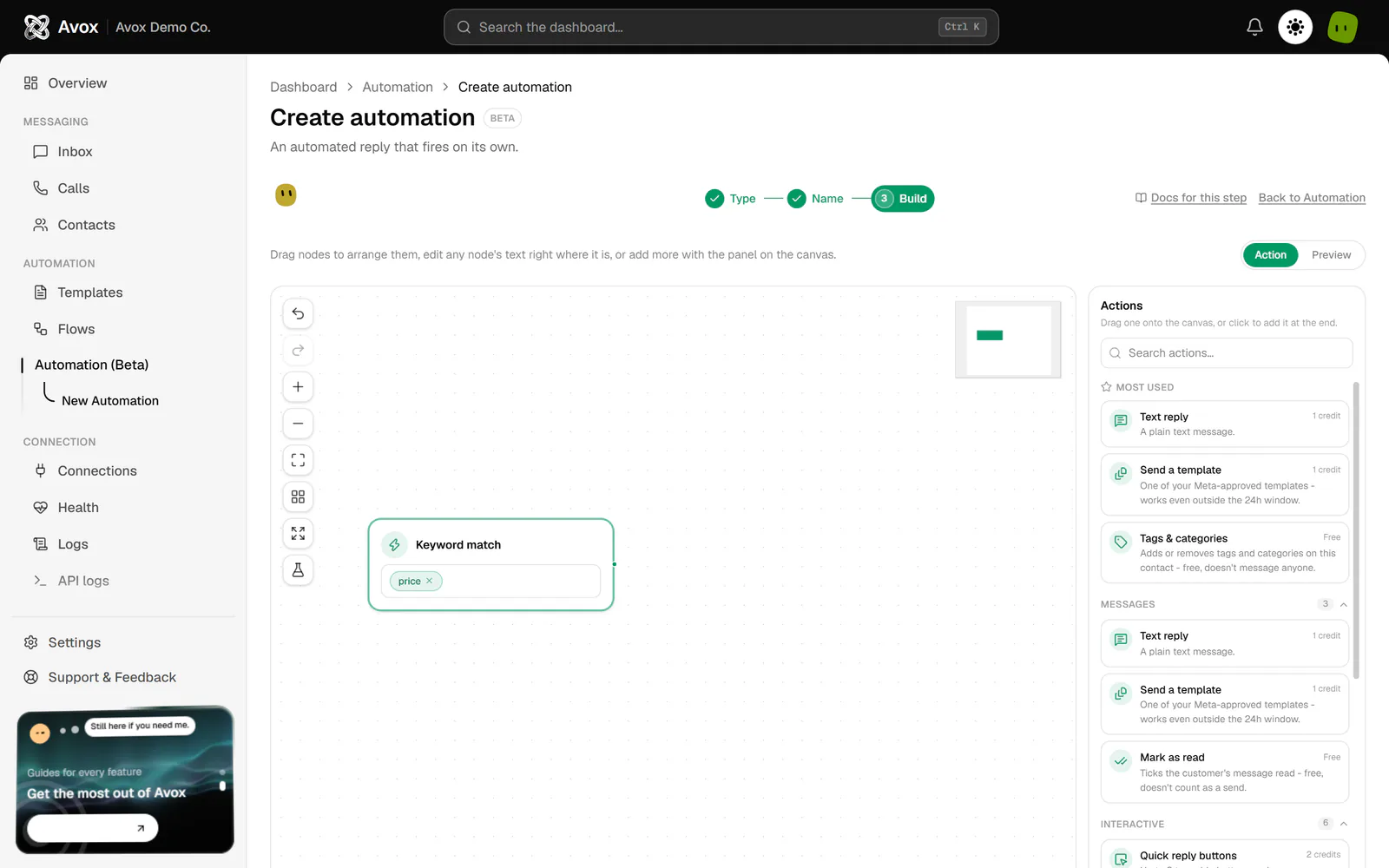
When you're done, click Validate & Create:
- 1
Avox checks the structure
Every action must be filled in, and branches must be valid. Any problem stops here with a message, for example "Finish filling in every action (reply text, keywords, etc.) before creating." or AVX-3077.
- 2
The preview runs
The Preview tab plays a sample customer message through your actions, step by step.
- 3
The automation is created
When the preview finishes, Avox creates the automation and opens its Manage page. It starts switched off - flip its switch to turn it on.
Back to builder (or the Action tab) stops the preview without creating anything.
Managing an automation#
Click Manage on an automation to open its page. Back to Automations returns to the list. The page shows:
- Its trigger and summary, for example "Fires outside 09:00 to 18:00", "Fires after 30 minutes of no reply", or "Fires when tagged: VIP".
- The on/off switch with an Active or Inactive badge.
- Edit - opens the canvas. Its back link (Back to Manage) returns you to this page.
- Delete - asks Delete this automation? ("This can't be undone. It will stop firing immediately.") before deleting.
- How many actions it has.
- Fires per day (last 30 days) and Fires by hour of day charts. Both fill in once the automation has run at least three times. Before that they read "Nothing has fired yet." or "Not enough activity yet for a meaningful chart."
- Credits spent - the total credits this automation has used, all time, broken down by action type (for example Text reply, Quick reply buttons, Send a document, Appointment / Flow, or Template). "No credits spent yet." until it sends something.
- Recent activity - a Contact and Fired at list of who it ran for, and when.
Editing an automation#
Edit opens the automation's edit page: the same canvas as the wizard's Build step. Changes save automatically a moment after you stop editing - the avatar shows "Saving…", then "Saved." (or "Couldn't save that." with AVX-3070). Autosave waits while an action is still half filled in. Validate & Save runs the full checks and the preview first, then saves. The back link reads Back to Manage when you came from the automation's Manage page, and Back to Automation otherwise.
On the Edit page you can change the actions, their layout, and (for a Keyword match automation) the keywords on the trigger box. To change an automation's trigger type, create a new automation.
Automation credits#
Every message an automation sends spends credits from your Switchboard's credit grant: 1 credit for a text reply, template, image, video, document, audio, location, contact card, link button or call request, 2 for buttons or a list, and 3 for a Flow. An Ask a question step costs 1 credit (2 with answer buttons). Everything that doesn't send a WhatsApp message is free: marking read, tags and categories, contact fields, notes, waiting, delays, stopping, team notifications and webhooks. When the credits for the current period run out, automations stop sending until the next period (AVX-3076).
How credits are granted, when they reset, and how to see your balance are on Credits.
Monthly credit limit#
An Admin can cap how many automation credits the Switchboard spends, below what its plan grants - a budget guard, not a billing setting. The Automation credit limit card appears on Settings > Switchboard for Switchboards on the One-time billing option (the whole year paid upfront), which receive their credits as one grant for the whole year. Only Admins see the card.
- 1
Open the card
Go to Settings, open the Switchboard tab, and find Automation credit limit under the Switchboard card. Its How this works button opens this section.
- 2
Set the limit
Tick Set a monthly limit and enter a whole number of credits, 0 or higher (for example 500). Leave it unticked for "No limit - automations can use this Switchboard's full plan grant."
- 3
Save
Click Save limit. You see "Automation credit limit updated".
Avox compares the limit with the credits used in your current credit period. Once usage reaches the limit, automations stop sending messages, the same hard stop as running out of credits, and the Credits used tile on the Automation page shows "This period's automation credits are used up - automated replies are paused until they reset." Steps that don't send a message (Mark as read, Tags & categories, notes, team notifications and the rest) keep working, since none of them spends a credit. The limit can only lower what automations spend - it never adds credits, and the tile still shows your full grant.
To remove the limit, untick Set a monthly limit and click Save limit. If you enter something that isn't a whole number, you see "Enter a whole number of credits, 0 or higher". If saving fails you see "Couldn't save your automation credit limit" with AVX-3081.
Premade automations#
The Premade automations section on the Automation page fills in the wizard for you - trigger, name, keywords, and actions - and opens it at Name, so you can review everything before building. The same premades appear in the canvas's Actions panel under Premade, where clicking one adds its actions to the automation you're editing (the panel's search also matches each premade's keywords).
- Filter - the chips above the cards show All or one group: Sales and leads, Support, Bookings, Engagement or Opening hours.
- Credits - each card shows the most one run can cost, for example "Up to 3 credits a run" (the costliest path through its branches), or "Free to run". See Credits.
- What it needs - when a premade needs something this Switchboard doesn't have yet, its card says so with a link to fix it. You can still create the automation; it just can't be switched on until the missing piece is there.
Replace the placeholders before switching a premade on: bracketed text in replies (such as
"[add your pricing link or details here]"), https://example.com/... links, the store location's
coordinates and address, and the webhook URL.
When every automation slot is in use, the premade cards and Create automation are disabled and the page shows "You've used X of Y automations. Delete one to create a new one. (AVX-3068)" with a Manage automations link. The limit is this Switchboard's own plan (or its owner's plan) - the same number Avox enforces when you create one. The link scrolls to Your automations with the switched-off ones highlighted, since they aren't replying to anyone right now.
Related errors#
Last updated