Automation Builder
The Avox automation canvas step by step - adding and connecting actions, condition branches, the toolbar, testing, previewing, and saving.
The builder is the canvas where you lay out what an automation does. It appears in step 3 (Build) of the Create automation wizard and on every automation's Edit page. Any Switchboard member (Admin or Manager) can use it.
The canvas at a glance#
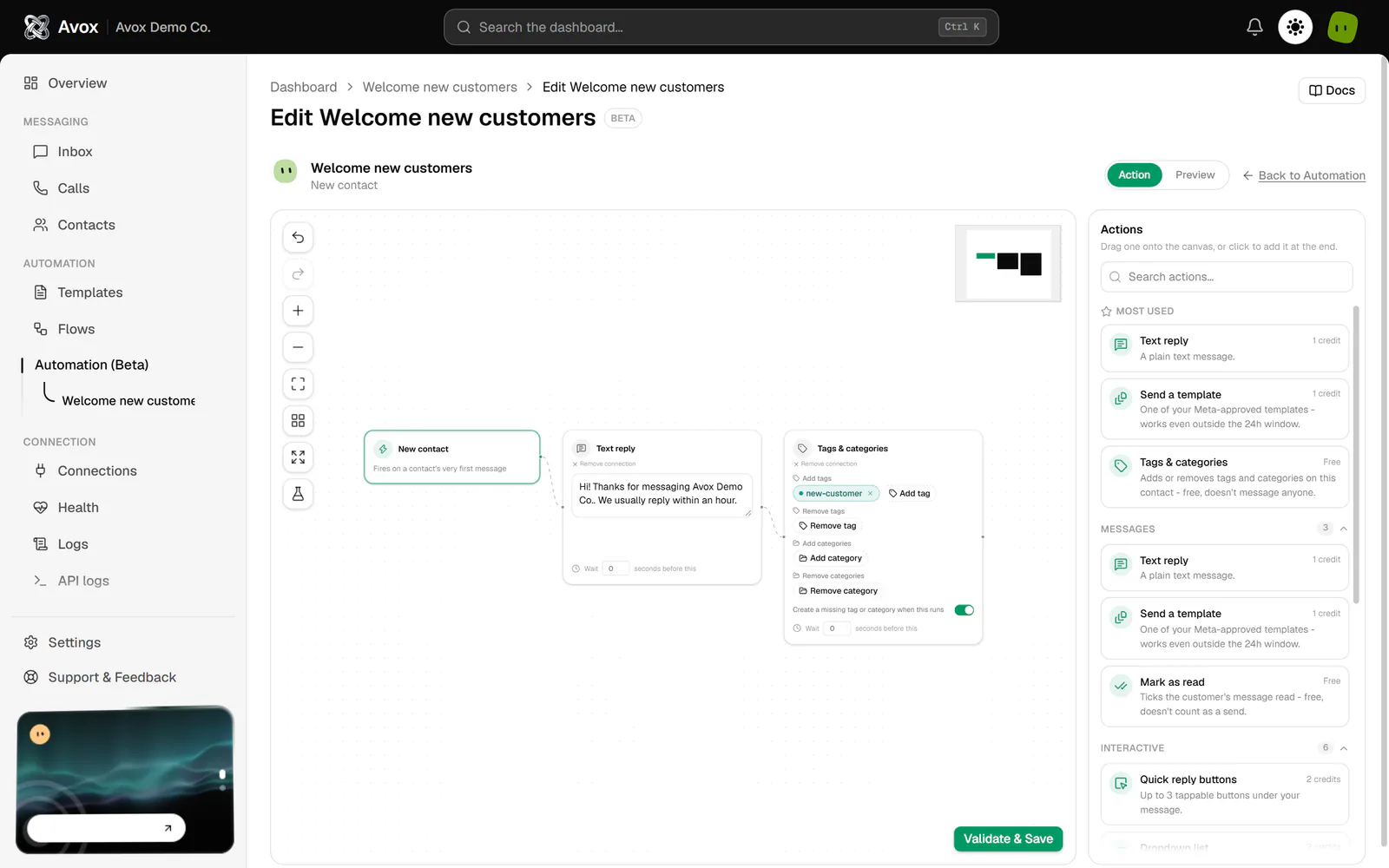
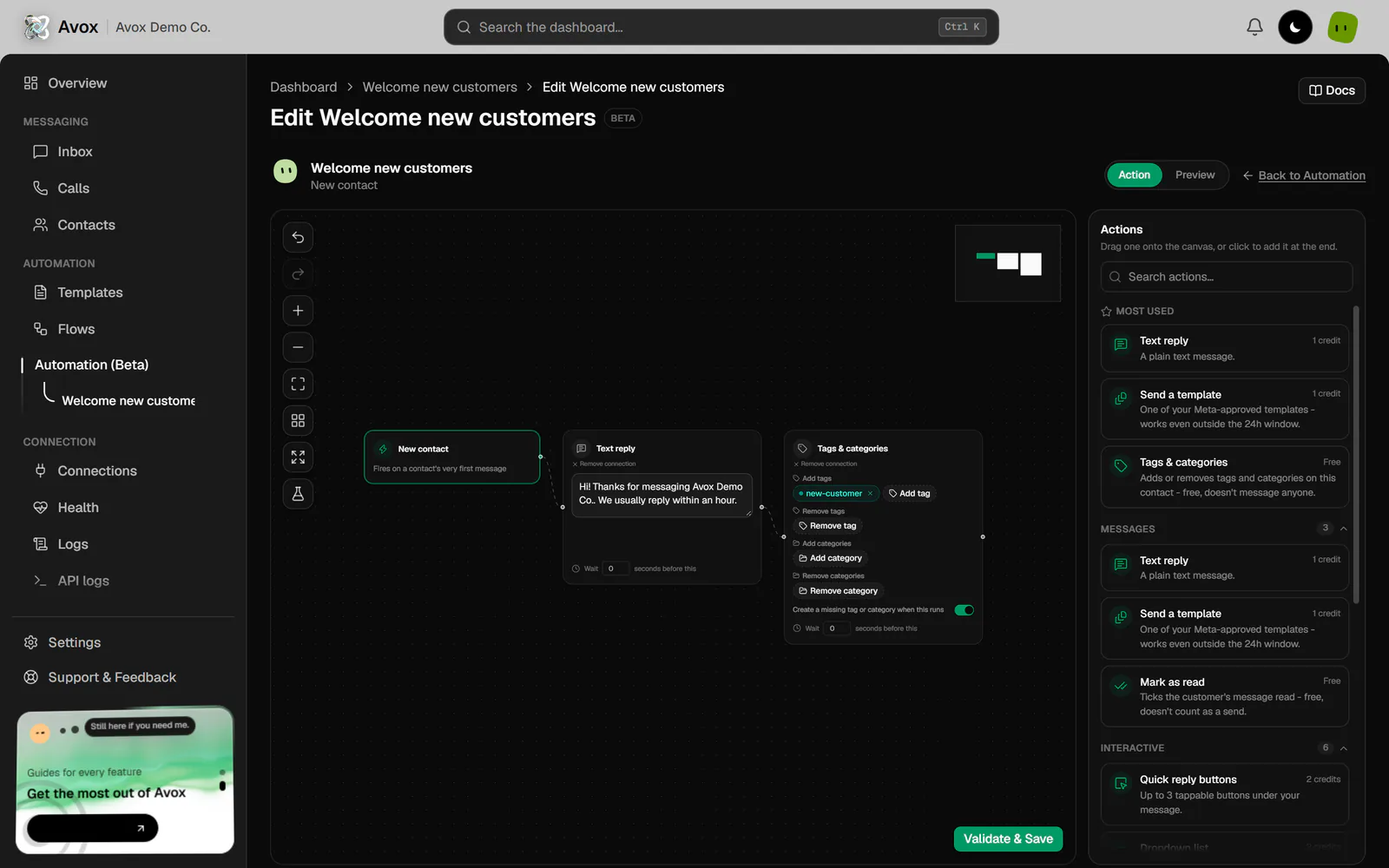
- The trigger box (green, on the left) shows what starts the automation. For a Keyword match automation, its keywords are chips you can edit right on the box.
- Action boxes follow the trigger from left to right, in the order they run. Each one is edited inside its own box - there's no separate settings window.
- Condition boxes (amber) check the message for keywords and can send it down a different path. See Conditions and branches.
- The Actions panel on the right is where new actions come from.
- The minimap (top right) shows the whole canvas; drag inside it to move around.
- The toolbar (top left) holds undo, zoom, layout, fullscreen, and testing.
With no actions yet, the canvas shows "Add at least one action before turning this automation on".
New to the builder? The Create an automation walkthrough builds a complete automation step by step.
Adding actions#
The Actions panel lists every action. Its hint reads "Drag one onto the canvas, or click to add it at the end."
- Search actions… searches every group at once, by name, description or a related word (for example "pdf" finds Send a document, "crm" finds Send to webhook). With no match it reads "No actions match" and your search.
- Most used shows up to three action types your Switchboard uses most.
- Groups - Messages, Interactive, Media, Contact, Flow control and Team & integrations. Click a group's name to open or close it; the number next to it is how many actions it holds. Messages and Interactive start open, and the panel remembers what you opened.
- Premade lists the premade automations. Clicking one adds its actions to this automation.
Each action shows its credit cost ("1 credit", "2 credits" or "Free"). The list scrolls inside the panel: a scrollbar appears while there's more to see, and the top or bottom edge fades out.
Click an action to add it at the end of the chain, or drag it onto the canvas to drop it exactly where you want it. A new box never lands on top of another; it's nudged clear. Every action is described on Actions.
Editing an action#
Each box has its own fields - reply text, buttons, list options, a link or file, a Flow or template to pick, tags and categories, or a contact field. Hover a box to reveal two icons in its corner:
- Duplicate action - adds a copy of the box.
- Remove action (x) - deletes the box.
In a Tags & categories box, each of its four lists (add tags, remove tags, add categories, remove categories) has its own dropdown of your Switchboard's tags (tag icon) or categories (folder icon). Type a name that doesn't exist yet and choose Create tag or Create category to make it on the spot.
Most actions also have a Wait field at the bottom: "Wait 0 seconds before this". Set 1 - 30 seconds to pause before that action runs, for example to space out two messages. For longer pauses, add a Delay step. A Stop box has no outgoing connection: nothing after it runs on that path. Select one or more boxes and press Backspace or Delete to remove them; hold Shift, Ctrl, or Cmd to select several.
Order and connections#
Actions run in order along the chain, joined by lines. Drag a box anywhere on the canvas to arrange it; its place in the chain doesn't change. Auto-arrange in the toolbar lays every box out in one neat left-to-right line.
A box can also show:
- Only reached via a branch - this action runs only when a condition's "else" path leads to it. A path that runs into it ends there - exactly where the canvas stops drawing that path.
- Not connected - drag any handle here to reconnect - the box is detached and won't run until something connects to it.
- Remove incoming branch - clears the branch line pointing at this box.
- Remove connection - moves the box to the end of the order, so it can be connected through a condition's "else" instead.
Conditions and branches#
Add Condition (if / and / or) from the Actions panel. In its box:
- 1
Choose what it checks
Message contains keywords to start with. The other options check the customer's reply after a Wait for reply or Ask a question step: Reply is exactly, Reply mentions any of, Customer tapped a button, Customer replied, and No reply before the wait ended. Each is explained on Actions. The steps below are for keywords; the other options ask for values or buttons in the same box, or nothing at all.
- 2
Choose AND or OR
AND - every keyword must appear. OR - any one keyword is enough. The label reads "of these keywords appear".
- 3
Add keywords
Type each keyword and press Enter, for example
urgent,refund,cancel. Add at least one. Matching ignores upper and lower case and looks for the keyword anywhere in the message. - 4
Read the summary
The amber line spells out what happens, for example: If the message contains "refund" or "cancel" → continue to the next step. Otherwise → stop here.
- 5
Draw the else branch (optional)
Drag from the handle on the bottom of the box to another action. When the keywords don't match, the automation jumps there in place of stopping. The line is labelled else.
A condition has two bottom handles: else, and a second backup. Only one is ever used. The backup takes over automatically if the action the main else points at is deleted, so removing a box never silently turns a branch into a dead end. Click a branch line to select it and reveal its remove button, or use Remove next to it in the condition's box.
The builder blocks branches that would be confusing:
- An action can be the target of only one branch. Dragging a second branch onto it shows "That action is already another branch's target - each action can only be reached one way."
- An else branch can't point at the action the condition already continues to on a match ("That's already where this condition goes when it matches - pick a different action to branch to.").
- Two conditions that check exactly the same keywords with the same AND/OR, without branching, are rejected as duplicates (AVX-3077).
Conversations: asking and waiting#
Ask a question and Wait for reply let an automation pause for the customer and then branch on what they said. A typical layout:
- 1
Ask
An Ask a question box with the question, up to 3 answer buttons, and where to save the answer (a contact field, a tag, or nowhere).
- 2
Check the answer
A condition right after it - for example Customer tapped a button with "Confirm" picked. The match path continues with what to do for that answer.
- 3
Handle the rest
Draw the condition's else to another condition (say, Customer tapped a button with "Reschedule"), and that one's else to a final message for anything else - including no reply.
Each path ends where the canvas stops drawing it, so put each answer's own steps right after its condition and the branch targets after them. The premade Lead qualifier, Appointment confirm or reschedule and Feedback with follow-up automations are built exactly this way - add one from Premade to see the layout. In Test this automation, a wait is treated as the customer replying with your sample message, and a Delay is skipped.
A Delay step is different from a wait: it pauses for a set time whether or not the customer writes, then carries on - for example the Out of hours away message premade replies at once and follows up 12 hours later.
The toolbar#
Testing on the canvas#
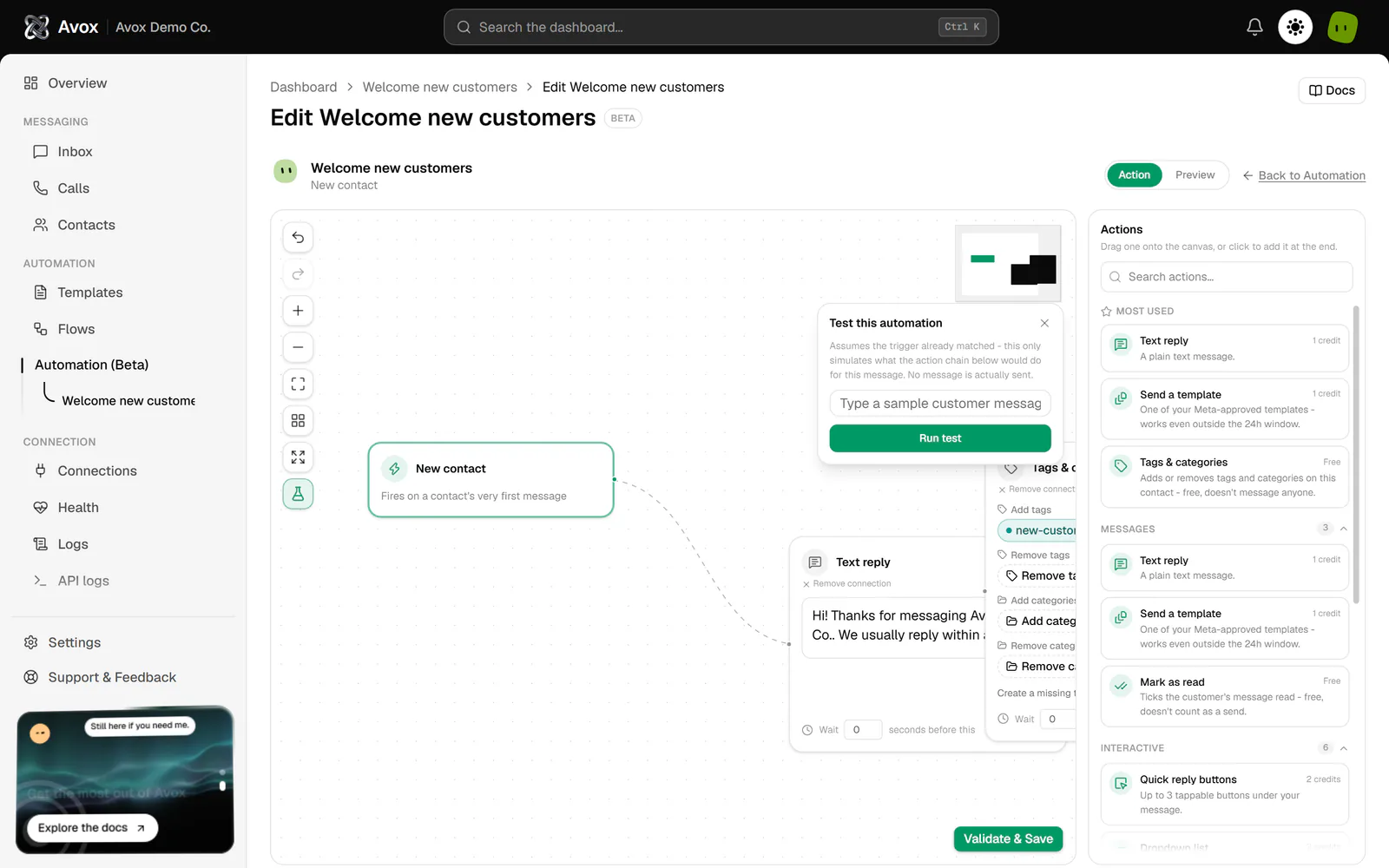
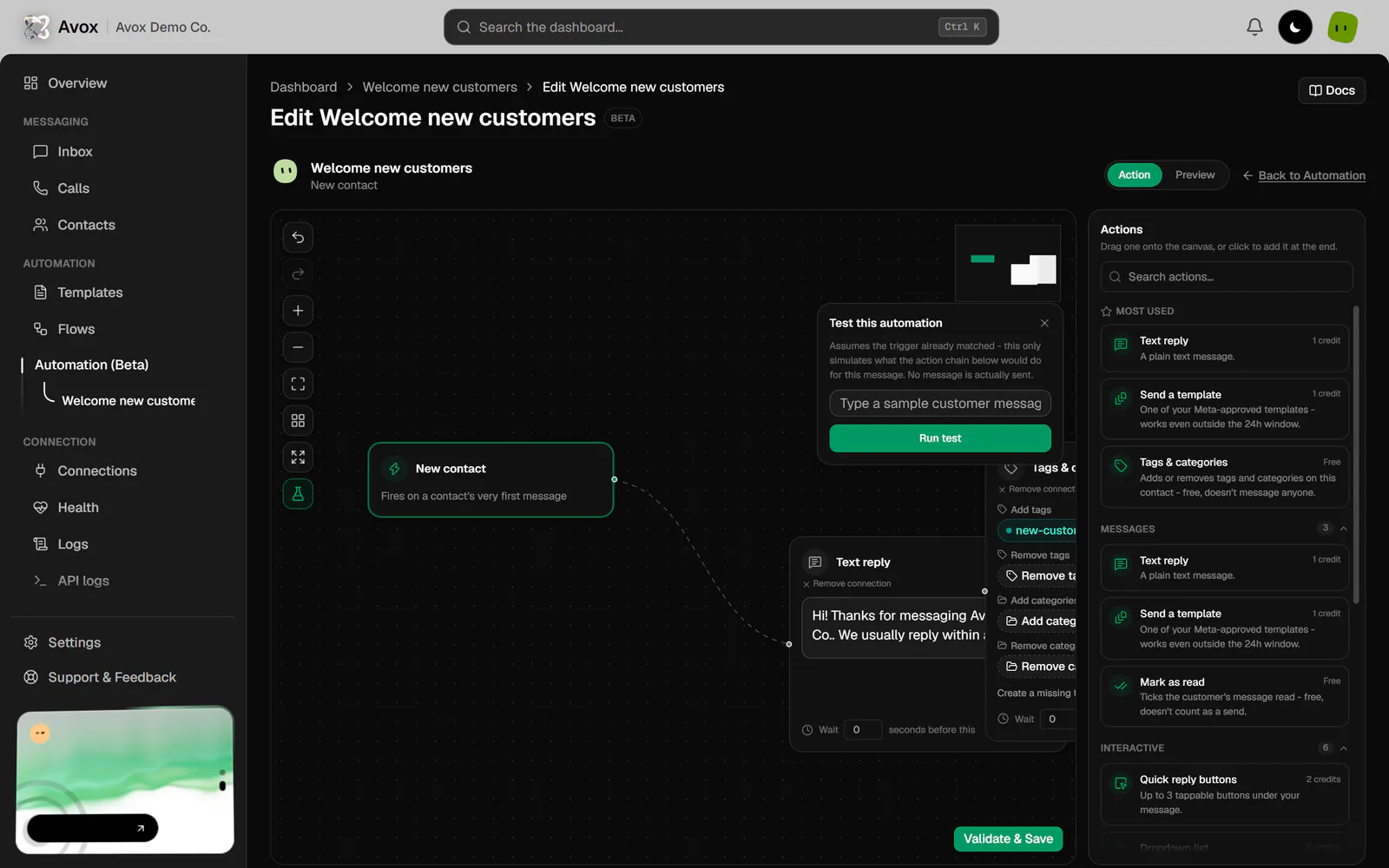
Test this automation opens a small panel: "Assumes the trigger already matched - this only simulates what the action chain below would do for this message. No message is actually sent."
- 1
Type a sample message
For example "Can I get a refund?".
- 2
Click Run test
Each step lists what happened - ran, matched → continued, didn't match → branched, or didn't match → stopped here - and the boxes on the path light up on the canvas. If nothing would run, it says "Nothing would run - the chain stops immediately."
Testing costs no credits and sends nothing.
Action and Preview tabs#
Above the canvas, the action and preview tabs switch between the canvas and an animated preview that plays a sample customer message through your actions. For a Keyword match automation the sample message includes your first keyword, so the preview follows the real path. Messages appear in the phone (media, locations, contact cards and link buttons as a short placeholder), and the checklist next to it shows each message's credit cost and what each free step does ("Adds a team note", "Posts to your webhook", "Ends the automation").
The checklist marks each step as it plays:
When the automation has keyword conditions, Validate & Create (or Validate & Save) plays more than one test, one after the other: the first sample, then a message that matches a condition's keywords and one that doesn't ("Just saying hello!"). The line above the phone reads, for example, "Test 2 of 3" with what's being tried. Each test ends with "Looks good - validated against this test".
Saving#
In the wizard - click Validate & Create (it's enabled once the canvas has at least one action). Avox checks every action, plays the preview, then creates the automation. Back returns to the Name step without losing anything. See Step: Build.
On the Edit page - changes save automatically a moment after you stop editing. The avatar shows "Saving…", then "Saved." (or "Couldn't save that." with AVX-3070). Autosave waits while an action is still incomplete. Validate & Save runs the full checks and the preview first, then saves.
The checks that run before creating or saving:
On the Edit page the same messages end in "before saving".
Last updated